SUMMARY:
This technical note describes how to determine the size of caches on the Intelligence Server Machine. It exemplifies how to calculate the size of report and document caches on disk using two methods. Then it describes a method to determine the memory footprint report caches have on the Intelligence Server.
ACTION STEPS:
Calculating the size of cache saved into disk
While is true Desktop’s cache monitor could be used to determine the size of a few caches in disk it becomes unpractical when these increase to hundreds or thousands. In these scenarios is better to use one of the following two methods.
Method 1: Summing up of the .che files’ size on disk
This first method requires knowing the exact location and types of cache files within the Intelligence Server.
There are two types of cache files generated by the Intelligence Server:
1) Report Caches
Windows default location:
C:\ProgramFiles\MicroStrategy\IntelligenceServer\Caches\ServerDefinition\Server<#IntelligenceServerMachine Name#>_P<#Project GUID#>\
Unix/Linux default location:
/<mstr_home_dir>/IntelligenceServer/Caches/ServerDefinition/Server<#IntelligenceServerMachine Name#>_P<#Project GUID#>/
2) Document Caches
Windows default location:
C:\ProgramFiles\MicroStrategy\IntelligenceServer\Caches\ServerDefinition\Server<#IntelligenceServerMachine Name#>_P<#Project
GUID#>\RWDCache\
Unix/Linux default location:
/<mstr_home_dir>/IntelligenceServer/Caches/ServerDefinition/Server<#IntelligenceServerMachine Name#>_P<#Project GUID#>/RWDCache/
Follow these instructions to calculate the files’ size on disk.
a) Navigate to the corresponding folder path where caches are stored on the Intelligence Server machine.
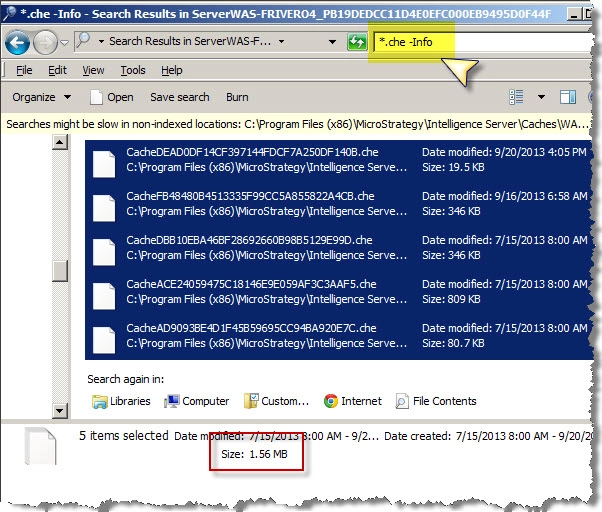
b) For report caches, sum up .che files’ sizes

In Windows, you can specify in the Search box a command to search specifically for *.che files. However, *Info.che will included in the result. In order to exclude them type in the Search box:
*.che -Info
Then Ctrl-A to select all the files and have Windows Explorer display the total
In Unix/Linuxexecute the du command to get the disk usage of such files as follows:
du --exclude .*Info.che --exclude .*.idx -h –s
The above command will exclude the Info.che files as well as idx files and return the total for the current directory in Megabytes:
1.6M
c) Repeat the above process for document caches. Sum up .rwdcfiles’ sizes within the ‘RWDCache’ subfolder
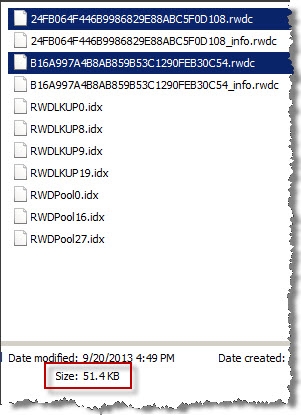
The Unix/Linux command would be:
du --exclude .*Info. rwdc --exclude .*.idx -h –s
Method 2: Cache Monitor and Command Manager
Command Manager can be used to generate a list of caches with their properties and size among them.
a) In Strategy Command Manager execute the following commands:
LIST ALL REPORT CACHES FOR PROJECT "MyProject";
LIST ALL DOCUMENT CACHES IN PROJECT "MyProject ";
b) Export the result to Excel and sum the ‘Cache File Size (KB)’ column

You will notice that the values returned by Command Manager slightly differ with the cache saved to disk. The Cache monitor (and Command Manager) displays the cache size based on the call it makes to get an estimated size. This mismatch results from a file compression of the cache in disk.
VIDEO:
You can find a detailed video on how to calculate cache size on Windows and Unix/Linux here: Tech Note 44790. Action Steps
Calculating the size of report caches in memory
Method 1: Unloading of caches to disk
To estimate how much the caches in memory are contributing to the actual memory usage the caches could be unloaded to disk. Then memory decrease should be registered via the Performance Monitor.
Method 2: Performance Counters
Performance counters can be enabled to learn about the memory footprint of different Strategy components and features. Enabling report cache memory usage in Strategy Diagnostics and Performance tool will help to determine the total memory usage by report caches in the Intelligence Server.
Follow is a list of performance counters that can also be useful:
• Memory Used by Report Caches
• Number of Report Caches
• Number of Report Caches in Memory
Below is the output from enabling ‘Memory Used by Report Caches’ and ‘Number of Report Caches in Memory’ on the Intelligence Server machine:

TO LEARN MORE:
Related Technical Notes:
Product Manuals:
System Administration Guide, Improving Report and Document Response Time: Caching
Internet Resources:
Information on how to use the du command:
