SUMMARY:
This article explains how to use Strategy Cube Advisor with Strategy Intelligence Server Universal. Included are steps to enable dynamic sourcing for the project, create the metric levels log, and run the Cube Advisor Tool.
DESCRIPTION:
Strategy Cube Advisor is a tool introduced in Strategy to assist in the use of the Dynamic Sourcing functionality in Strategy OLAP Services. Dynamic Sourcing examines the structure of a report to see if any existing Intelligent Cube in the system can satisfy the reporting requirements; if so, the report will use previously collected Intelligent Cube data for faster performance.
To maximize the use of Intelligent Cubes for standard Strategy reports, Intelligent Cubes may be designed specifically for reports that are frequently executed. Strategy Cube Advisor examines a set of existing Strategy reports and recommends corresponding Intelligent Cube designs. You must complete a few prerequisites before using Cube Advisor to recommend and create Intelligent Cubes to support dynamic sourcing. These pre-requisites include:
Follow these steps to enable Dynamic Sourcing for the project:
1. In Strategy Developer, log into a project as a user with full administrative privileges.
2. Right click the project and select Project Configuration.
3. In the Categories list, expand Intelligent Cubes and select General.
4. Select the Enable dynamic sourcing and Make Intelligent Cubes available for dynamic sourcing by default check boxes.
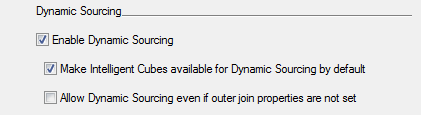
5. Click OK to save your changes to the project.
Create the Metric Levels Log:
1. On a Windows machine, Open the Start menu and select Programs > Strategy Tools > Diagnostics configuration to open the Diagnostics and Performance logging tool. On a Linux/Unix machine, the mstrdiag program is located in the bin folder in the <MSTR_HOME_PATH>\bin folder.
2. Select the CastorServer Instance in the Select Configuration dropdown and uncheck the Use Machine Default Diagnostics Configuration option.
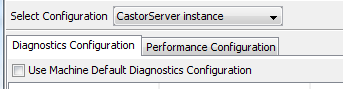
3. On the Diagnostics Configuration tab, Locate the Dynamic Sourcing Component and the Metric Levels log dispatcher. Select the checkbox in the Console Log column.

4. For the Metric Levels Log dispatcher, click the drop down in the File log column and select <New>. The Log Destination editor opens.
5. In the File name field, type a name for the metric levels log. In this case the log is called MetricLevelslog.
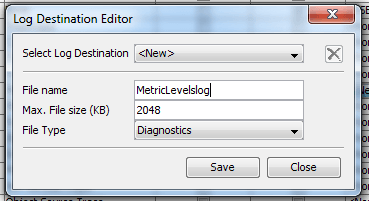
6.Click Save and Close in the Log Destination Editor. The log will be written to the newly created MetricLevelslog.
7. In the Diagnostics and Performance Logging Tool, Select File > Save. The metric levels log is created in the log directory. On Windows, the default log directory is C:\Program Files\Common Files\Strategy\Log. On Unix\Linux, the log directory is created in the <MSTR_HOME_PATH>\log folder.
Use Cube Advisor to create Intelligent Cubes:
1. Create a report with the year and quarter attributes and the profit metric.
2. Create a second report with the year and quarter attributes and the revenue metric.
3. Run both reports after enabling the metric levels log.
4. On the windows machine, open the start menu and select Programs > Strategy Tools > Cube Advisor. The Cube Advisor Tool opens.
5. Select Tools > Options.
6. In the Options menu, Specify the location of the Metric Levels log file.
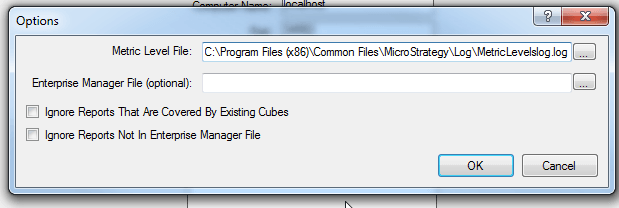
7. The user can choose to ignore reports that already connect to an Intelligent Cube by checking the "Ignore Reports that are covered by Existing Cubes" checkbox.
8. Click OK to close the Options window and return to Cube Advisor.
9. Enter the Computer Name, Port, user name and Password to log into the project source. The user must must have the privileges to execute reports, create folders, and create Intelligent cubes.
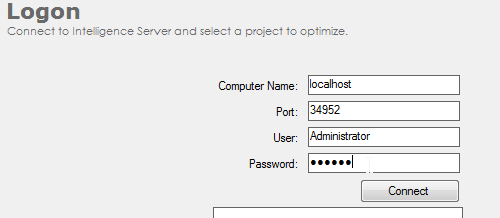
10. Click Connect to display the projects.
11. Select a Project and click Connect to Project.
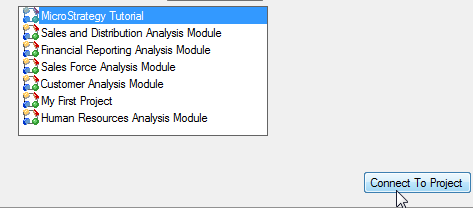
12. Expand the folders of the project to locate the reports to analyze with Cube Advisor.
13. Select the desired reports and click Get Cube Recommendations. The Analyzing Reports page opens and the report analysis begins.

14. Once analysis is complete, the Cube Recommendation page opens. This page allows you to review the recommended Intelligent Cubes and select which Intelligent Cubes to create. In this case, Cube Advisor recommends creating an intelligent cube with the year and quarter attributes and the profit and revenue metrics which can be used for both reports.
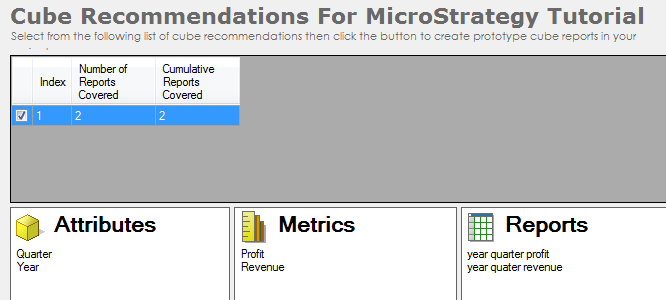
15. Select the checkboxes for the Intelligent Cubes to create and click Create Cube Design. The Browse for folders dialog box opens.
16. Select a folder to create the Intelligent Cubes in. Click OK.
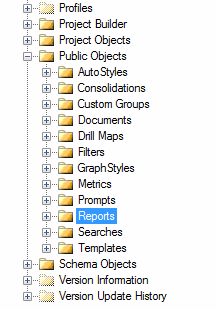
17. Select the option to Design Intelligent cubes with outer join properties or Allow Dynamic Sourcing without enabling outer join properties.
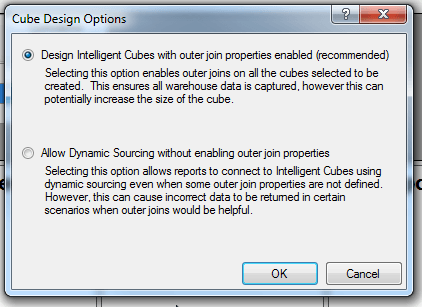
18. Click 'Ok' to begin creating the Intelligent Cubes. The creating cubes dialog box opens. Once the dialog box displays a success, the Intelligent cubes can be seen in the Strategy Project. Each cube is created in a separate folder within the folder that is selected. Each folder also contains shortcuts to all the reports that can connect to the Cube using dynamic sourcing.

TO LEARN MORE:
Related Technotes:
KB30243 "None of the selected reports can make use of Dynamic Sourcing" message appears after analyzing reports in Strategy Cube Advisor"
KB44465 "How to use metric level logs with Cube Advisor in a clustered Strategy environment."
KB30187 "Index was outside the bounds of the array" error occurs when using Strategy Cube Advisor with a Strategy Enterprise Manager data file"
Related Product Manuals:
Strategy OLAP Services Guide. Chapter 8 Dynamic Sourcing. Section: Using Cube Advisor to Support Dynamic Sourcing
