SYMPTOM:
Log in a project source in Strategy Developer 9.x. Go to Administration -> Configuration Managers -> Database Instances, and edit a database instance. Modify a database connection, and find that the Data Source Name (DSN) selected changes to capital, as shown below:

CAUSE:
This behavior suggests that this Data Source Name cannot be found on the local machine: the DSN name has been changed, or the DSN has been removed.
NOTE:
In this situation, if there is any report that uses this Database Instance as data source, the error "Data source name not found and no default driver specified" will be returned when running the report, as described in the technical note below:
KB30340: "Data source name not found and no default driver specified." error is given when executing reports via a 2-Tier connection but no error is given when executing the same reports via 3-Tier in MicroStrategy Desktop 8.x.
The following entry will be found in the DSSErrors.log file:
Sample Code/Error
Error: SQL Generation Complete
QueryEngine encountered error: Connect failed.
Error type: Odbc error. Odbc operation attempted: SQLDriverConnect. Data source name not found and no default driver specified Connection String: DSN=<Old_Data Source Name>;UID=xxxxxxx;..
Error in Process method of Component: QueryEngineServer, Project EDWPHASE1, Job 10209, Error Code= -2147212544.
ACTION:
Go to edit the Database Instance -> Database Connections, and select the correct DSN, as shown below:
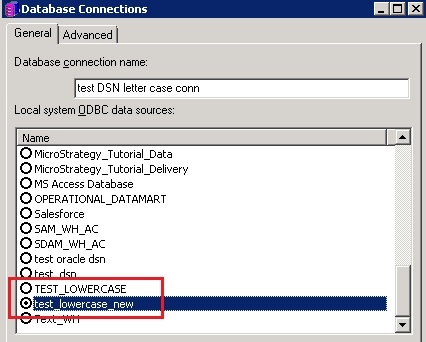
If the required DSN is not found in the list, go to create a new DSN, and then configure the database connection to point to the correct DSN.
NOTE:
After selecting any existing DSN on local machine and saving the database connection, the previous DSN with capital letter will no longer display in the list.
