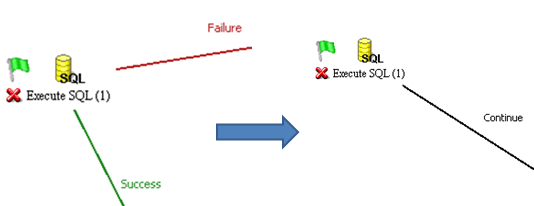
SYMPTOM:
In Strategy System Manager 9.3.1, users notice that in certain scenarios executing SQL results in a "failed to execute" message when the SQL has actually executed successfully on the database.

NOTE: This issue is isolated to executing SQL on SQL Server databases when the out of the box SQL Server procedure sp_start_job is used to kick off a job. Executing jobs using other SQL Server procedures such as sp_end_job do not result in a failed message.
It is also important to note that even though the failed message appears, the database correctly kicked off the job.
CAUSE:
This is a known issue in Strategy System Manager 9.x when using the SQL Server procedure sp_start_job to execute a job on a SQL Server database.
ACTION:
This issue has been fixed in Strategy 10 GA. Upgrade to this version to take advantage of the fix.
WORKAROUND:
Since the SQL is executed successfully on the database regardless of the failed message, one option is to not use the success and failed connectors as it will always go down the failed connector path (even though it succeeded). Once the job is setup as desired and it has been tested and confirmed to work, simply use a single connector continue connector so it will continue down the desired workflow as though it succeeded.