SYMPTOM
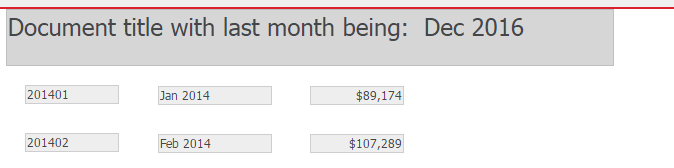
When adding dynamic text for a given attribute in the dataset to a "header" section of the document, the dynamic text box will always resolve to the first attribute element in the dataset. There is no option to configure the text box to resolve to the last or a specific attribute element.
For example, the following document contains a dataset with the attribute Month and metric Profit. In the document header section, dynamic text for Month DESC attribute form is displayed as {Month@DESC}. The detail section lists all attribute elements available in the dataset.
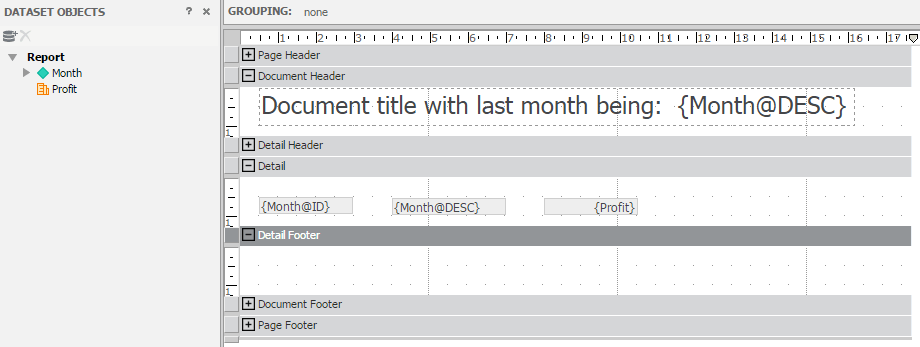
In consequence, the document header section resolves the dynamic text to the first attribute element in the dataset, which is "Jan 2014" in this case.

CAUSE
This is by design and the behaviour cannot be configured manually. There is however a workaround that will help achieving the desired behaviour by following the steps in below workaround section.
ACTION
An enhancement request has been logged to review manual configuration of this behaviour. Contact technical support for a status update on this enhancement.
WORKAROUND
To achieve displaying the last or a specific attribute element, one approach would be to use a selector that targets the text box and selects the last available element. As seen on the screenshot below, we must place the title textbox on a panel. Next, insert a selector and target the panel stack.
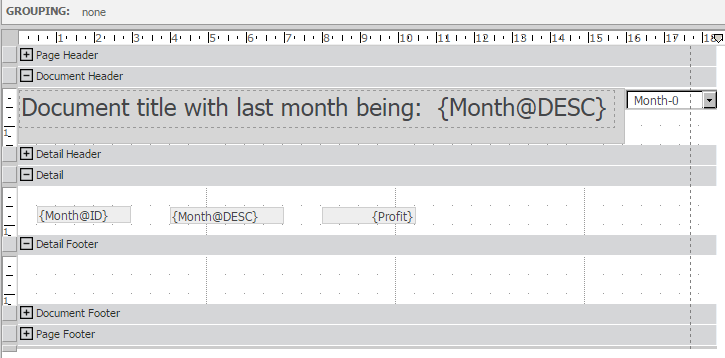
Set the selector to slice selector (uncheck "Use selector as a filter" option) and choose "Use Last" for current state setting.
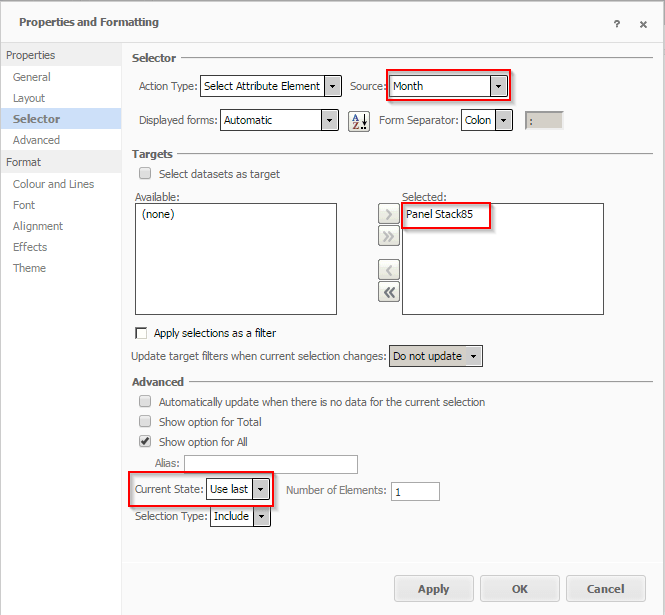
Subsequently, when executing the document, note that instead of the first element, the last element is resolved by the dynamic text box.
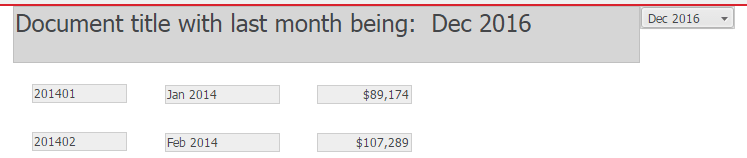
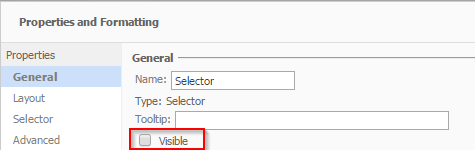
Finally, you can hide the selector control and format the panel stack to blend into the background.