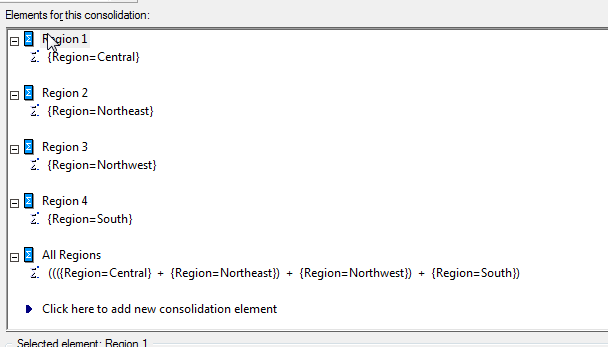
A scenario may arise when a consolidation is defined with many elements, one of which is defined based on one or more existing elements. For example, a consolidation based on Region may be defined as:
Element 1: Central
Element 2: Northeast
Element 3: Northwest
Element 4: South
Element 5: Central + Northeast + Northwest + South
In this scenario, when a metric performs a calculation the results may display correctly for the first 4 elements, but incorrectly for the last element. The behavior for the final element's calculation may be a sum of all the other elements values and may not be the desired result. Therefore, this can be resolved by setting the metric that is performing the calculation as a "smart metric," and by modifying the evaluation order so that the metric calculates after the consolidation. This procedure is demonstrated below:
The following procedure describes how to set a metric to a "smart metric" and how to modify the evaluation order so that the final element calculates and displays properly. This example was performed using the Strategy Tutorial project.
1. Create a consolidation with the element definitions described above, and by the screenshot below:
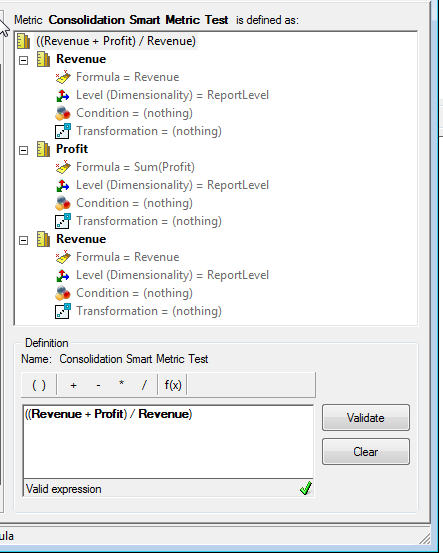
2. Create a metric that performs a more advanced calculation like the one below:
3. Enable the "Allow Smart Metric" setting. This enables the metric's calculation to be performed in the Analytical Engine, allowing the metric's evaluation order to be modified.
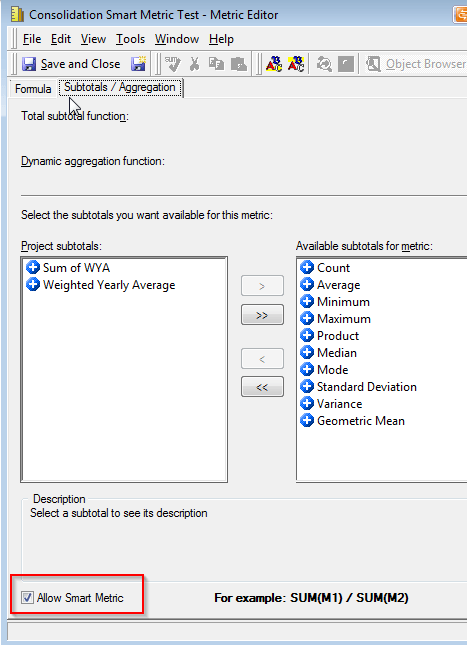
The "smart metric" setting is usually not able to be set in the instance of a simple metric definition, and would not affect the outcome in this instance. For example, a metric defined as Sum(Revenue) would not need to have its order evaluated because the last element would merely be the sum of the first 4 elements, and the output would be the desired result.
4. Modify the evaluation order of the report so that the metric calculates after the consolidation, which should output the desired result.
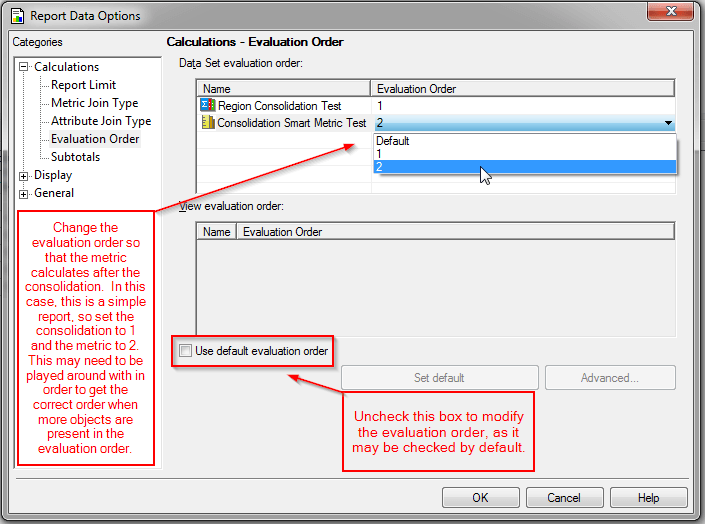
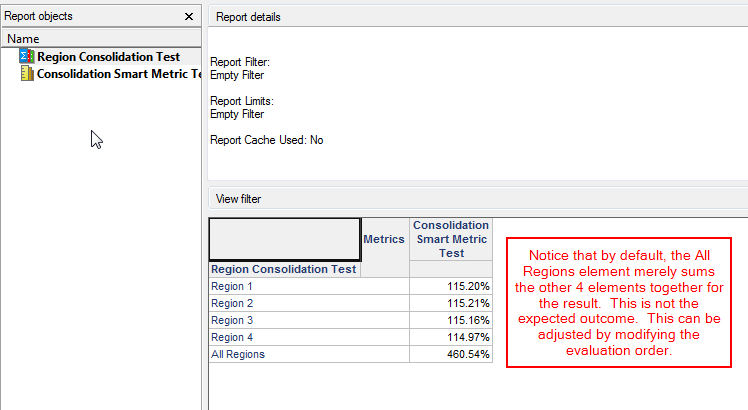
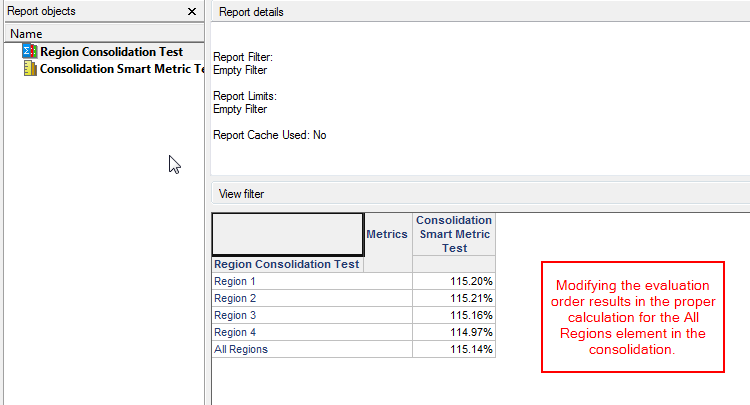
5. Notice the results. Before the evaluation order is set the last element is merely a sum of the other 4. After the evaluation order is set the proper value is displayed.
Before modifying evaluation order:
After modifying evaluation order:
KB44979
