QUESTION:
How to delete users in bulk using a configuration package in Object Manager 9.x.
ANSWER:
During user administration and management, there may be a situation that arises when many users need to be deleted. In the event that there are only a few users, then usually the normal delete method in Desktop can be used. In the event that hundreds or thousands of users need to be deleted, however, the normal method to delete users could take a very long time. Therefore, this technical note aims to describe how to delete users in bulk in order to help alleviate that situation using a configuration package in Strategy Object Manager 9.x.
A configuration package needs to be created in Object Manager with the specific users who need to be deleted. Set the action to Delete and save the configuration package. Next, import the configuration package into the project source in order to delete the users in bulk. The steps below describe the process in more detail:
1. Open Object Manager, and connect to the desired project source in which a configuration package will be created to delete users.
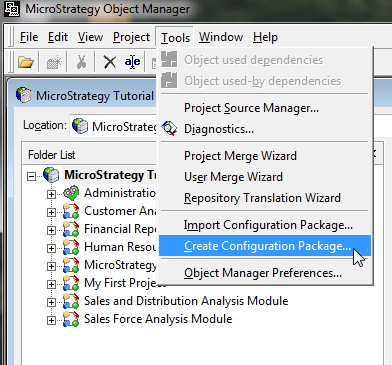
2. Begin creating a configuration package by navigating to Tools\Create Configuration Package.
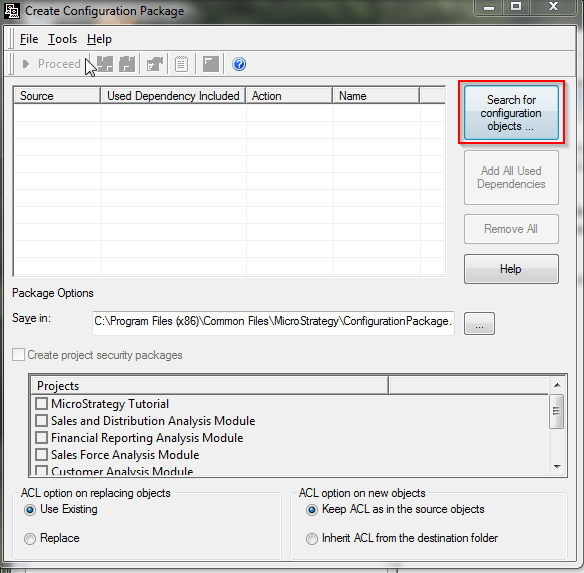
3. In the Configuration Package window, click "Search for Configuration Objects".
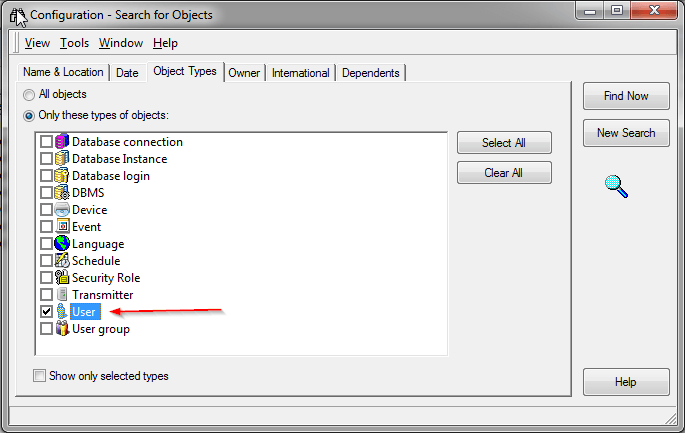
4. In the search dialog box that pops up, select the Object Types tab and narrow the search down to only Users by selecting the checkbox next to it.
5. Return to the Name & Location tab to search for all or specific users that are going to be deleted.
6. Select the desired users to bring over to the configuration package for deletion by dragging and dropping them from the search dialog box and into the configuration package window. Using CTRL + Left Click and SHIFT + Left Click becomes helpful here in order to pick and choose multiple users at once.
7. Once the desired users are dragged and dropped into the configuration package, select all the users by SHIFT + Left Clicking starting with the top user and ending with the bottom user. Then, right click on any user and navigate to Set Action\Delete. This will set the action for the users to delete when the package is imported.
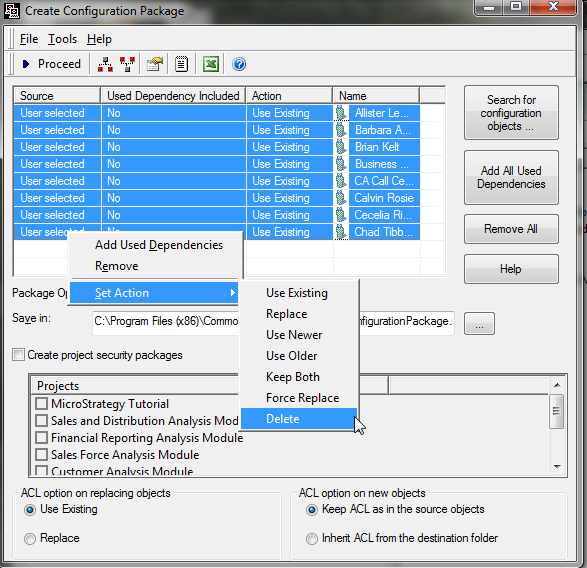
8. Modify the file name shown in the Save in: text box if desired, otherwise click the Proceed button at the top left to create the configuration package.
9. Next, in order to import the package and complete the deletion of users, navigate to the Tools\Import Configuration Package option.
10. Click the "..." button by the Selected package: text box to navigate to the package created in the previous steps. Select any undo package options necessary, and click Proceed to apply the package.
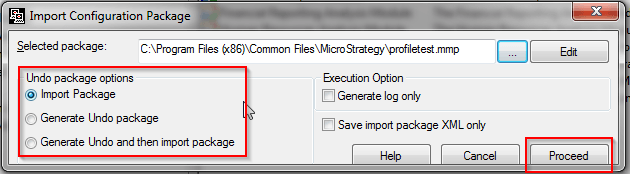
11. Ensure a message stating that the package was applied successfully is seen, and navigate to the user manager within the project source to ensure that the package deleted the users.
Note: This deletes the user objects and does not delete the unlinked profile folders, objects within those profile folders, and subscriptions dependent on those objects associated with them. A useful method to delete the profile folders, objects therein, and dependent subscriptions for users that have been deleted can be employed using Command Manager by referring to the following tech note:
TN: 37186: How to identify and delete profile folders of deleted users through Command Manager 9.x
The method described in the above tech note will delete all objects within the unlinked profile folders and all subscriptions dependent on the objects within the unlinked profile folders, provided no objects outside of the unlinked profile folders depend on the objects inside of the unlinked profile folders. Running the Command Manager procedure described above will result in an error ("<object type>" object (ID: XXX) cannot be deleted because other objects depend on it.) if there are objects outside of the unlinked profile folders that are dependent on objects inside the unlinked profile folders, unmap or delete those objects before proceeding.
