EducationSoftwareStrategy.com
StrategyCommunity

Knowledge Base

Product

Community

Knowledge Base

TopicsBrowse ArticlesDeveloper Zone

Product

Download SoftwareProduct DocumentationSecurity Hub

Education

Tutorial VideosSolution GalleryEducation courses

Community

GuidelinesGrandmastersEvents
x_social-icon_white.svglinkedin_social-icon_white.svg
Strategy logoCommunity

© Strategy Inc. All Rights Reserved.

LegalTerms of UsePrivacy Policy
  1. Home
  2. Topics

The messages "Drop objects here to add rows" and "Drop objects here to add columns" appear in grids to users who do not have sufficient access to the metrics and attributes in MicroStrategy 9.x-10.x


Alejandro Olvera Velasco

Product Manager, Principal • MicroStrategy


This technical note explains how MicroStrategy applies object security which could end up with a misleading display to some users

Starting with the release of Strategy ONE (March 2024), dossiers are also known as dashboards.

Description

This knowledge base article explains how Strategy applies object security, which in turn could end up with a misleading display to some users. For example, some messages appear to users who do not have sufficient access to the metrics and attributes within a project. View below for more specific examples:
 
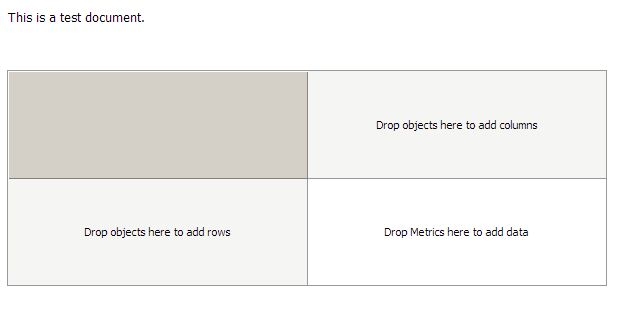
"Drop objects here" messages appears inside a grid placed in a document for some users.
This display persists even after exported to PDF.
 

ka0PW0000001JZEYA2_0EM4400000026U4.jpeg

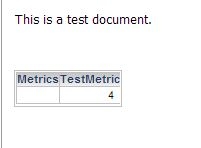
For some other users, this document displays an expected value:


ka0PW0000001JZEYA2_0EM4400000026UF.jpeg


Why is this happening?

These messages and functionality are working as designed.
Users who continue to see the "Drop objects here..." prompts do not have ACL to view the metrics.
 

Solution

  1. Grant "View" access to the metric objects.
  2. Restrict the view of the document itself from the users who are not supposed to see the metric value in the document.

You can find a detailed video on how to check the ACLs at :  Tech Note 62695. How to check/set ACL
 

Learning Resources

For more information about ACLs:

  1. Go to the System Administration Guide > Setting Up User Security.
  2. Choose Controlling access to application functionality.
  3. Then, choose Controlling access to objects: Permissions > Access Control list (ACL).

Interested in learning more about Documents or Dossiers? Visit the Learning Center on Community!
Or feel free to visit our documentation for more product information.


Comment

0 comments

Details

Knowledge Article

Published:

March 30, 2017

Last Updated:

March 21, 2024