SYMPTOM:
A user attempting to log into Strategy Web 9.x gets the following error with some projects but not others:

Error in login
Invalid Login Mode.
CAUSE:
The authentication modes for Strategy Web 9.x can be set in two different locations:
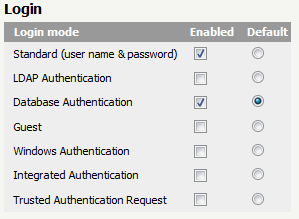
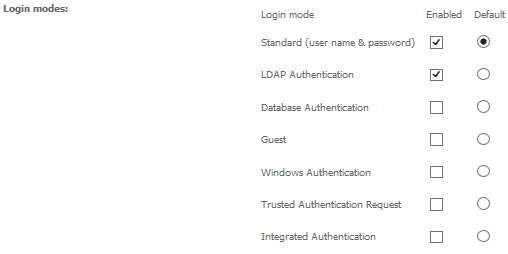
The Strategy Web project level preference overrides the login modes setup in the Strategy Web Admin page. This issue can be caused by a discrepancy between the login modes set up in the Strategy Web Admin page and the login modes setup at the project level.
Consider a scenario where the user must login first, then show projects, and two projects are available in Strategy Web 9.x, projects A and B. Project A has Standard and LDAP authentication enabled, while Project B uses the default - the default reads from the Strategy Web Admin page. The Strategy Web Admin page has Standard and Database Authentication enabled.
Under this scenario, a user can access the Strategy Web Main page and see only Standard and Database authentications enabled. If the user logs in using their Database authentication, but then tries to click on Project A, which doesn't have this authentication mode enabled, the error shown above will appear because the original authentication method used to display the projects page is disabled for that particular project in the project preferences, which overrides the settings from the Strategy Web Admin page.
ACTION:
In the Strategy Web Admin page > Default properties > Login, enable the setting 'Override project login mode settings'. This should force all projects to use only the authentication modes enabled in the Strategy Web Admin page. If this clears the issue, the Administrator must then login to the project facing the issue and specify the login modes in the Preferences page so they match those of the Strategy Web Admin page. This can be accomplished easily by clicking the "Load Defaults" button. These changes can also be forced to apply to all projects on the current Intelligence Server to ensure that the issue does not occur with other projects as well.
