SYMPTOM:
Consider the steps below:
1) A user creates a report in Strategy Developer 9.x or 10.x that contains multiple attributes along with a metric.
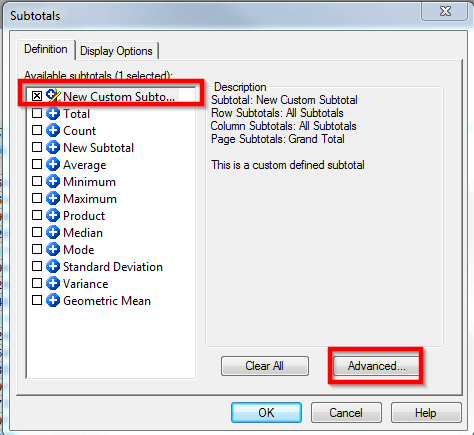
2) A custom subtotal is created in the Report Editor by clicking the Data menu > Subtotals... > Advanced as shown in the following screenshot:
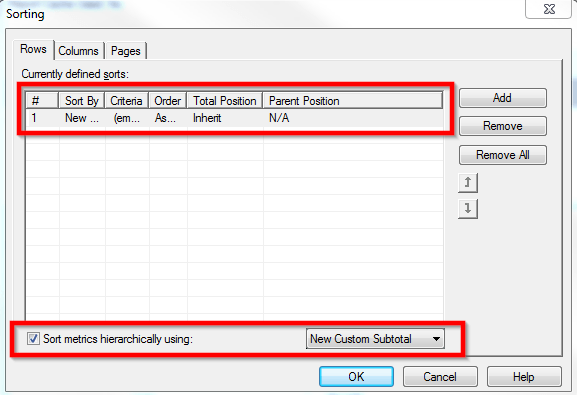
3) An advanced sorting condition is then created on the metric by clicking on the Data menu > Advanced Sorting... and the Sort metrics hierarchically using is set to the custom subtotal created in step (2), as seen in the following screenshot:
4) After the report is run, it can be noted that the rows are not sorted correctly by subtotal values. Instead, all subtotal rows are either placed at the top or bottom of the report, as seen in the following screenshot:

CAUSE:
This behavior is caused because Strategy Developer custom subtotals do not "stick" in the Advanced Sorting... window. If the user goes back into Data menu > Advanced Sorting... it can be seen that the custom subtotal is set back to None as seen in the following screenshot:

ACTION:
This issue was reviewed by our Technology team for feasibility and will not be scoped for a code fix in any upcoming Strategy release.
WORKAROUND:
The workaround to this issue is to initially set both a custom subtotal and a regular, out-of-the-box subtotal in the Data menu > Subtotals... window. For example, the out-of-the-box Total option can be selected in addition to the custom subtotal. Then the user can navigate to the Data menu > Advanced Sorting... and set the Total (or other out-of-the-box subtotal) in the Sort metrics hierarchically using... menu. Lastly, the user can go back to the Data menu > Subtotals... window and disable the out-of-the-box subtotal. Upon clicking OK, the setting in the Advanced Sorting... window will default back to the custom subtotal and "stick" permanently. The totals will then be sorted as desired as shown in the following screenshot:

