EducationSoftwareStrategy.com
StrategyCommunity

Knowledge Base

Product

Community

Knowledge Base

TopicsBrowse ArticlesDeveloper Zone

Product

Download SoftwareProduct DocumentationSecurity Hub

Education

Tutorial VideosSolution GalleryEducation courses

Community

GuidelinesGrandmastersEvents
x_social-icon_white.svglinkedin_social-icon_white.svg
Strategy logoCommunity

© Strategy Inc. All Rights Reserved.

LegalTerms of UsePrivacy Policy
  1. Home
  2. Topics

KB45175: The Managed Module dialog does not show the System.Web.SessionState.SessionStateModule when installing the MicroStrategy Web Part 9.4.x for SharePoint 2013


Community Admin

• Strategy


Users may follow the Enterprise Portal Integration Help for step-by-step instructions for how to install the MicroStrategy Web Part 9.3.x or 9.4.x for SharePoint 2013. However, users may notice that for Step 2(c)(iv), the System.Web.SessionState.SessionStateModule is not available on the drop-down list, or the drop-down list can be completely empty, like shown below:

SYMPTOM:
 
Users may follow the Enterprise Portal Integration Help for step-by-step instructions for how to install the Strategy Web Part 9.3.x or 9.4.x for SharePoint 2013. However, users may notice that for Step 2(c)(iv), the System.Web.SessionState.SessionStateModule is not available on the drop-down list, or the drop-down list can be completely empty, like shown below:
 

ka04W00000147pRQAQ_0EM440000002GYi.jpeg

 
CAUSE:
 
By default, SharePoint 2013 does not enable the Session State module.
 
ACTION:
 
Any method to add the Session State module will work. For example, users can choose to follow this Microsoft TechNet article:
 
http://technet.microsoft.com/en-us/library/cc754939(v=ws.10).aspx 
 
Users can also add the module via the SharePoint 2013 Powershell using the following instructions.

  • Launch the SharePoint 2013 Management PowerShell.
  • To verify its state, run the following command, like shown below:
ka04W00000147pRQAQ_0EM440000002GYw.jpeg
  • Sample Code/Error
    Get-SPSessionStateService

     
  • Run the following command to enable it, like shown below:
ka04W00000147pRQAQ_0EM440000002GYu.jpeg
  • Sample Code/Error
    Enable-SPSessionStateService -DefaultProvision


Now, in IIS, the module should show up correctly, like shown below:
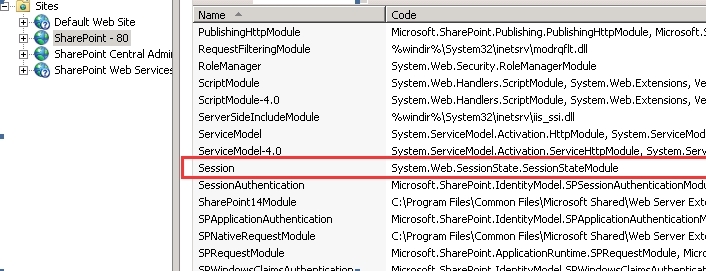
 

ka04W00000147pRQAQ_0EM440000002GYk.jpeg


Third Party Software Installation:
WARNING:
The third-party product(s) discussed in this technical note is manufactured by vendors independent of Strategy. Strategy makes no warranty, express, implied or otherwise, regarding this product, including its performance or reliability.


Comment

0 comments

Details

Knowledge Article

Published:

March 30, 2017

Last Updated:

March 30, 2017