EducationSoftwareStrategy.com
StrategyCommunity

Knowledge Base

Product

Community

Knowledge Base

TopicsBrowse ArticlesDeveloper Zone

Product

Download SoftwareProduct DocumentationSecurity Hub

Education

Tutorial VideosSolution GalleryEducation courses

Community

GuidelinesGrandmastersEvents
x_social-icon_white.svglinkedin_social-icon_white.svg
Strategy logoCommunity

© Strategy Inc. All Rights Reserved.

LegalTerms of UsePrivacy Policy
  1. Home
  2. Topics

KB4531: How to create a report that displays the top 'n' Item sales (variable) for each Subcategory within a Category in MicroStrategy Developer 9.x


Stefan Zepeda

Salesforce Solutions Architect • Strategy


How to create a report that displays the top 'n' Item sales (variable) for each Subcategory within a Category in MicroStrategy Developer 9.x

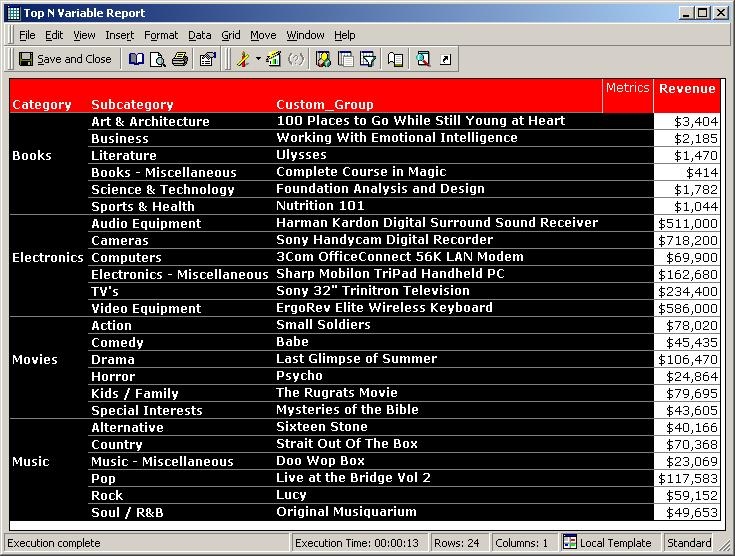
When creating a report in Strategy Developer 9.x that will display the top 'n' Item sales (variable) for each Subcategory within a Category , the final report will appear as follows, where the column Custom_Group is the variable that changes as the data in the warehouse is updated.
 

ka02R000000kcbcQAA_0EM440000002GIW.jpeg

 
In this case, the example uses Category, Subcategory and Item from the Strategy Tutorial project.
 
The report shows the Top 1 ranked Items by Revenue for each Subcategory within each Category.
 
Step 1:
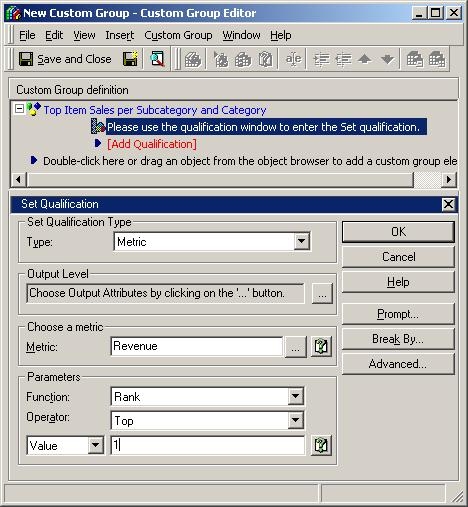
  • Create a new Custom Group by right-clicking on the right-pane of Strategy Developer > New > Custom Group or File > New > Custom Group.
  • Modify the existing Custom Group Element. (Re-naming it Top Item Sales per Subcategory and Category).
  • In this Custom Group Element, add a set qualification on the metric that will be ranked (in this case Revenue). Select the Rank Function (use percent, depending upon desired returned data), the operator Top (possibly Bottom, etc.) and the Value 1 (or 2, 3, 4, 5...).
     
    The metric qualification screen should resemble the image below:
     
ka02R000000kcbcQAA_0EM440000002GIQ.jpeg

 
Step 2:
Set the Output and Break by of the Custom Group by executing the following:
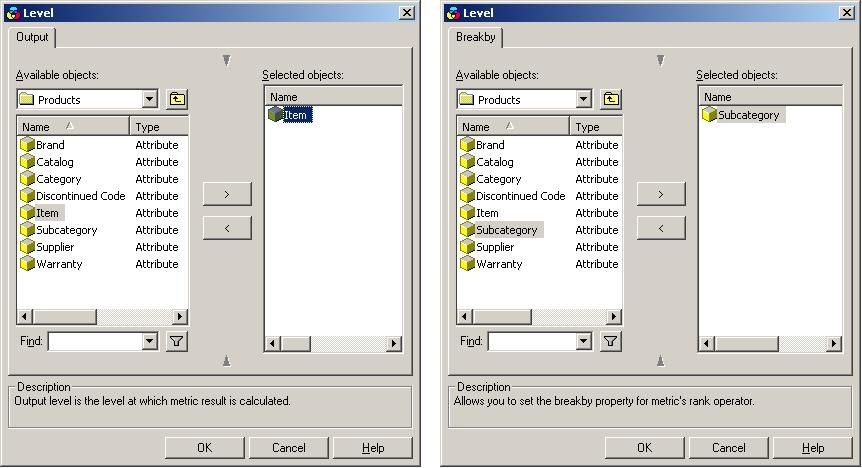
  • Select the "..." button in the Output Level section on the metric qualification window to select the output level attribute. After the Output Level Attribute is selected, click OK to return to the set qualification screen. The Output Level should be set to the desired level for the data to appear in the report (in this case Item).
  • Select the Break by button to the right of the Output Level Section. After the Break by Attribute is selected, click OK to return to the set qualification screen.The Break by should be set to the desired level to view the top 'n' Item variable (in this case Subcategory).
     
    The Output Level and Break by windows should resemble the following respectively:
     
ka02R000000kcbcQAA_0EM440000002GIS.jpeg
  • Click 'OK' for the set qualification.

 
Step 3:


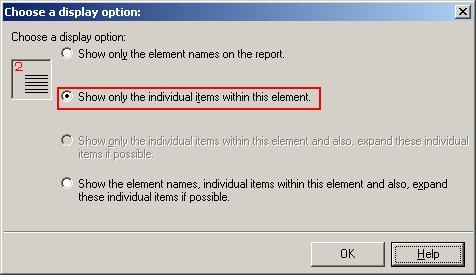
  • Right-click on the Custom Group Element within the Custom Group Editor and select 'Show Display Options...'
     
    The following four available options will appear:
     
    • Show only the Element Names on the Report
      Which indicates that when the report is run, the variable 'n' item will not display the variable names (e.g. each Item for each Subcategory) but will only display the Custom Group Element name (in this case Custom group Element 1).
       
    • Show only the individual items with this element
      This indicates that when the report is run, the names of the 'n' variables (Item) will be displayed only.
       
    • Show only the individual items within this element and also, expand these individual items if possible
      This indicates that when the report is run, the names of the 'n' variables (Item) will be displayed and expanded to lower levels if applicable.
      Note: This option is only available for banding.
       
  • Show the element names, individual items within this element and also, expand these individual items if possible.
    This indicates that when the report is run, the Custom Group Element name and variable 'n' name (Item) will be displayed on the report.
     
    The second option is preferable (Show only the individual items with this element) as indicated below:
     
ka02R000000kcbcQAA_0EM440000002GIU.jpeg
  • Save the Custom Group.

 
Step 4:

  1. Create a report with Category, Subcategory and the Custom Group created in Steps 1 - 3 above and include the metric that applied the metric qualification on in Step 1.
  2. Run the report in Strategy Developer.


Comment

0 comments

Details

Knowledge Article

Published:

April 11, 2017

Last Updated:

April 11, 2017