DESCRIPTION
From Strategy Mobile 9.4.0 onwards, users can deploy the Video Widget on Mobile documents in order to display a video from a streaming or file location. For more details on the Video Widget, refer to Technical Note KB44888 New feature: Native widget to embed videos in MicroStrategy Mobile 9.4.0 on iPad/iPhone.
In order to dynamically show a different video based on a selector on the Report Services Document, the embed code must be replaced by dynamic text in the widget properties. The following steps outline how to achieve this behavior in Strategy 9.4.x.
ACTION
As a requirement, the embed code must be available in the data source as attribute. In this example, the document's data set contains three attributes:
- ID attribute: Random ID (not a requirement)
- Name attribute: Name of the video file
- Embed attribute: Contains the embed code to a video source.
It is currently not possible to use the embed code as attribute form for this scenario to work. The embed code must be a standalone attribute, present on the widgets grid.
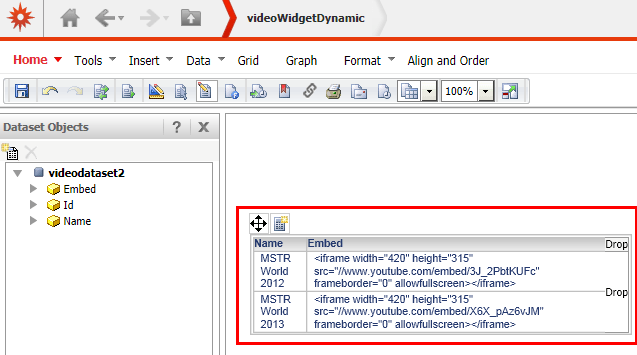
1. Create a new document based on the data set and insert a new grid. Add the "Name" and "Embed" attribute to the grid.
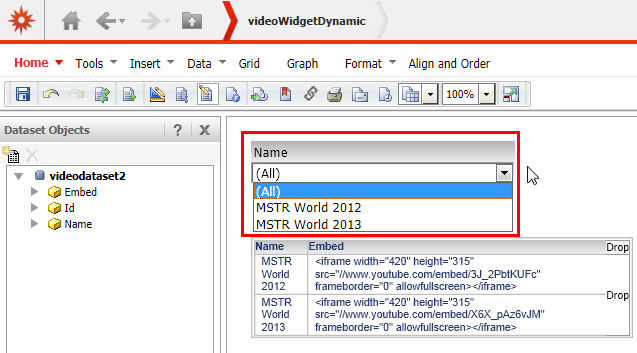
2. Add a selector to the document for attribute "Name", targetting the grid inserted before.
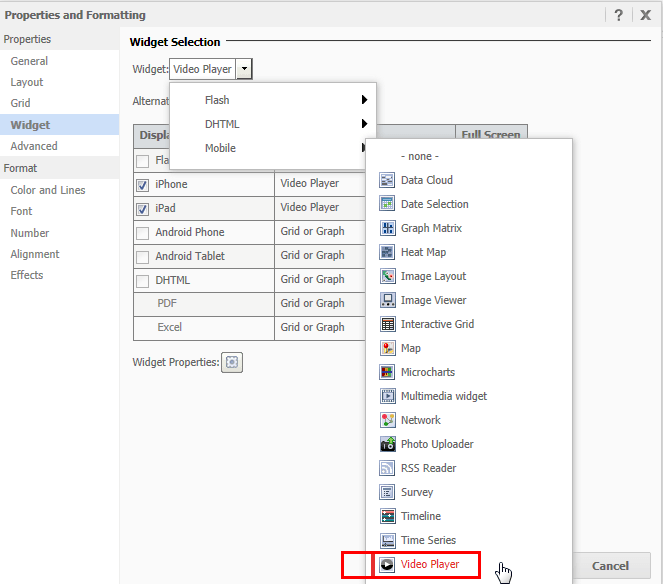
3. In the grid's properties and formatting options, go to Properties > Widget and select Video Player widget.
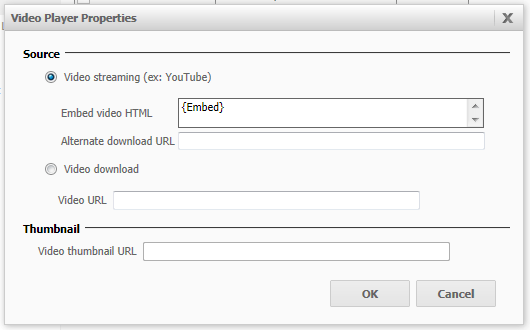
4. Go to the Video Widget properties and enter the attribute name containing the embed code as dynamic text as seen below - "{Embed}".
5. Run the document on your mobile device.
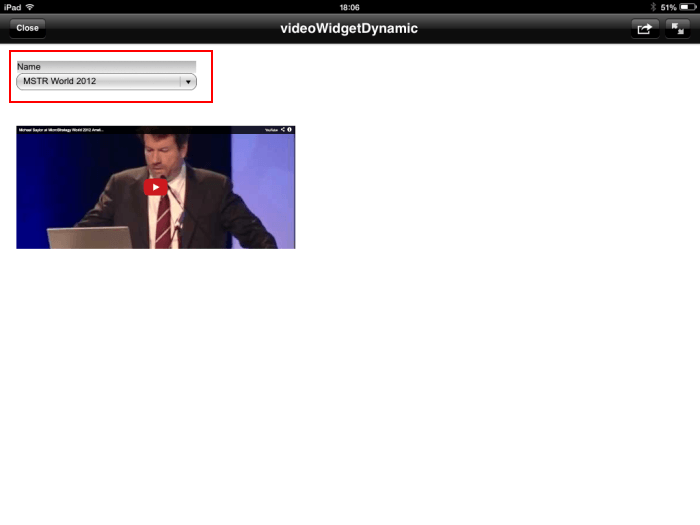
6. By changing the selector that targets the Video Widget, a different video is displayed for each selection.

Note: The same approach as above can equally be applied for "Video URL" and "Alternate Download URL".
