SUMMARY
When a report is executed with no metrics or no attributes a Search Box appears as a placeholder. This technical note explains how to disable this Search Option in Strategy Web.
SYMPTOM
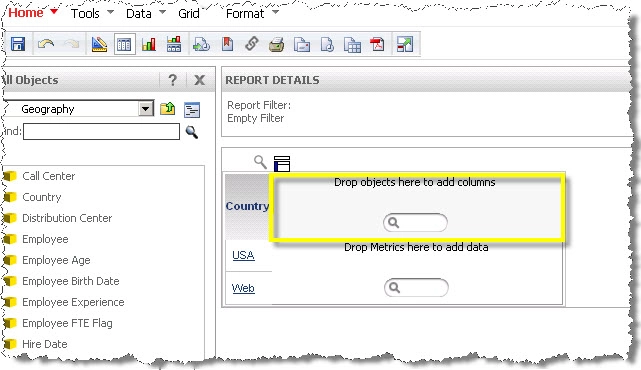
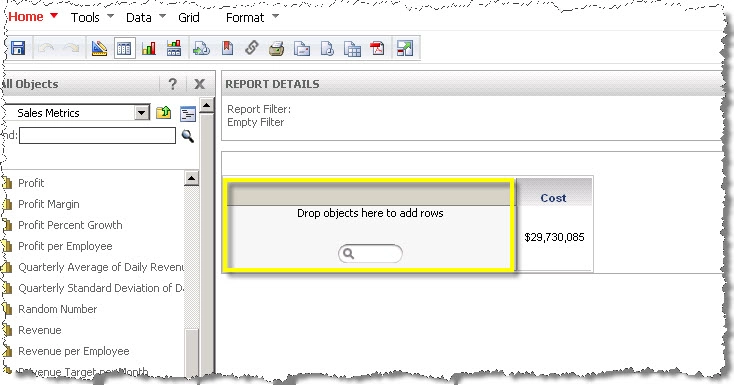
A report is executed with a single object (i.e. one attribute or one metric) and a Search Box with the legend ‘Drop objects here to add
columns’ appears in place of the missing object. It might also read ‘Drop objects here to add data’ or ‘Drop objects here to add rows’ depending on which object has been placed on the report template.
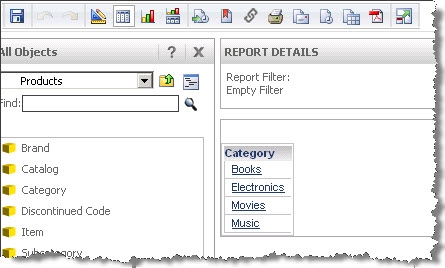
For example, on a single attribute report it looks like this:
Whereas, on a single metric report looks like this:
STEPS TO REPRODUCE
1) Create a single object report (i.e. place one attribute on the grid)
2) Execute the report
3) The Search ‘Drop objects here to add columns’
CAUSE
This is an expected behavior caused by the combination of the Quick Search Feature and an Empty Grid Axe on the result set.
ACTION STEPS
To disable this behavior follow these steps in Strategy Web
1) Access Web Preferences> Project Defaults> General; and uncheck ‘Search from report grid view’
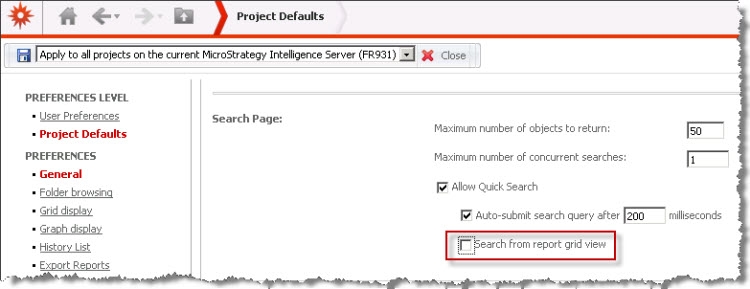
This will disable the Search box but still a legend will appear in the report:
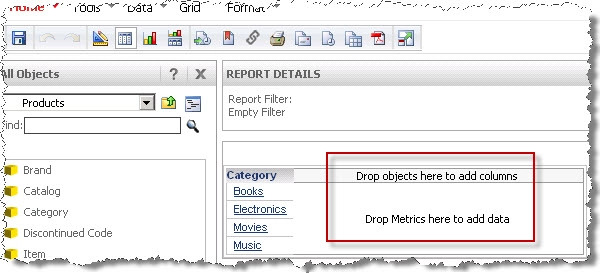
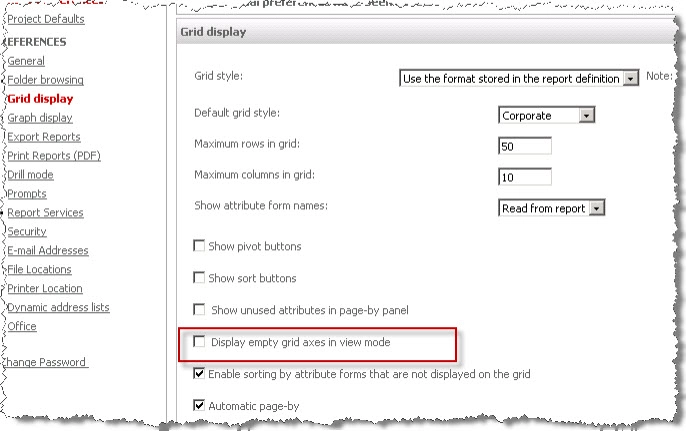
2) To remove this legend access Web Preferences> Grid Display and uncheck ‘Display empty grid axes in view mode’
Video: You can find a detailed video on how this issue is reproduced and how it is corrected here: Tech Note 45445 - Steps to reproduce and Action steps
TO LEARN MORE
Related Technical Notes:
KB44068 Disabling the Quick Search functionality will disable both, the Report Design Mode and the search box in the home/main page in MicroStrategy Web 9.3.0.
