SYMPTOM:
After expanding the Strategy Developer window past a certain width, the interface becomes unusable. The issue persists after resizing the window back to a smaller width.
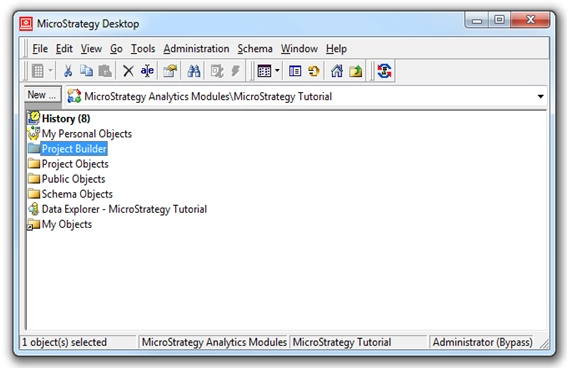
Only the folder list and the toolbar are usable, the rest of the interface is unresponsive.
CAUSE:
This is a known issue in Strategy Developer 9.x that can occur if Developer is expanded to fit the screen in a high resolution monitor, or if used in a dual display environment.
ACTION:
Upgrade to 10.4HF4 or 10.8 to avoid the issue when dealing with high resolution screens.
WORKAROUND:
Window positioning and sizing information for the interface is stored in the registry. Users can rename the "DSS Agent" registry key, forcing Developer to revert to default interface settings on the next launch.
The following steps summarize this workaround:
1. Close Strategy Developer.
2. In the registry (regedit), locate the "DSS Agent" key inside: HKEY_CURRENT_USER/Software/MicroStrategy/DSS Agent
Note: The "DSS Agent" key is within "Strategy/DSS Agent/".
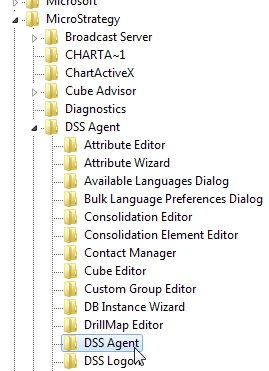
3. Right-click on the "DSS Agent" key, and rename it to "DSS Agent Backup".

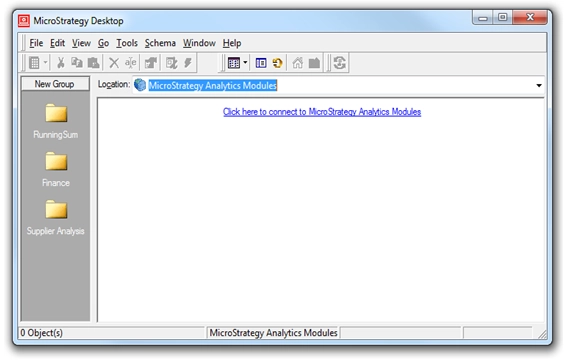
4. Close regedit, and re-open Developer. The interface will reset to the default settings and become usable again:
Registry Modification Warning:
Modifying registry values incorrectly may cause serious, system-wide problems that may require the re-installation of Microsoft Windows. Any edit of the registry is done at the user's own risk. Since these are user-initiated changes, they are not covered by any Strategy warranty. If using Microsoft Windows, the user should backup the registry and/ or update an Emergency Repair Disk prior to alterations.
