EducationSoftwareStrategy.com
StrategyCommunity

Knowledge Base

Product

Community

Knowledge Base

TopicsBrowse ArticlesDeveloper Zone

Product

Download SoftwareProduct DocumentationSecurity Hub

Education

Tutorial VideosSolution GalleryEducation courses

Community

GuidelinesGrandmastersEvents
x_social-icon_white.svglinkedin_social-icon_white.svg
Strategy logoCommunity

© Strategy Inc. All Rights Reserved.

LegalTerms of UsePrivacy Policy
  1. Home
  2. Topics

KB45567: How to create a Survey Widget in MicroStrategy Web


Community Admin

• Strategy


This article outlines the steps required to create a survey widget in MicroStrategy Web

Starting from Strategy Mobile 9.4.0 on iPad/iPhone, users have the capability to implement a survey widget through Strategy.
 
Below is the step-by-step instruction to create a Survey Widget:

  • Create a table on the database with the following columns and populate the table with sample data.
    
    create table Survey
    (surveyID int not null,
    questionID int not null,
    questionTitle varchar(255) null,
    questionType int null,
    answerID int null,
    answerTitle varchar(255) null,
    answerValue varchar(255) null,
    currentAnswer varchar(255) null)
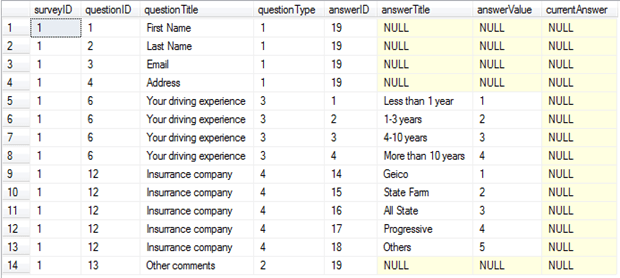

    In this sample, only one survey form is designed. So data is populated only with surveyID=1:
ka04W000000OaUpQAK_0EM4400000026Qs.png
  • Create a DSN points to above database, create a database instance(DBI) on it and add the DBI to the Strategy project.
     
  • Add the table Survey to warehouse catalog.
     
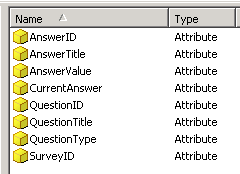
  • Create the following attributes based on each of above columns and update the schema:
ka04W000000OaUpQAK_0EM4400000026R1.png
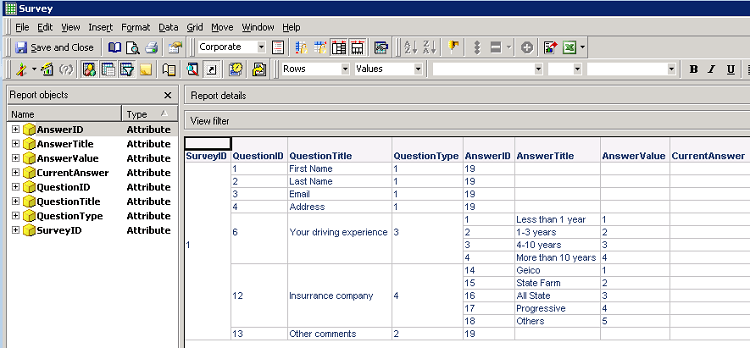
  • Create a report “Survey” with above attributes:
ka04W000000OaUpQAK_0EM4400000026Qo.png
  • Create a table for Survey response in the database with the following columns:
     
    
    create table Response
    (surveyID int not null,
    questionID int not null,
    questionTitle varchar(255) null,
    questionType int null,
    answerID int null,
    answerTitle varchar(255) null,
    answerValue varchar(255) null,
    userInput varchar(255) null);
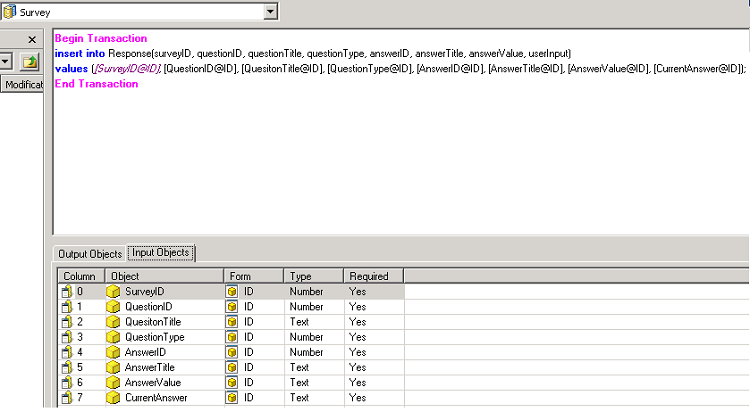
  • Create a new report "T". In New Grid window, choose Freeform Sources-Create Transaction report. 
    For more details regarding how to create a transaction service report, please refer to product manual <Advanced Reporting Guide>
ka04W000000OaUpQAK_0EM4400000026Qq.png
  • 
    Begin Transaction
    INSERT INTO Response(surveyID, questionID, questionTitle, questionType, answerID, answerTitle, answerValue, unserInput)
    VALUES ([SurveyID@ID],[QuestionID@ID],[QuestionTitle@ID],[QuestionType@ID],[AnswerID@ID],[AnswerTitle@ID],[AnswerValue@ID],[CurrentAnswer@ID])
    End Transaction

     
  • Go to Strategy Web. Create a report services document and add report “Survey” as dataset. Drag the dataset to grid into document.
     
  • Right click on the grid and go to “Properties and formatting”. Go to”Grid”, uncheck “Enable incremental fetch in grid” and apply it. Then go to “Widget” and set as DHTML-Survey.
     
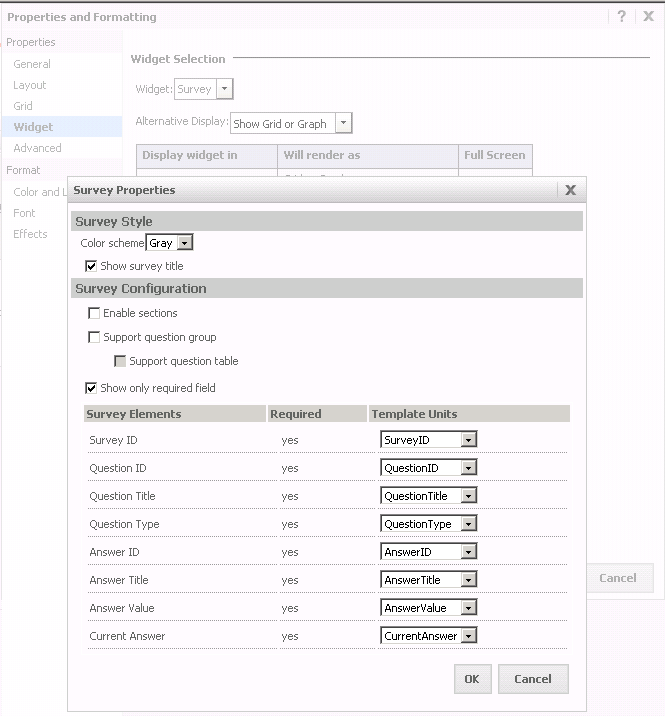
  • Go to Widget properties and match each item:
ka04W000000OaUpQAK_0EM4400000026Qz.png
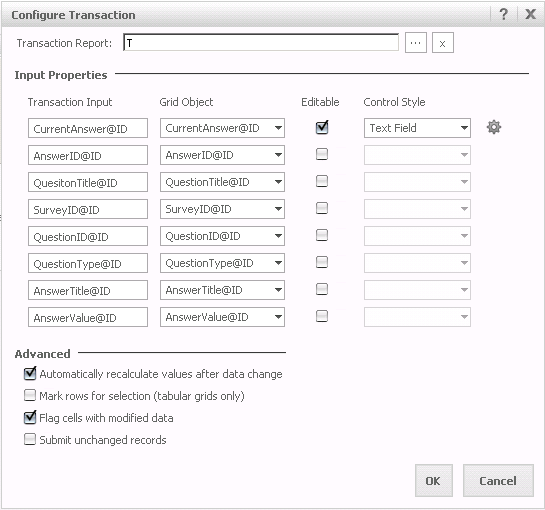
  • Configure transaction to the grid as below:
ka04W000000OaUpQAK_0EM4400000026R7.png
  • Insert an action selector button (Selector--Action Selector) targeting the grid to submit the transaction.
     
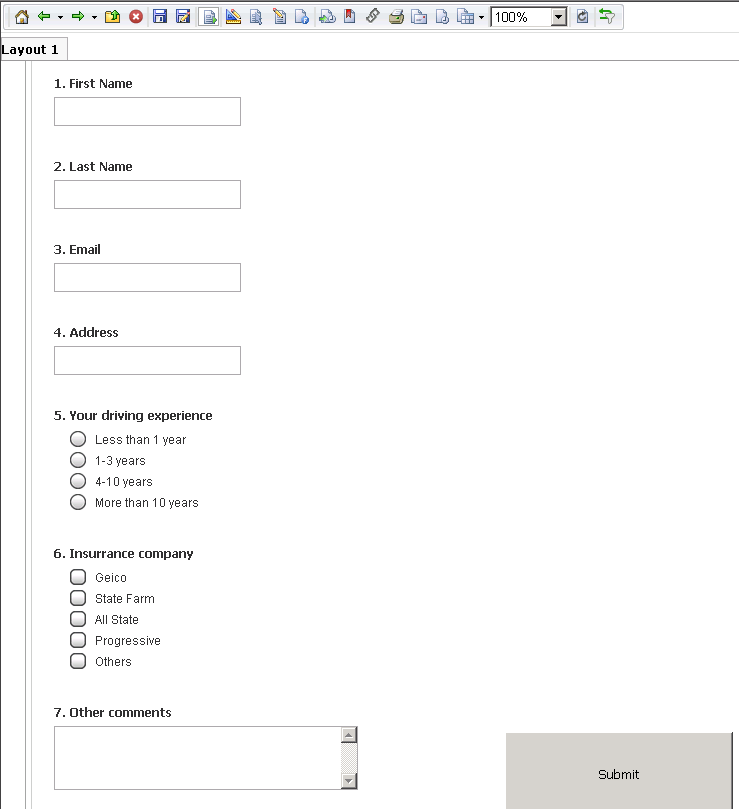
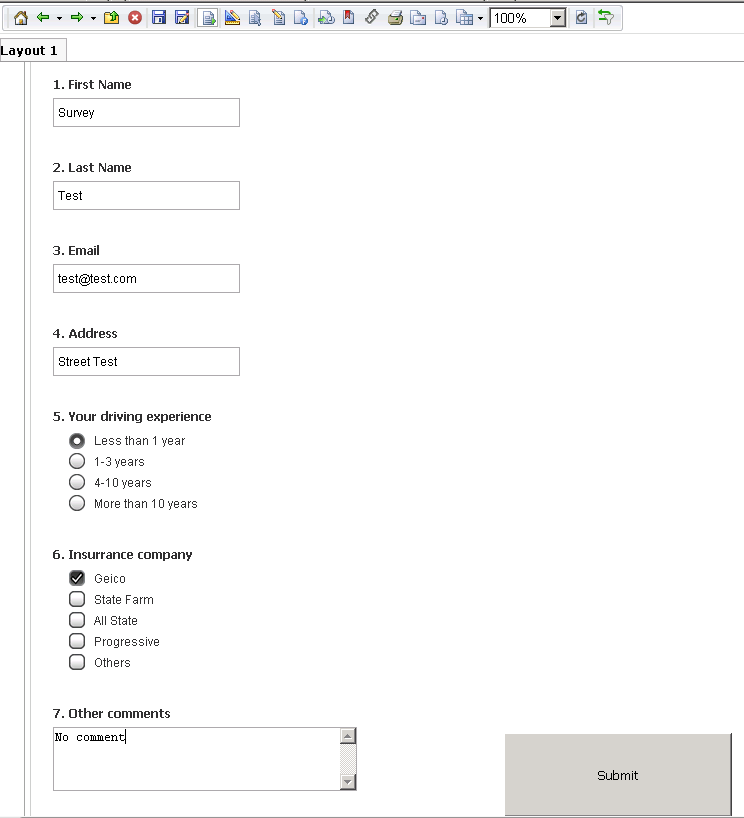
  • Save the document and run in Express/Presentation mode or run the document from iPad:
ka04W000000OaUpQAK_0EM4400000026R5.png
  • Fill in the survey answer and press submit.
ka04W000000OaUpQAK_0EM4400000026Qw.png
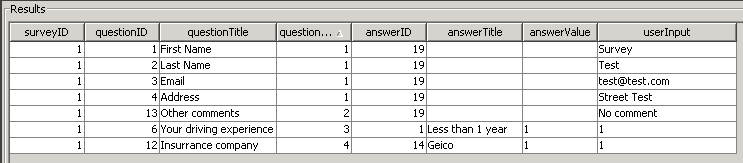
  • Check the Response table in the database. The record is updated.
ka04W000000OaUpQAK_0EM4400000026Qm.png


KB45567


Comment

0 comments

Details

Knowledge Article

Published:

May 3, 2017

Last Updated:

January 10, 2019