EducationSoftwareStrategy.com
StrategyCommunity

Knowledge Base

Product

Community

Knowledge Base

TopicsBrowse ArticlesDeveloper Zone

Product

Download SoftwareProduct DocumentationSecurity Hub

Education

Tutorial VideosSolution GalleryEducation courses

Community

GuidelinesGrandmastersEvents
x_social-icon_white.svglinkedin_social-icon_white.svg
Strategy logoCommunity

© Strategy Inc. All Rights Reserved.

LegalTerms of UsePrivacy Policy
  1. Home
  2. Topics

KB45579: How to use multiple attributes as selectors to target another Visualization in MicroStrategy Web 9.4.x


Community Admin

• Strategy


How to use multiple attributes as selectors to target another Visualization in MicroStrategy Web 9.4.x

SYMPTOM:
 
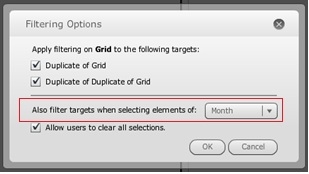
When setting a grid as a selector of another grid in Visual Insight in Strategy Web 9.4.x, there is an option to select which attribute would act as a selector, like shown below:
ka04W000000OdXDQA0_0EM4400000026Q1.jpeg

Sample Code/Error
Also filter targets when selecting elements of:
 
This property would not allow multiple attributes from the same grid to act as a selector of another grid.
 
ACTION:
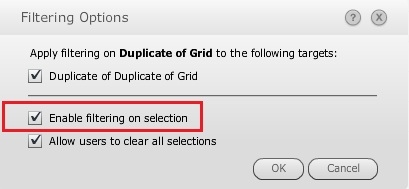
In Strategy Web 9.4.x, the property 'Also filter targets when selecting elements of' was replaced with the one shown below. It doesn't seem to allow users to specify the attribute to be used as selector.
 

ka04W000000OdXDQA0_0EM4400000026Q2.jpeg

 
Sample Code/Error
Enable filtering on selection.
 
When the user sets the visualization as a selector of another, it automatically provides the ability to use any attribute as a filter. To filter on two or more attributes, use the metric cells as filters. Follow these steps:
  • Create a VI dashboard with the report Supplier Sales Report located at:

    Sample Code/Error
    Shared Reports >Subject Areas > Supplier Analysis

     
  • Select a grid as visualization with the Month and Category attributes and the Revenue and Last Year's Revenue metrics.
  • Duplicate the grid once, so that there are 2 visualizations.
  • Add the Customer Region attribute to the second grid.
  • Set the first grid as a selector of the second grid.
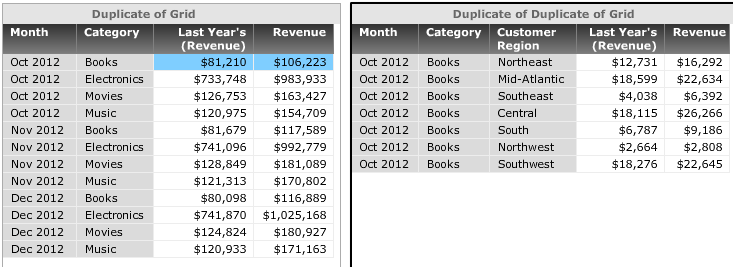
  • To filter on 'Oct 2012' and 'Books', find a metric cell value that corresponds to these two attributes and click on it. This is highlighted in blue on the grid below.
ka04W000000OdXDQA0_0EM4400000026Pn.png
  • Note that this metric value corresponds to 'Oct 2012' and 'Books' at the same time and the second grid is filtered on these two attribute elements.

Comment

0 comments

Details

Knowledge Article

Published:

April 7, 2017

Last Updated:

April 7, 2017