SYMPTOM:
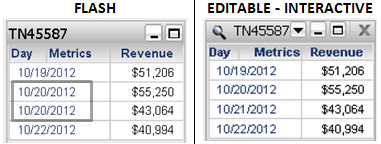
In Strategy Web 9.x, the first date of the Daylight Saving Time period appears in duplicity along with the previous date in a Report Services Document in Flash View Mode: This issue occurs when configuring the user's computer by enabling the Automatically adjust clock for Daylight Saving Time Windows clock option, and selecting the (UTC-03:00) Brasilia Time zone.
Follow the steps below in order to reproduce this issue in the Strategy Tutorial project:
STEPS TO REPRODUCE:
1 - On the user's computer, change the Windows time zone to (UTC-03:00) Brasilia and check the Automatically adjust clock for Daylight Saving Time Windows clock option
2 - Create a new report by adding the Day attribute to rows, the Revenue metric to columns and a Local Report Filter as Day = 10/19/2012, 10/20/2012, 10/21/2012 and 10/22/2012
3 - Create a new Report Services Document using the 01 Blank Dashboard dashboard template, and select the newly created report as dataset.
4 - Add a grid with the Day attribute and the Revenue metric
5 - Run the document in Editable or Interactive View Modes to confirm that there is no duplicity of date
6 - Switch to Flash View mode to see the issue:
CAUSE:
This is a known issue in Strategy Web 9.x.
ACTION:
Contact the Strategy Technical Support for an update on this issue.
WORKAROUND:
Uncheck the Automatically adjust clock for Daylight Saving Time Windows clock option and adjust the Windows time manually.
Third Party Software Installation Warning:
The third-party product(s) discussed in this technical note is manufactured by vendors independent of Strategy. Strategy makes no warranty, express, implied or otherwise, regarding this product, including its performance or reliability.
