EducationSoftwareStrategy.com
StrategyCommunity

Knowledge Base

Product

Community

Knowledge Base

TopicsBrowse ArticlesDeveloper Zone

Product

Download SoftwareProduct DocumentationSecurity Hub

Education

Tutorial VideosSolution GalleryEducation courses

Community

GuidelinesGrandmastersEvents
x_social-icon_white.svglinkedin_social-icon_white.svg
Strategy logoCommunity

© Strategy Inc. All Rights Reserved.

LegalTerms of UsePrivacy Policy
  1. Home
  2. Topics

KB45598: Multiple checkbox selectors in a Visual Insight dashboard that has been converted it into a document, will no longer show horizontally but vertically when run in Express mode, in MicroStrategy Web


Community Admin

• Strategy


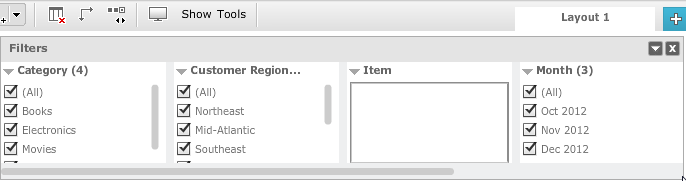
In MicroStrategy Web 9.4.1, a user can add multiple attribute selectors of type checkbox to a Visual Insight dashboard. The user can then move the filter panel to the top where the selectors will be automatically arranged horizontally

SYMPTOM 
In Strategy Web 9.4.1, a user can add multiple attribute selectors of type checkbox to a Visual Insight dashboard. The user can then move the filter panel to the top where the selectors will be automatically arranged horizontally, like shown below:
ka04W000000OdgnQAC_0EM4400000026PA.png

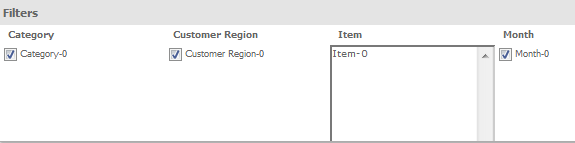
If the user then converts the dashboard into a document, the document still show the selectors horizontally arranged in design mode, interactive mode, and flash mode.
ka04W000000OdgnQAC_0EM4400000026PB.png

If the user then runs it in Express mode, the filters will be shown vertically instead of horizontally, like shown below. 

ka04W000000OdgnQAC_0EM4400000026PD.png

 
STEPS TO REPRODUCE
Follow these steps to reproduce this issue in Strategy Tutorial project. 
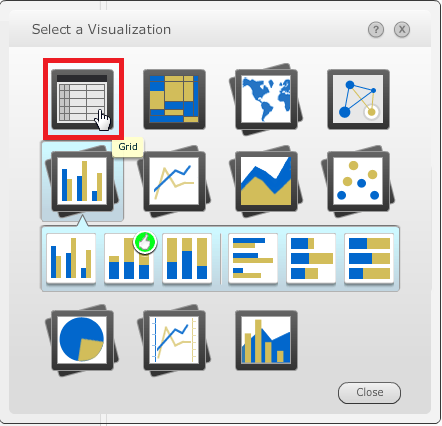
  • Create a new Dashboard with the Supplier Sales Report as dataset, located in Shared Reports > Subject Areas > Supplier Analysis 
  • Click on "Select a Visualization" and choose the Grid visualization, like shown below. 
ka04W000000OdgnQAC_0EM4400000026Pb.png
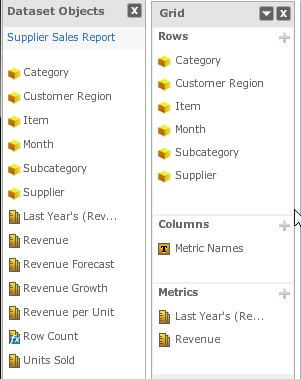
  • Add all the attributes from the Dataset Objects window into the Grid Rows, like shown below. 
ka04W000000OdgnQAC_0EM4400000026P8.png
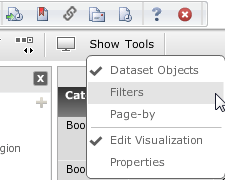
  • Click the Show button in the toolbar and select "Filters", like shown below. 
ka04W000000OdgnQAC_0EM4400000026PE.png
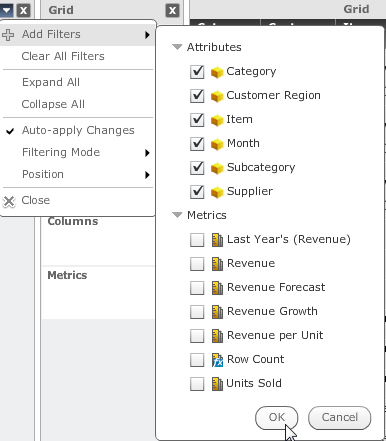
  • Click the drop-down arrow in the Filters title bar, select "Add Filters", and check all the attributes, like shown below.
ka04W000000OdgnQAC_0EM4400000026Pc.png
  • Click OK.
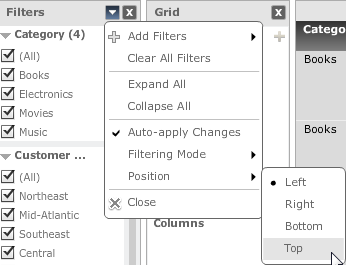
  • Click the drop-down arrow in the Filters title bar again, select "Position" and choose "Top", like shown below. 
ka04W000000OdgnQAC_0EM4400000026P4.png
  • Convert this dashboard to a document. Notice all filters are listed horizontally. 
  • Go to Express view mode. Notice the filters are now listed vertically and require adjusting the scroll bar to access, which is not the expected behavior.

 
CAUSE 
This is a known issue in Strategy Web 9.4.1.
 
ACTION 
Visual Insight has been redesigned based on HTML5 in MicroStrartegy Web 10, and the issue does not happen in version 10. Take advantage of upgrading for a fix. 
WORKAROUND


Comment

0 comments

Details

Knowledge Article

Published:

April 6, 2017

Last Updated:

April 6, 2017