EducationSoftwareStrategy.com
StrategyCommunity

Knowledge Base

Product

Community

Knowledge Base

TopicsBrowse ArticlesDeveloper Zone

Product

Download SoftwareProduct DocumentationSecurity Hub

Education

Tutorial VideosSolution GalleryEducation courses

Community

GuidelinesGrandmastersEvents
x_social-icon_white.svglinkedin_social-icon_white.svg
Strategy logoCommunity

© Strategy Inc. All Rights Reserved.

LegalTerms of UsePrivacy Policy
  1. Home
  2. Topics

KB45628: The MicroStrategy Office 9.4.0 Add-in disables itself after closing the Microsoft Office Program.


Community Admin

• Strategy


Opening Microsoft Office Excel, Word or Powerpoint shows the MicroStrategy Office 9.4.0 Add-in disabled even if it was installed

SYMPTOM:
Opening Microsoft Office Excel, Word or Powerpoint shows the Strategy Office 9.4.0 Add-in disabled even if it was installed, loaded, and enabled previously as shown below:
 

ka04W000000ObTiQAK_0EM4400000026O8.png

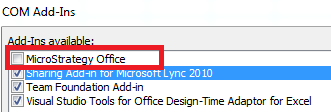
Additionally, the Add-in shows as disabled in the File > Options > Add-ins > COM Add-ins Menu as shown below:
ka04W000000ObTiQAK_0EM4400000026O4.png

For the images above the Add-in had been enabled before closing Microsoft Excel, Word or PowerPoint; upon reopening it, the add-in was automatically disabled again.
CAUSE:
Persistence of the Strategy Office Add-in is saved in different registries in the local machine. Sometimes, the user enabling the add-in does not have administrative privileges or the instance of the Microsoft Office product has not been elevated to be able to modify these registries.
ACTION:
There are two places that need to be accessed using an elevated instance of the application:

  • The Strategy Office 9.4.0 Configuration
    • From the Windows Start Menu, right click the Strategy Office Configuration and select Run as Administrator, as shown below:
ka04W000000ObTiQAK_0EM4400000026OB.png
    • Under General Options > Load, check the Microsoft Products where the add-in should load on.
    • Click Apply and then OK.
  • In the Microsoft Office Program
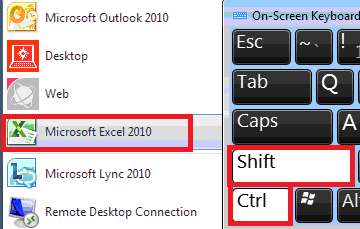
    • Search for the Microsoft Office program, such as Excel, in the Windows start menu.
    • Using the keyboard, hold down Ctrl+Shift and then click on Microsoft Excel as shown below:
ka04W000000ObTiQAK_0EM4400000026O6.png
    • In Microsoft Excel select File > Options > Add-ins.
    • On the dropdown at the bottom of the window, select COM Add-ins and click "Go" as shown below:
ka04W000000ObTiQAK_0EM4400000026O2.png
    • Check the Strategy Office Add-in and click OK.

The Add-in will now show in the Microsoft Toolbar. Users can now close and open the Microsoft Product normally and the Add-in will stay persistent. 
45628


Comment

0 comments

Details

Knowledge Article

Published:

April 14, 2017

Last Updated:

March 21, 2019