EducationSoftwareStrategy.com
StrategyCommunity

Knowledge Base

Product

Community

Knowledge Base

TopicsBrowse ArticlesDeveloper Zone

Product

Download SoftwareProduct DocumentationSecurity Hub

Education

Tutorial VideosSolution GalleryEducation courses

Community

GuidelinesGrandmastersEvents
x_social-icon_white.svglinkedin_social-icon_white.svg
Strategy logoCommunity

© Strategy Inc. All Rights Reserved.

LegalTerms of UsePrivacy Policy
  1. Home
  2. Topics

KB45634: "Error saving and publishing the Cube . . . Insufficient privileges: can not execute a report that uses multiple data sources" error message appears when using data import to import a file in MicroStrategy Web 9.4.0


Stefan Zepeda

Salesforce Solutions Architect • Strategy


"Error saving and publishing the Cube . . . Insufficient privileges: can not execute a report that uses multiple data sources" error message appears when using data import to import a file in MicroStrategy Web 9.4.0

SYMPTOM:
 
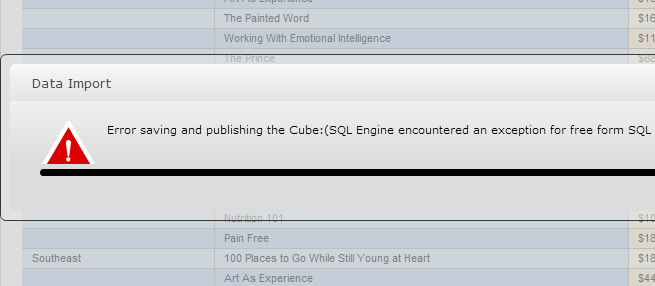
When attempting to use Data Import to import a file, users encounter the error shown below. This occurs even when users have the privilege to use Data Import, in Strategy Web 9.4.0.
 

ka02R000000kbnpQAA_0EM440000002CVo.png


Error saving and publishing the Cube:(SQL Engine encountered an exception for free form SQL report Engine Logic: Insufficient privileges: can not execute a report that uses multiple data sources]Error in Process method of Component: SQLEngineServer, Project Fusion Reporting Projects, Job 1248, Error Code= -2147212794.)

 
Furthermore, the Administrator user is able to perform the same action without getting the error message.
 
CAUSE:
 
This is a known issue in Strategy Web 9.4.0. This error occurs when the Strategy project that the user is logged into does not have a primary database instance selected, as seen below:
 

ka02R000000kbnpQAA_0EM440000002CVg.png

 
When there is no primary instance selected for the project, Strategy incorrectly assumes that any attempt to use an additional source of data, as through any of the Data Import options, a user is actually trying to configure multiple data sources for the project. This is a feature governed by the 'Multi-source Option' license and the 'Import table from multiple data sources' privilege, shown below. 

ka02R000000kbnpQAA_0EM440000002CVi.jpeg

 
Thus, when the user does not have this privilege granted, in combination with the project not having a primary database instance selected, data import fails.
 
The purpose of the Primary Database Instance is to tell Strategy what database instance to use by default. For instance, if LU_YEAR exists in two databases, the table that resides in the primary database instance will be used as the default for the project. For more information regarding primary versus secondary data sources, and how Strategy will react in a multi-source situation, refer to the Advanced Project Design guide. The guide has several chapters relating to multiple data sources and the primary database instance, including a full chapter on how to configure databases using the Multi-Source Option. 
 
ACTION:
 
This issue has been fix confirmed in Strategy 10.  Please upgrade to this version to take advantage of the fix.
 
WORKAROUND:
  
Since the issue is caused by the lack of one of two factors, the issue can be resolved by meeting one of the two criteria:

  1. Grant the user the Multi-source option privilege "Import table from multiple data sources".
  2. Or, select one of the existing database instances as primary.

Alternatively, a blank database instance can be created and set to default if no existing database should be acting as primary. Follow these steps:

    • Create a blank Access file.  Below is a screenshot of the file used in this walk-through. 
ka02R000000kbnpQAA_0EM440000002CVf.png
    • Create a database connection to this database using the Strategy Connectivity Wizard.
    • In Strategy Developer 9.4.0, create a blank database instance with any connection type and any connection and credential combination, as the connection will not be used.  Below is a screenshot of a sample database instance.  The connection used is not an Aster Database, as it does not need to actually connect to it.  Similarly, the credentials used for the connection do not need to be accurate; the fields merely need to be filled in. 
ka02R000000kbnpQAA_0EM440000002CVn.png
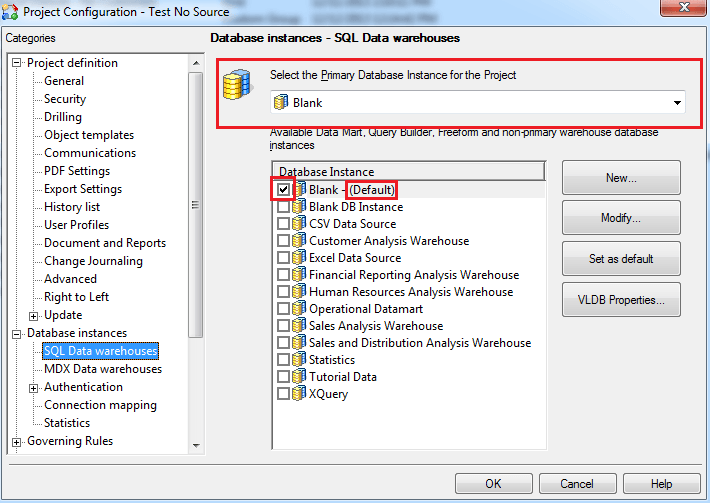
  • Set the primary database instance to the blank instance that was created in Step 3. 
  • Select OK and reload the project.
  • Below is a screenshot of the selection pane after choosing the database instance created in Step 3 and reloading the project. Note the checkbox in the selection pane and the "(Default)" to the right of the instance.
ka02R000000kbnpQAA_0EM440000002CVh.png
  • After following these steps, attempt to import a file.  The import should be successful, and a cube should be created.


Comment

0 comments

Details

Knowledge Article

Published:

June 8, 2017

Last Updated:

June 8, 2017