EducationSoftwareStrategy.com
StrategyCommunity

Knowledge Base

Product

Community

Knowledge Base

TopicsBrowse ArticlesDeveloper Zone

Product

Download SoftwareProduct DocumentationSecurity Hub

Education

Tutorial VideosSolution GalleryEducation courses

Community

GuidelinesGrandmastersEvents
x_social-icon_white.svglinkedin_social-icon_white.svg
Strategy logoCommunity

© Strategy Inc. All Rights Reserved.

LegalTerms of UsePrivacy Policy
  1. Home
  2. Topics

KB45642: The yellow attribute Icon is missing for shortcut objects pointing to locked attributes in a qualification prompt that uses the results of a search object in MicroStrategy Web 9.3.1 and 9.4.1.


Community Admin

• Strategy


SYMPTOM:
 
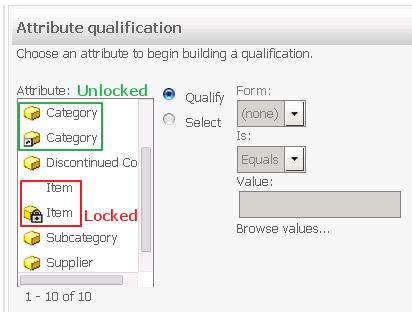
If a user has a locked attribute in Strategy Desktop 9.3.1 from which a shortcut attribute is created that is also locked, the "attribute" icon for that shortcut attribute will not appear when it is included in a prompt that uses the results of a search object, as shown below:
 

ka04W000000OcUxQAK_0EM440000002HJ7.png

 
Above, the unlocked attribute, the unlocked shortcut, and the locked attribute all display "attribute" icons, but the locked shortcut does not.
 
STEPS TO REPRODUCE:
 
Follow these steps to reproduce in a Strategy Tutorial project.
  • In Strategy Desktop 9.3.1, browse to an attribute.
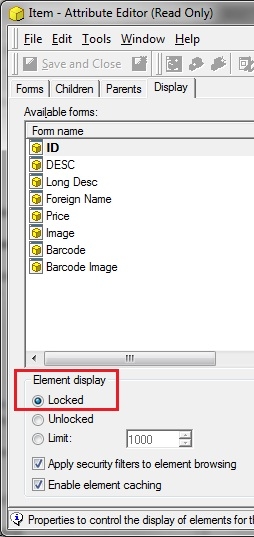
  • Lock the attribute by opening the attribute editor > Display > Element Display, and selecting "Locked", like shown below.
ka04W000000OcUxQAK_0EM440000002HJC.jpeg
  • Create a shortcut object to that attribute in the same folder by right clicking on the attribute and selecting "Create Shortcut".
  • Create a search object that includes the folder where the attribute and the shortcut are located, but only includes attribute and shortcut objects, like shown below.
ka04W000000OcUxQAK_0EM440000002HJ9.jpeg
  • Create a new Qualification Prompt object on the attribute used in Step 1.
  • Choose to 'Use the results of a search object ', like shown below, and chose the search object created in step 4.
ka04W000000OcUxQAK_0EM440000002HJ5.jpeg
  • Create a report with the attribute and prompt created in Steps 1 and 5.
  • Save the report and run it in Strategy Web 9.3.1. Notice the shortcut attribute is missing the "attribute" icon.

 
CAUSE:
 
This is a known issue in Strategy Web 9.3.1 and 9.4.1.
 
ACTION:
 
Contact Strategy Technical Support for an update on this issue.
 
WORKAROUND:
 
Follow any of these recommendations to make sure the icon displays in Strategy Web 9.3.1 and 9.4.1:

  1. Unlock the attribute.
  2. Use the attribute itself in the prompt instead of a shortcut to the attribute.
  3. Do not use the results of a search object when defining the prompt object.


Comment

0 comments

Details

Knowledge Article

Published:

May 16, 2017

Last Updated:

May 16, 2017