EducationSoftwareStrategy.com
StrategyCommunity

Knowledge Base

Product

Community

Knowledge Base

TopicsBrowse ArticlesDeveloper Zone

Product

Download SoftwareProduct DocumentationSecurity Hub

Education

Tutorial VideosSolution GalleryEducation courses

Community

GuidelinesGrandmastersEvents
x_social-icon_white.svglinkedin_social-icon_white.svg
Strategy logoCommunity

© Strategy Inc. All Rights Reserved.

LegalTerms of UsePrivacy Policy
  1. Home
  2. Topics

KB45700: Custom group elements are still displayed in report when no data is returned in MicroStrategy Developer


Community Admin

• Strategy


Custom group elements are still displayed in report when no data is returned in MicroStrategy Developer.

SYMPTOM:
 
Custom group elements are still displayed in report when no data is returned in Strategy Developer 9.x
 
STEPS TO REPRODUCE:
 
Follow the steps below to reproduce the issue in Tutorial project:
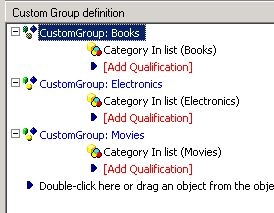
  • In Strategy Developer, create a Custom Group based on attribute , with following definition:
ka04W000000uGBrQAM_0EM440000002CWa.jpeg
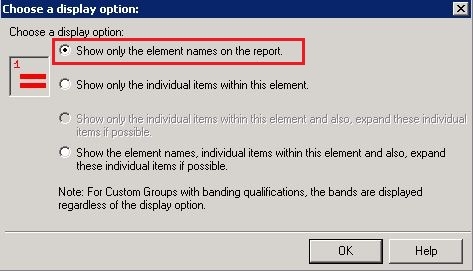
  • Select a Custom Group element, and go to Menu -> Custom Group -> Show Display Options, and select the first option "Show only the element names on the report", as shown below:
ka04W000000uGBrQAM_0EM440000002CWo.jpeg
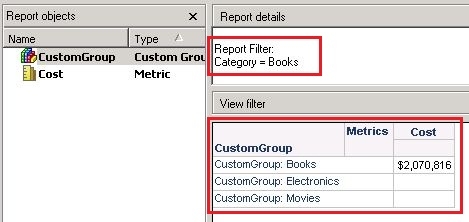
  • Create a report and put Custom group and a metric in grid. Insert a report filter with qualification "Category in list (Books)".
  • Run the report, and two custom group elements "Electronics" and "Movies" are still displayed even when no data is returned, as shown below:
ka04W000000uGBrQAM_0EM440000002CWn.jpeg

 
CAUSE:
 
If option "Show only the element names on the report" is selected in Custom Group element display options, the element name will be always displayed in the report. An Enhancement Request is logged to hide custom group element when no data is returned.
 
 
ACTION:
 
Contact Strategy Technical Support for an update of the issue.


KB45700


Comment

0 comments

Details

Knowledge Article

Published:

June 7, 2017

Last Updated:

January 8, 2019