SUMMARY:
Advanced developers may want to customize their documents and dashboards so that the document is visually appealing for the end user. However, standard text boxes sometimes do not allow you to dynamically change the text to certain formats. In these cases, CSS will need to be used within HTML containers to achieve certain functionalities. This Technical Note will demonstrate changes where CSS can be applied to achieve dynamic line spacing for text on documents.
DESCRIPTION:
Strategy Web supports the use of HTML containers to display text and other elements. Advanced developers may choose to implement complex formatting to these containers through the use of CSS. Some common changes include: line spacing, kerning, multiple font formatting, and other CSS properties.
EXAMPLE:
1. Create an HTML container inside of a pane of a Dashboard.
2. Create HTML including the desired text (example below)
<table>
<tr>
<td>Strategy Rocks! This is the line spacing test.</tr>
</tr>
</table>
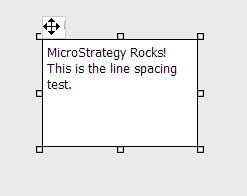
For example, this is the text that will be used and shows up normally in a text box as:
"Strategy Rocks!
This is a line spacing test."
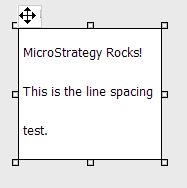
3. To increase line-spacing, add CSS style parameters for line-height:
<style>
td {
line-height: 3;
}
</style>
<table>
<tr>
<td>Strategy Rocks! This is the line spacing test.</tr>
</tr>
</table>
4. Render the Document in any non-edit mode. The above HTML container code will render as:
TO LEARN MORE:
KB37390 - How to modify the icon for a specific project using Strategy Web SDK 9.x?
KB42891 - How to apply CSS to the Email Subscription Page Programmatically to Hide Information Using the Strategy Web SDK 9.x
KB41550 - How to replace the Strategy Web Button in Strategy Web SDK 9.4.1
Customization Warning:
This customization is provided as a convenience to Strategy users and is only directly applicable to the version stated. While this code may apply to other releases directly, Strategy Technical Support makes no guarantees that the code provided will apply to any future or previous builds. In the event of a code change in future builds, Strategy may not be able to provide additional code on this matter even though this customization is provided at this time for this specific build.
KB42794
