DESCRIPTION
In Strategy Web and Mobile 9.4.0 and 9.5.1, the Image Layout Widget can now display multiple shape files at the same time as opposed to being able to display ony a single shape file as in previous versions of Strategy.

In addition, if you create an Image Layout widget with multiple shape files, users can be allowed to select which image map is displayed in runtime by adding an attribute selector based on the attribute that provides the location of each shape file as seen on the example below.
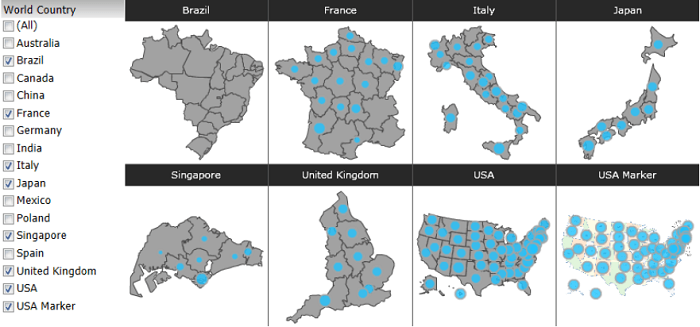
Note: For more detailed information about the fundamentals of the Image Layout widget, refer to Strategy documentation "Dashboards and Widgets guide" available online under http://www2.microstrategy.com/producthelp/.
If multiple shape files are to be displayed in the widget at the same time, an attribute with the SHAPEFILE attribute form must be provided. This attribute must contain the file path of each shape file to display in the widget.
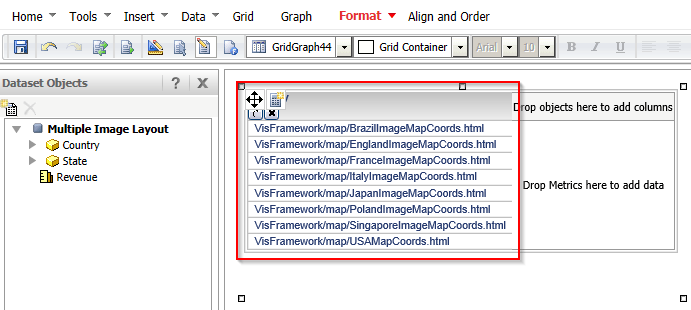
For example, if multiple shapefiles of European countries should be displayed, the shapefile attribute must contain elements such as VisFramework/map/FranceImageMapCoords.html and VisFramework/map/FranceImageMapCoords.html. Each shape file must be defined and stored in the VisFramework/map folder.
1. First, it is required to add the shape file attribute to the rows. See below screenshot for an example of attribute elements that point to a shapefile in the VisFramework/map folder:
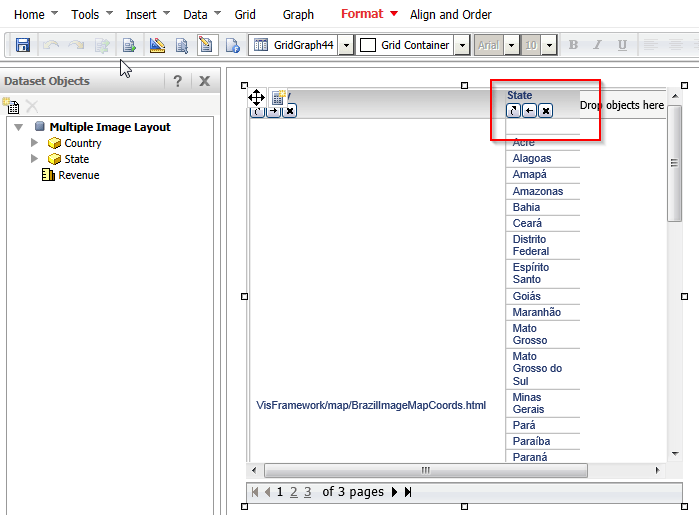
2. Second, the actual location attribute to display area or bubbles on the layout map is added to the grid:
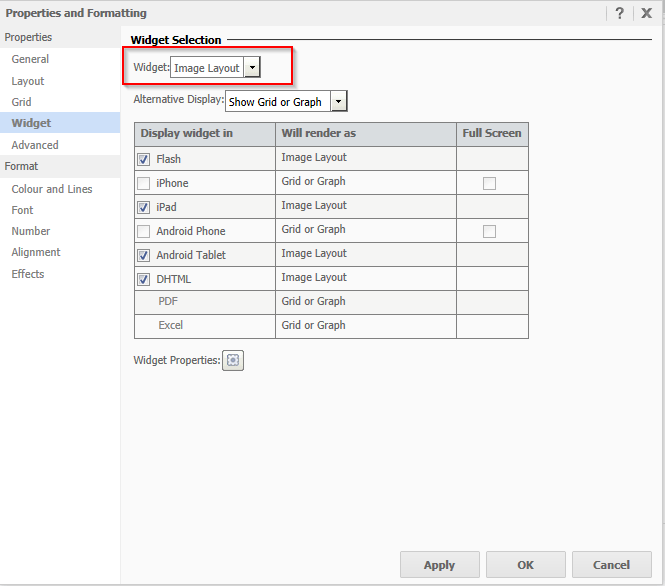
3. Set the grid to display as Image Layout Widget through Properties and Formatting > Widget.
4. Run the document in a view mode of your choice and note multiple image layouts are displayed.

Note: The shape file attribute is required to be placed on the rows of the underlying grid at the outermost left position. The grid level attribute will be used to display area locations or bubbles.
Multiple image layouts are supported on Strategy Web in Interactive, Express, Flash mode and Visual Insight as well as Strategy Mobile on iOS (minimum required Strategy Mobile 9.4.1) and Android (minimum required 9.4.1 Android Update 1).
