EducationSoftwareStrategy.com
StrategyCommunity

Knowledge Base

Product

Community

Knowledge Base

TopicsBrowse ArticlesDeveloper Zone

Product

Download SoftwareProduct DocumentationSecurity Hub

Education

Tutorial VideosSolution GalleryEducation courses

Community

GuidelinesGrandmastersEvents
x_social-icon_white.svglinkedin_social-icon_white.svg
Strategy logoCommunity

© Strategy Inc. All Rights Reserved.

LegalTerms of UsePrivacy Policy
  1. Home
  2. Topics

KB45824: The attribute forms "Latitude" and "Longtitude" cannot be displayed for some prefectures in a report in MicroStrategy Web


Community Admin

• Strategy


The attribute forms "Latitude" and "Longtitude" cannot be displayed for some prefectures in a report in MicroStrategy Web 9.4.1

SYMPTOM:
 
If users import a list of prefectures and convert it to a report, the attribute forms "Latitude" and "Longtitude" cannot be displayed for some prefectures in Strategy Web 9.4.1.
 
STEPS TO REPRODUCE:
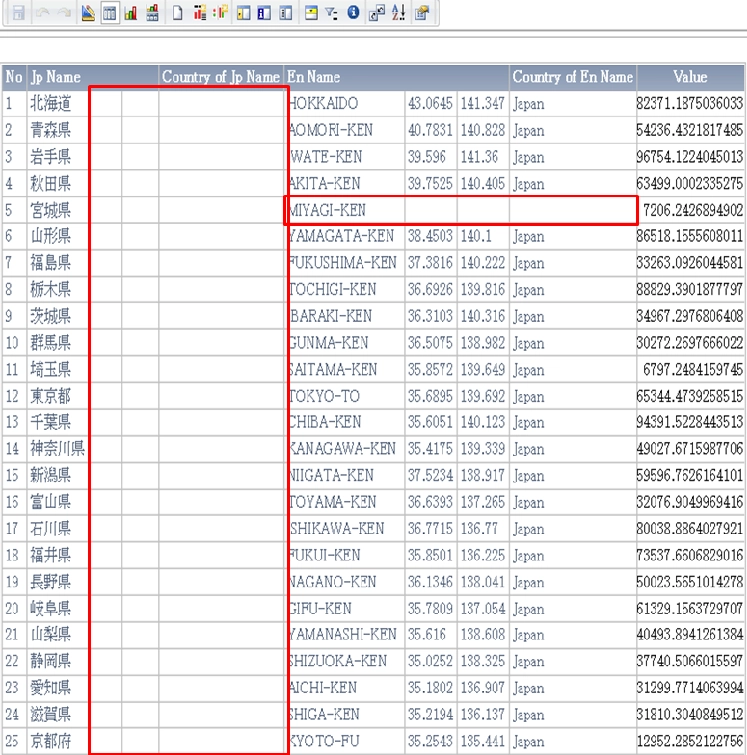
  • Import an excel file which contains prefectures, such as "MIYAGI-KEN", via Strategy Web 9.4.1.
  • In the data importing preview, change the geography role to "State -> Country" for the attributes.
  • Save it as an Intelligent Cube.
  • Create a report based on the Intelligent Cube.
  • Display the attribute forms "Latitude" and "Longtitude" for the attribute En Name.
  • While most of cities show the corresponding "Latitude" and "Longtitude" values, some, such as "MIYAGI-KEN", don't show the "Latitude" and "Longtitude" values.
     
ka04W000000OgLyQAK_0EM4400000026MI.png

CAUSE:
 
The scenario is caused by the missing data in Country.csv, State.csv, City.csv or ZipCode.csv under the path C:\Program Files (x86)\MicroStrategy\Intelligence Server.
 
ACTION:
 
Users can update the corresponding CSV files (Country.csv, State.csv, City.csv, ZipCode.csv) under path C:\Program Files (x86)\MicroStrategy\Intelligence Server to solve the problem. Take State.csv  and State “Tokyo” for example, if users want to have derived Attribute of Country of the State and the corresponding latitude/longitude, users can add Japanese prefectural capital in the SubdivisionStateAlternateNames columns.
 
Below are the detailed steps:

  • Open the State.csv file.
     
ka04W000000OgLyQAK_0EM4400000026MC.jpeg
  • Search for "Tokyo" in the "SubdivisionStateName"  column.
  • Then add the Japanese name "東京都" at the end of the corresponding AlternateName column, separating by comma:
     
ka04W000000OgLyQAK_0EM4400000026MJ.jpeg
  • Same operations can be done on the other States and then save the CSV file.
     
    Note that users need to save the csv file with Unicode encoding.
  • Restart the Intelligence Server and import the excel file again. The derived Attribute and the latitude/longitude can be displayed in the report as expected.
     
ka04W000000OgLyQAK_0EM4400000026ML.png

If the Latitude and Longtitude are missing for a prefecture, such as "Miyagi-ken", users can add one row entry manually following the formatting in the file.


Comment

0 comments

Details

Knowledge Article

Published:

June 15, 2017

Last Updated:

June 15, 2017