SYMPTOM:
When adding or modifying tables in the data warehouse and the attribute mapping method is set to automatic, Strategy will detect and map the newly added column into a corresponding attribute and its source table. However, the source table would not be enabled in some situations. This technical note describes when Strategy enables the source table for a newly added column in the data warehouse.
Premise:
1. Three attributes named ‘Att Lu1’, ‘Att Lu2’, and ‘Att Lu3’ are created from three lookup tables. Each table has a column that refers to ‘Att Lu1’. However, the corresponding column in the ‘lookup_T3’ table is named differently( vs ), which indicates it is a heterogeneous column.
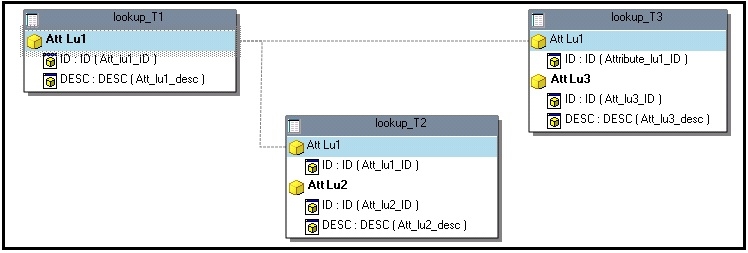
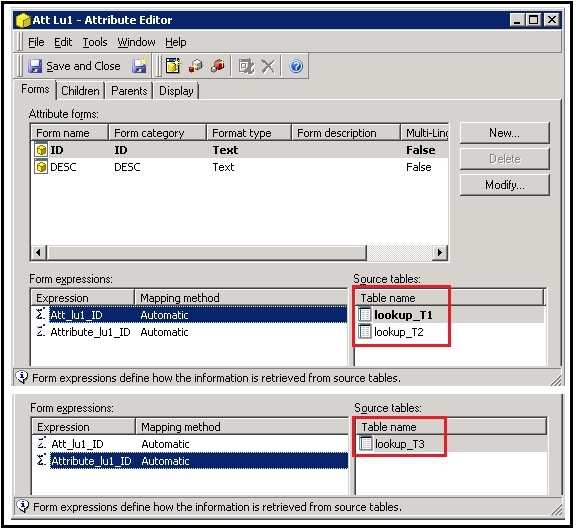
2. On the Strategy side, the table named ‘lookup_T1’ where the corresponding ID form expression is named ‘Att_lu1_ID’ is set as the lookup (name in bold letters) and the mapping method is set to ‘automatic’ as follows:
Scenarios
It is sometimes required to make modifications to the data warehouse in order to create new attributes or to establish attribute relationships. This technical note will explain how Strategy reacts to the following three common practices:
(A) Adding a new table to the data warehouse
(B) A new column is added to an existing table where the name of the new column is the same as the form expression in the lookup table (Att_lu1_ID; lookup_T1)
(C) A new column is added to an existing table, but the name of the new column does not match the form expression in the lookup table (Attribute_lu1_ID; heterogeneous column).
Case A: Adding a new table to the data warehouse
1. Create two new tables in the data warehouse, each of which has a column that refers to the ‘Att Lu1’ attribute.
create table lookup_T4
(
Att_lu4_ID varchar(5) not null,
Att_lu4_desc varchar(5) not null,
Att_lu1_ID varchar(5) not null
);
create table lookup_T5
(
Att_lu5_ID varchar(5) not null,
Att_lu5_desc varchar(5) not null,
Attribute_lu1_ID varchar(5) not null
);
2. Add the new tables to the project via the Warehouse Catalog and update schema
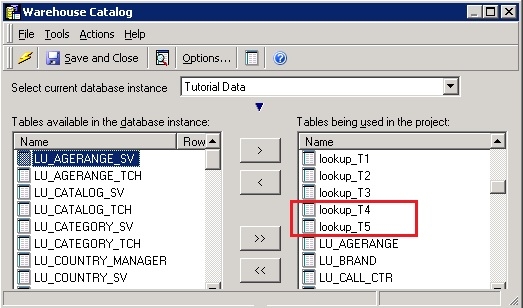
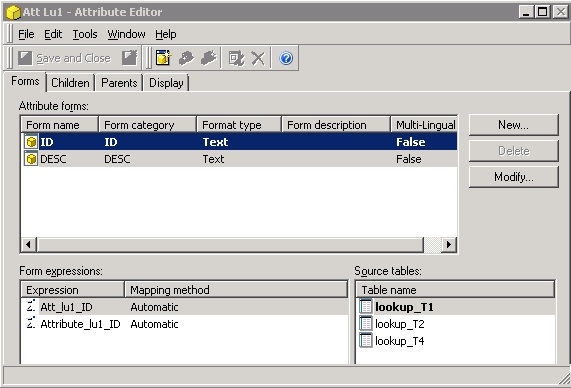
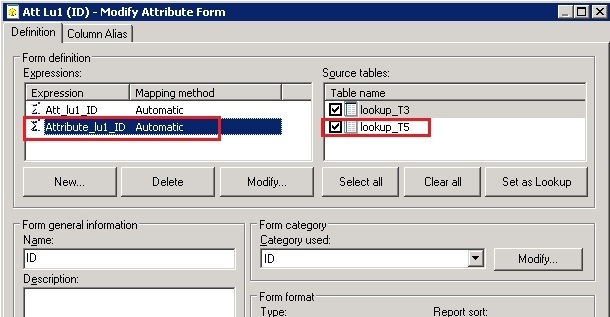
3. Open the ‘Att Lu1’ attribute and these two tables are added to the source tables and check mark is enabled automatically as shown below:
Case B: A new column is added to an existing table where the name of the new column is the same as the form expression in the lookup table (Att_lu1_ID; lookup_T1).
1. In the data warehouse, create a table named ‘lookup_T6’ and then create an attribute from it.
create table lookup_T6
(
Att_lu6_ID varchar(5) not null,
Att_lu6_desc varchar(5) not null
);
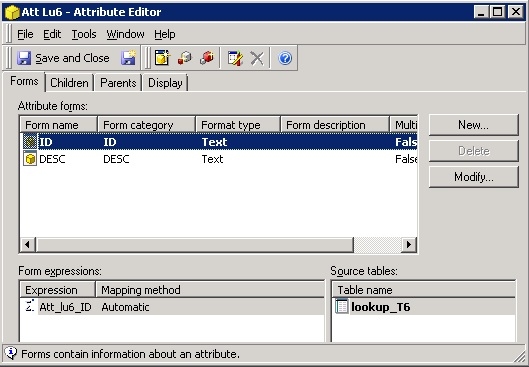
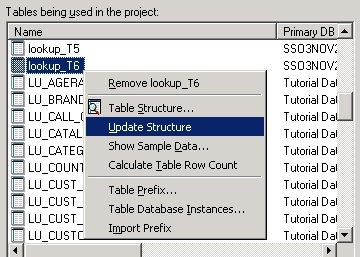
2. In the Warehouse Catalog, perform an ALTER command to add an ‘Att_lu1_ID’ column. Then, update the table structure in the Warehouse Catalog and also update the schema.
ALTER TABLE lookup_T6
ADD Att_lu1_ID varchar(5) not null
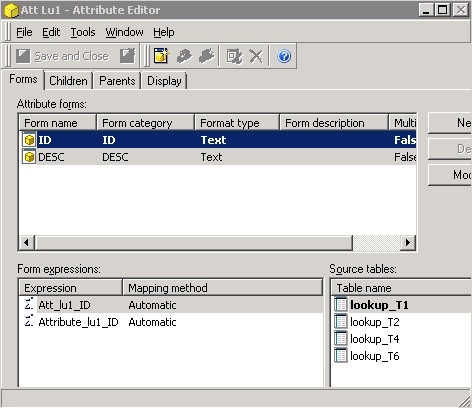
3. Open the ‘Att Lu1’ attribute and the 'lookup_T6' table is now listed as one of the source tables and the check mark is enabled automatically as shown below:
Case C: A new column is added to an existing table, but the name of the new column does not match the form expression in the lookup table (Attribute_lu1_ID; heterogeneous column).
1. In the data warehouse, create a table named ‘lookup_T7’ and then create an attribute from it.
create table lookup_T7
(
Att_lu7_ID varchar(5) not null,
Att_lu7_desc varchar(5) not null
);
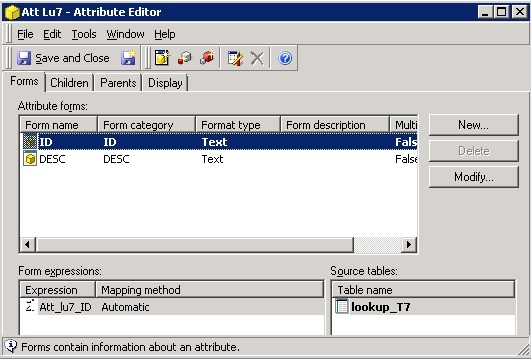
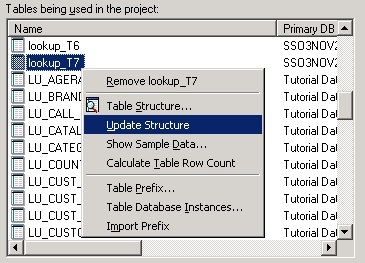
2. In the warehouse catalog, perform an ALTER command to add an ‘Attribute_lu1_ID’ column. Then, update the table structure in the warehouse catalog and also update the schema.
ALTER TABLE lookup_T7
ADD Attribute_lu1_ID varchar(5)
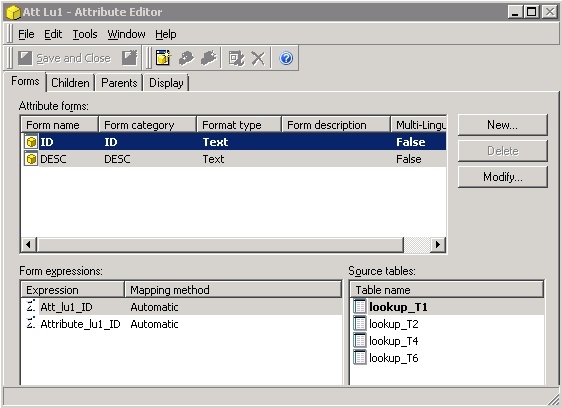
3. Open the ‘Att Lu1’ attribute. The ‘lookup_T7’ table is listed as a source table, but the check mark is not enabled as shown below:
CAUSE:
All above cases are working as designed. Case (c) is a current limitation.
ACTION:
If a column is added to an existing table that is not set as lookup, Strategy would only show it as one of the source tables but would not enable it. Users would then need to manually check it from the Attribute Editor.
