SYMPTOM:
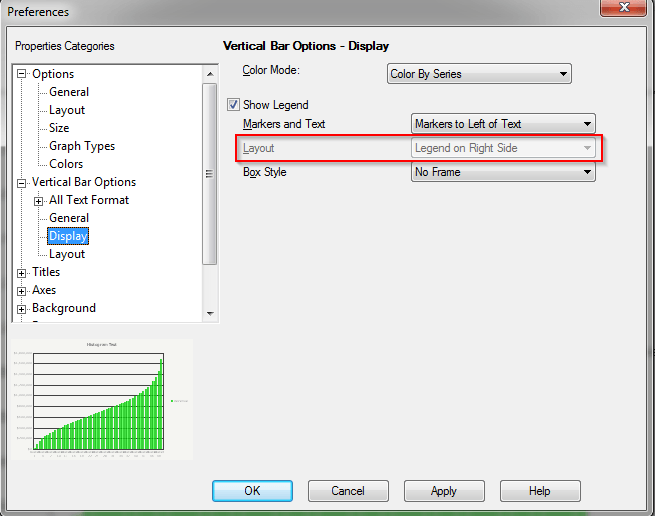
The Layout drop down box which controls where the Legend is displayed, is greyed out in Graph Options, Vertical Bar (Graph Type) Options, Display, but the Legend needs to be moved to a different position on the graph.
CAUSE:
This appears to happen because the Layout Mode of the graph is set to manual. In Manual Layout Mode the Legend can be manually selected, and moved. This specific drop down box appears to be an Automatic Layout Mode setting for where the Legend should be positioned, so it is disabled in Manual Layout Mode.

ACTION:
Set the graph to Automatic Layout Mode in the Graph Options, Options, Layout window.

Navigate back to Graph Options, Vertical Bar (Graph Type) Options, Display, and notice that the Layout drop down box, which controls the position of the Legend, is now enabled.
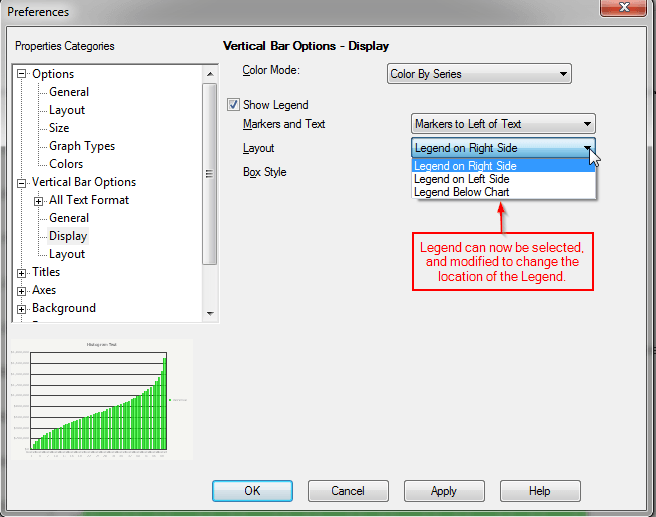
The graph's layout mode can then be set back to Manual Layout Mode if desired, and the changes made to the position of the Legend will persist.
WORKAROUND:
If none of the automatic positions for the Legend are appealing, then the Legend can be selected in Manual Layout Mode on the graph itself, and dragged into a desired position.
