EducationSoftwareStrategy.com
StrategyCommunity

Knowledge Base

Product

Community

Knowledge Base

TopicsBrowse ArticlesDeveloper Zone

Product

Download SoftwareProduct DocumentationSecurity Hub

Education

Tutorial VideosSolution GalleryEducation courses

Community

GuidelinesGrandmastersEvents
x_social-icon_white.svglinkedin_social-icon_white.svg
Strategy logoCommunity

© Strategy Inc. All Rights Reserved.

LegalTerms of UsePrivacy Policy
  1. Home
  2. Topics

KB45864: How to have different level Rank subtotals in MicroStrategy 9.4.x - 10.x?


Stefan Zepeda

Salesforce Solutions Architect • Strategy


How to have different level Rank subtotals in MicroStrategy 9.4.x - 10.x.

In some business scenarios, it is required to create a subtotal on a rank metric at a different level to the report attributes.
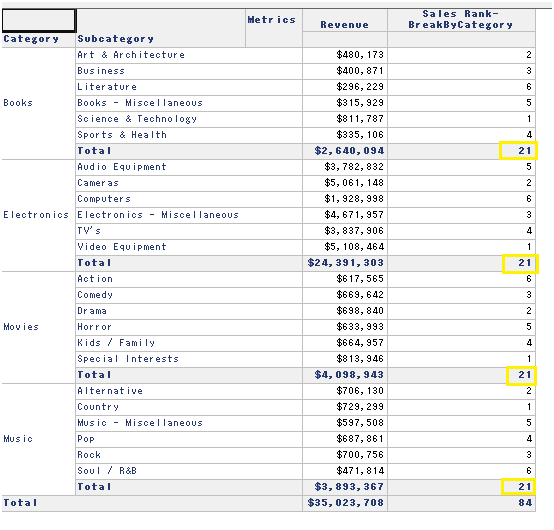
For example, in the following report, Revenue and its ranking are retrieved as seen below. The ranking Metric is broken by Category:
ka02R000000kc3MQAQ_0EM440000002CVB.png

The Total for Sales Rank is displayed as a sum of ranks within each Category and this value is meaningless.
To show a subtotal, which has ranking of Category level as seen below, follow the steps in this Technical Note.

ka02R000000kc3MQAQ_0EM440000002CVO.png
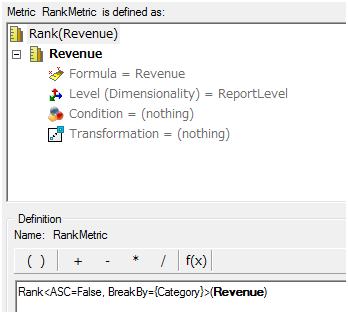
  • Create a rank Metric which is broken by Category.
ka02R000000kc3MQAQ_0EM440000002CV6.png


  • Create a Subtotal to Rank on the Revenue Metric. In the Level(Dimensionality) section, add Category with Filtering and Grouping set to standard.
ka02R000000kc3MQAQ_0EM440000002CVF.png
  • Rank<ASC=False>(Sum(Revenue) {Category+, ~+} )


  • Apply the newly created Subtotal to the Rank Metric created in step 1.
ka02R000000kc3MQAQ_0EM440000002CV9.png


  • In the same Subtotal/Aggregation tab, specify the “Total subtotal function” to the newly created Subtotal, too. If the newly created subtotal is stored outside the default subtotal location, select “More…” and navigate to the location accordingly.
ka02R000000kc3MQAQ_0EM440000002CV5.png


  • In the Report, display “Total” with “All Subtotals”.
ka02R000000kc3MQAQ_0EM440000002CVQ.png
  • Now the report Total works as desired.

Comment

0 comments

Details

Knowledge Article

Published:

May 31, 2017

Last Updated:

May 31, 2017