EducationSoftwareStrategy.com
StrategyCommunity

Knowledge Base

Product

Community

Knowledge Base

TopicsBrowse ArticlesDeveloper Zone

Product

Download SoftwareProduct DocumentationSecurity Hub

Education

Tutorial VideosSolution GalleryEducation courses

Community

GuidelinesGrandmastersEvents
x_social-icon_white.svglinkedin_social-icon_white.svg
Strategy logoCommunity

© Strategy Inc. All Rights Reserved.

LegalTerms of UsePrivacy Policy
  1. Home
  2. Topics

KB45866: Extra white space is displayed at the bottom of a Report Services Document after changing the color of the layout in MicroStrategy Mobile 9.4.x and 10.x


Community Admin

• Strategy


This technical note article describes an issue where changing the color for a layout, may not necessarily change the color of the entire document background in MicroStrategy Mobile 9.4.x and 10.x.

SYMPTOM:
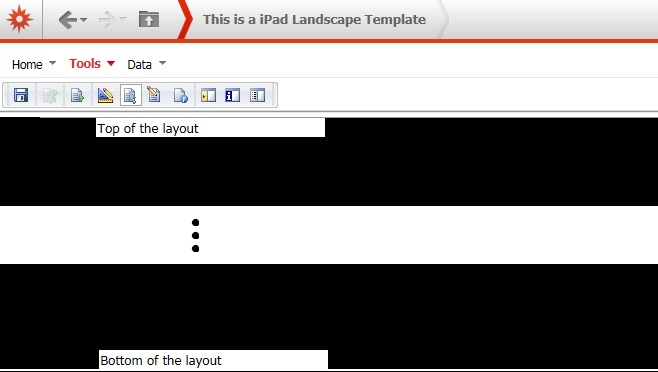
When a user changes the color of a Report Services Document Layout, and executes the document in Strategy Mobile 9.4.x and 10.x, they will notice that not all of the document space has changed to the custom color, as shown below.

ka04W000000OcZ3QAK_0EM440000002A96.jpeg

Notice the textbox that denotes the bottom of the layout, however, some extra white space appears under it.
 
STEPS TO REPRODUCE: 
  • Create a blank document and choose the Blank Dashboard template.
  • Delete the panel stack that is created by default.
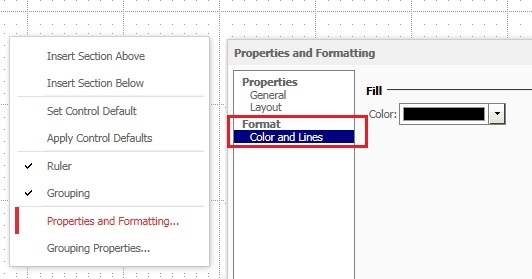
  • Right click on the white space of the document area and select: ‘Properties and Formatting’ > Colors and Lines.
  • Change the color to Black, as shown below:
ka04W000000OcZ3QAK_0EM440000002A9E.jpeg
  • To keep track of where the top and bottom margins are, insert two text objects at the top and bottom of the document. This will help to visually perceive where the document boundaries are, like shown below.
ka04W000000OcZ3QAK_0EM440000002A98.jpeg
  • Run this document in the Strategy Mobile 9.4.x or 10.x iPad app. Some white space will appear at the bottom of the document as shown below.
ka04W000000OcZ3QAK_0EM440000002A96.jpeg

Note: The amount of white space shown will depend on how closely the size of the document layout matches the iPad screen resolution. The closer it matches, the less white space will appear.
 
CAUSE:
This is working as designed in Strategy Mobile 9.4.x and 10.x. The layout property is not the defining property of the entire document background.
 
ACTION:
In order to set the color of document background, take the following steps:

  1. Open the document in either the design or editable view modes.
  2. Go to Tools > Document Properties > Layout Properties > Colors and Boarders, change the ‘Fill Color’ here instead
  3. Now, the whole background color is filled with the specified color, as shown below.
ka04W000000OcZ3QAK_0EM440000002A9B.jpeg


Comment

0 comments

Details

Knowledge Article

Published:

May 10, 2017

Last Updated:

May 10, 2017