When Strategy Analytics Desktop is first started, right after installation, it has to go through an activation process. Proxy server settings are required to proceed. If the proxy settings are not populated, users will run into the issue described in TN: 45827. To resolve this issue, follow the steps below to configure the proxy settings via Internet options in Internet Explorer:
1. Click on tools and select Internet options ( user might need to press ALR first to let menu bar be displayed ) .
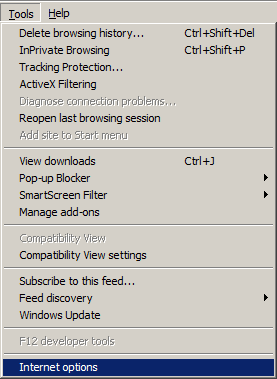
2. Choose LAN settings

3. Enable the check box and fill in proxy server's IP and port number thats configured in your environment.

4. Restart Strategy Analytics Desktop for this change to take effect.
If Internet Explorer is not available, internet options settings can also be access under Control Panel

Notes:
