EducationSoftwareStrategy.com
StrategyCommunity

Knowledge Base

Product

Community

Knowledge Base

TopicsBrowse ArticlesDeveloper Zone

Product

Download SoftwareProduct DocumentationSecurity Hub

Education

Tutorial VideosSolution GalleryEducation courses

Community

GuidelinesGrandmastersEvents
x_social-icon_white.svglinkedin_social-icon_white.svg
Strategy logoCommunity

© Strategy Inc. All Rights Reserved.

LegalTerms of UsePrivacy Policy
  1. Home
  2. Topics

KB45970: Incorrect filtering on a report can occur when both a relationship filter and security filter are used and the attribute used in the security filter is a parent of the attribute used in the relationship filtering


Community Admin

• Strategy


This article notes an issue with security filter and relationship filter interactions in limited scenarios.

SYMPTOM:
When a user has a security filter for a certain attribute, reports using a relationship filter on an attribute that is a child of that attribute ignore the relationship filter. However, for users with no security filter or a security filter on an unrelated attribute, the relationship filter works correctly.
 
For example, this behavior can be replicated in Strategy Tutorial using the following steps:

  •  Create a new table called EMP_RELATION to act as the output level for the relationship filter. This table should include EMP_ID as the column, and include the first 5 employees.
     
     
ka04W00000148CHQAY_0EM440000002CUL.png
  •  
    EMP_RELATION Table


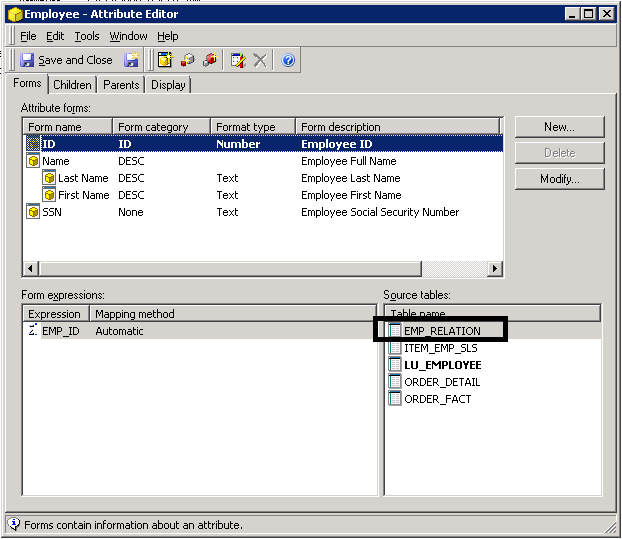
  • Add the table to the project using Warehouse Catalog or Architect. Edit the Employee attribute to ensure that it maps to the new relationship table.
     
ka04W00000148CHQAY_0EM440000002CU6.png
  •  
    New Attribute Definition with EMP_RELATION table


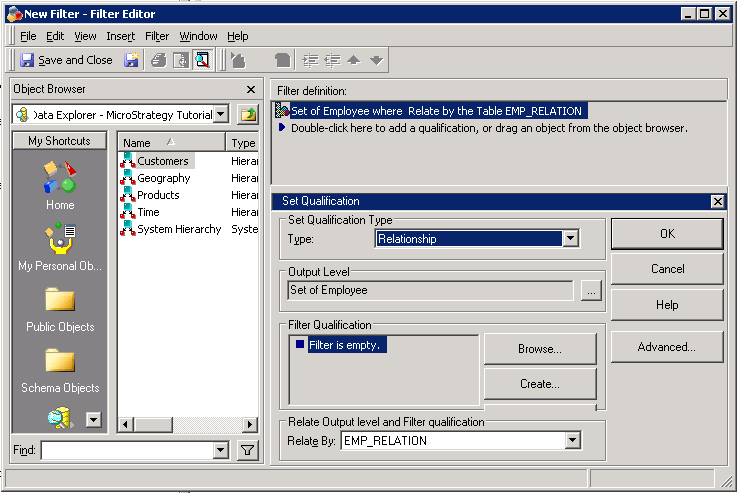
  • Create a relationship filter using the Employee attribute and the EMPLOYEE_RELATIONSHIP table as the Output level. Select "Relationship" as the Set Qualification type. The Filter Qualification can be left empty, as any ID that exists on this table should be filtered.
     
ka04W00000148CHQAY_0EM440000002CU2.png
  •  
    Relationship Filter using EMP_RELATION table


  • Create a security filter for a user that has Designer and Analyst privileges. The security in this case includes Regions In List "South" and "Southwest".
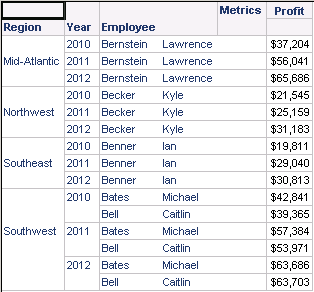
  • Create a report that includes Region, Year, Employee, and Profit. Add the relationship filter created in step 3. Now, execute the report both as a user with the security filter enabled, and without the security filter. The relationship filter should ensure that only the first 5 employees are returned. For the user without a security filter, the report results are correct:
     
ka04W00000148CHQAY_0EM440000002CUE.png
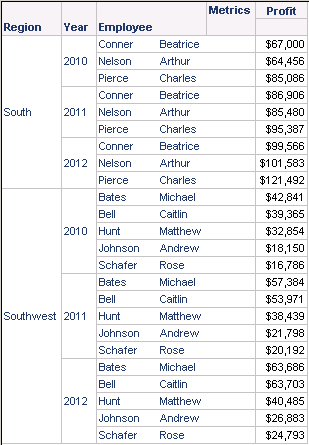
  • Report with no security filter However, when the user with the security filter logs in, here are the results:
     
ka04W00000148CHQAY_0EM440000002CUA.png
  •  
    Incorrect behavior of report with security filter and relationship filter
     

Clearly, all of the users from the South and Southwest group are returned, and the relationship filter is ignored. Instead, the report should only be returning the users Caitlin Bell and Michael Bates, since they are the only employees that exist both in the Security Filter and Relationship filter.
 
ACTION:
Currently this issue is still being reviewed for feasibility by our Technology team and it is not scoped for any upcoming scheduled Strategy release. 
 
WORKAROUND:
The workaround described below will correct the behavior in the example above.
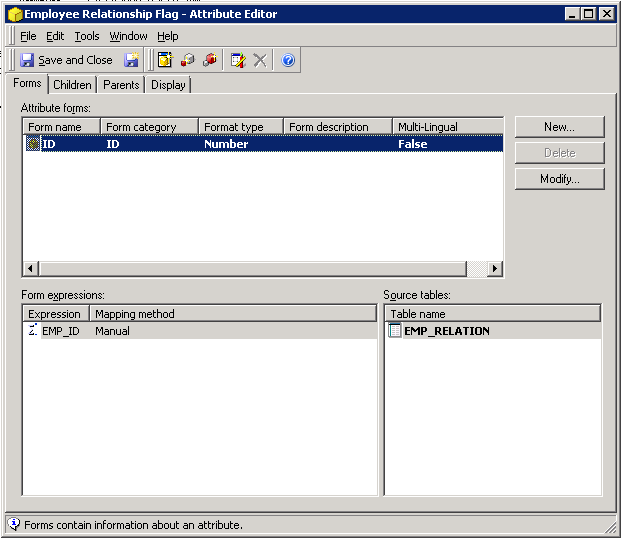
  • Create a new attribute that only maps to the EMP_RELATION table.
     
ka04W00000148CHQAY_0EM440000002CU4.png
  •  
    Employee Relationship Flag definition. This is a dummy attribute used for the work around.


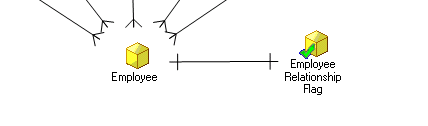
  • Create a one-to-one relationship between the new attribute and the Employee attribute
     
ka04W00000148CHQAY_0EM440000002CU8.png
  •  
    One-to-one relationship between Employee and Employee Relationship Flag


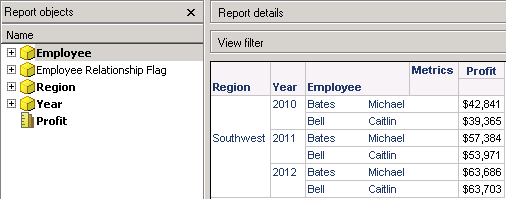
  • In the original report, add the Employee Relationship Flag attribute to the report objects window, and remove the relationship filter. The report should display correctly for the user that has a security filter.
     
ka04W00000148CHQAY_0EM440000002CUC.png
  • Correct report results when work around is used


CAUSE:
This is a known issue in Strategy 9.3.1.


Comment

0 comments

Details

Knowledge Article

Published:

June 2, 2017

Last Updated:

June 2, 2017