EducationSoftwareStrategy.com
StrategyCommunity

Knowledge Base

Product

Community

Knowledge Base

TopicsBrowse ArticlesDeveloper Zone

Product

Download SoftwareProduct DocumentationSecurity Hub

Education

Tutorial VideosSolution GalleryEducation courses

Community

GuidelinesGrandmastersEvents
x_social-icon_white.svglinkedin_social-icon_white.svg
Strategy logoCommunity

© Strategy Inc. All Rights Reserved.

LegalTerms of UsePrivacy Policy
  1. Home
  2. Topics

KB46067: How to enable the Report Details note "Report Cache Used" in MicroStrategy Developer 9.x.


Stefan Zepeda

Salesforce Solutions Architect • Strategy


How to enable the Report Details note "Report Cache Used" in MicroStrategy Developer 9.x.

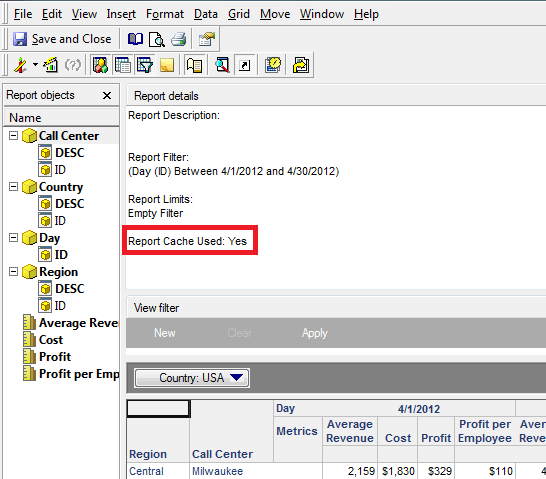
In Strategy Developer 9.x, reports can let users know if a cache was used by printing the Report Details line "Report Cache Used: Yes/No" as seen below. 
 

ka02R000000kbnJQAQ_0EM440000002CSd.png

 
ACTION
 
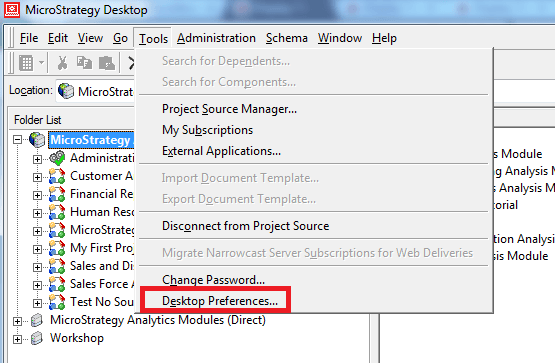
To enable or disable this setting, navigate to the Developer Preferences in the Tools menu of Strategy Developer 9.x, as seen below.
 

ka02R000000kbnJQAQ_0EM440000002CSn.png

 
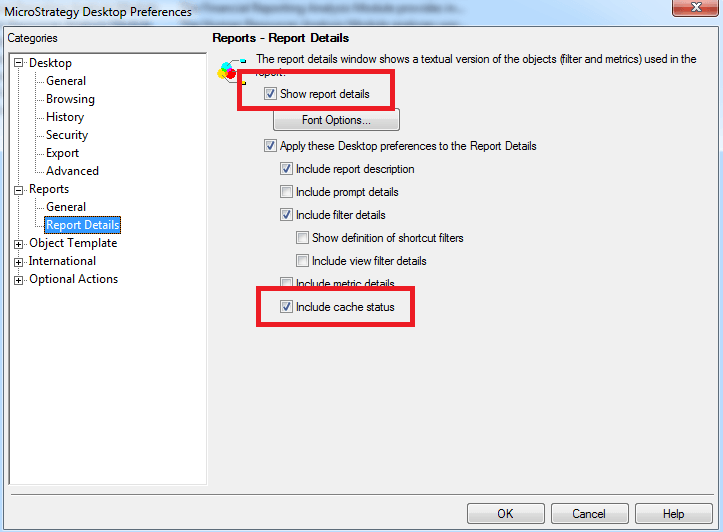
The option is located under Tools > Preferences > Reports > Report Details, as seen below.   
ka02R000000kbnJQAQ_0EM440000002CSc.png

 
With "Show report details" and "Include cache status" checked, the Report Details section will then inform users if a cache has been used. 
 
Note: These settings do not have any influence over the Report Details section in Strategy Web.  For more information on how to determine if a report hit cache through Strategy Web 9.x, refer to tech note TN19211.


Comment

0 comments

Details

Knowledge Article

Published:

June 8, 2017

Last Updated:

June 8, 2017