EducationSoftwareStrategy.com
StrategyCommunity

Knowledge Base

Product

Community

Knowledge Base

TopicsBrowse ArticlesDeveloper Zone

Product

Download SoftwareProduct DocumentationSecurity Hub

Education

Tutorial VideosSolution GalleryEducation courses

Community

GuidelinesGrandmastersEvents
x_social-icon_white.svglinkedin_social-icon_white.svg
Strategy logoCommunity

© Strategy Inc. All Rights Reserved.

LegalTerms of UsePrivacy Policy
  1. Home
  2. Topics

KB46116: Answering Prompts dynamically using Edit Links defined in a grid does not pass attributes in selectors that target the grid in MicroStrategy Web


Community Admin

• Strategy


MicroStrategy Web developers will notice that defining Edit Links to answer prompts dynamically in a grid will not pass attributes in selectors that target the grid in MicroStrategy Web.

SYMPTOM:
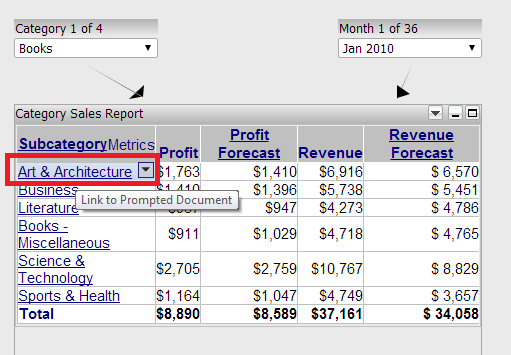
Strategy Web 9.4.1 developers will notice that defining Edit Links to answer prompts dynamically in a grid will not pass attributes in selectors that target the grid in Strategy Web 9.4.1 and above as shown below:
ka04W00000148NZQAY_0EM4400000026JG.png

In the image above the arrows indicate that both selectors target the grid. Additionally the Edit Links is defined on the Subcategory attribute in the grid. If the target document contains 3 prompts, one for each attribute (Category, Subcategory, Month) only the Subcategory prompt will be answered dynamically.
CAUSE:
This is expected behavior since Edit Links in grids is designed to only pass any attributes contained in the grid and that are to the left of the column where the Edit Links is defined. An enhancement request has been logged to support this functionality in future releases.
ACTION:
Please contact Strategy Technical Support for an update on this enhancement.
WORKAROUND:
As a workaround, add the attributes to the grid and reduce the width of the columns as explained below:
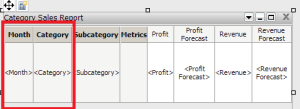
  • Add the attributes to the grid, to the left to where the Edit Links will be defined as shown below:
ka04W00000148NZQAY_0EM4400000026JV.png
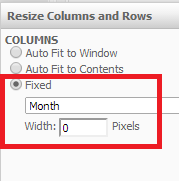
  • Run the document in editable mode,right click the grid and select "Resize rows and columns"
  • For the columns of the extra attributes, select "Fixed" and set them to width of 0 as shown below:
ka04W00000148NZQAY_0EM4400000026JE.png
  • Define the Edit Links and select the prompted report or document as the target.
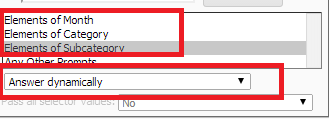
  • Select for each prompt "Answer Prompts Dynamically" to pass all the attributes as prompt answers as shown below:
ka04W00000148NZQAY_0EM4400000026JX.png
  • Run the document and note that the prompts will be answered correctly and the extra columns will not show.

For more information on how to use Edit Links refer to TN18968 "How to create and use links for reports and documents in MicroStrategy Web 9.2.x"


Comment

0 comments

Details

Knowledge Article

Published:

April 21, 2017

Last Updated:

April 21, 2017