The following steps describe how to link back to the Source document from Target document using URL API when using Strategy Web 9.x. that would be similar to simulating a 'back button'.
1. In Strategy Web create a document called 'Target Document'.
2. Create another document called 'Source Document'.
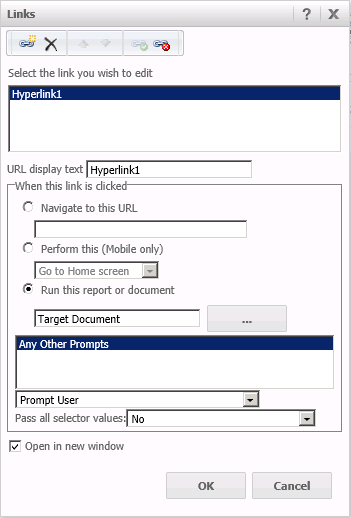
3. On 'Source Document' insert a Text box, right-click it and select Edit Links; select Target Document to be executed when the link is clicked on as shown below:
4. Save 'Source document'.
5. Edit Target Document and insert a text box called Back Button.
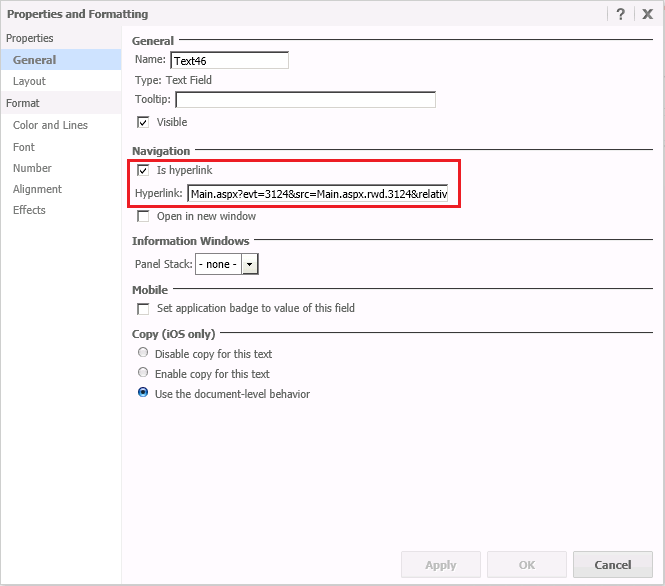
6. Right-click the text box from step five and go to Properties and Formatting; enable the 'Is hyperlink' option and insert the URL as below:
7. Save 'Target Document'.
Now run 'Source Document' first and click on the link that executes the 'Target Document'. Once 'Target Document' appears, click on Back Button link, this will take back to the Source Document.
ADDITIONAL TROUBLESHOOTING
For further troubleshooting, the following log files / information would be necessary:
- URL used to link target document back to source document.
- DSSErrors.log with time stamp.
- MSTRLog_mmddyyyy.log (web log).
- Fiddler log file (KB20064: How to install and use Fiddler for Strategy Web troubleshooting).
LEARN MORE
For further reference on simulating Back Button using URL API, check:
