By default, WebLogic deploys applications when it is started, and any configuration change is stored in a different directory (by default WebLogic Server 10.3.6 stores the Web Applications files inside of “/tmp” directory). To avoid this behavior,
ACTION:
1. Enter to WebLogic Server Administration Console and go to Environment > Servers and then click on AdminServer (admin).

2. In the AdminServer configuration, go to Deployment and copy the text of the Staging Directory Name (this will be used later) and verify that the Staging Mode is “stage”.
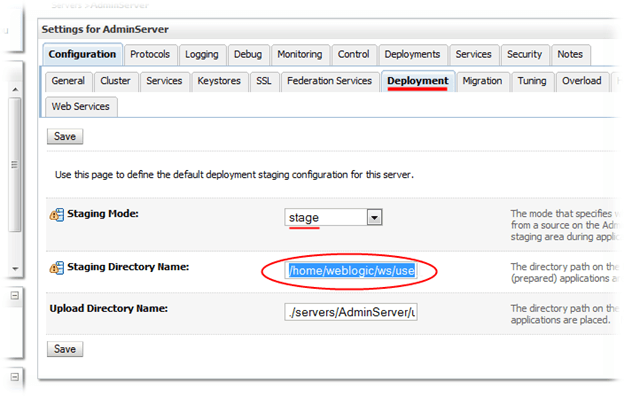
The text configured in the environment used for this note is /home/weblogic/ws/user_projects/domains/base_domain/servers/AdminServer/stage
3. Go to Deployments, select the Web Application to be exploded and stop it.

4. Once the application is in state “Prepared”, go to the Linux console of the WebLogic server, logic with the user account that runs WebLogic processes and access to the Staging Directory of step 2.
5. Run “ls -la” to find the directory of the application stopped in step 3 and enter to it.
6. After running “ls -la” again it can be observed in the image below that there is a file with the name of the Web Application and with the extension “.war”
$ cd /home/weblogic/ws/user_projects/domains/base_domain/servers/AdminServer/stage
$ ls -la
total 20
drwxr----- 5 weblogic weblogic 4096 Feb 21 17:15 .
drwxr-x--- 9 weblogic weblogic 4096 Feb 20 13:13 ..
drwxr----- 2 weblogic weblogic 4096 Feb 21 17:15 Strategy
drwxr----- 3 weblogic weblogic 4096 Feb 18 12:03 Strategy931hf4
drwxr----- 2 weblogic weblogic 4096 Feb 20 15:32 Strategy931hf4nonexp
$ cd Strategy
$ ls -la
total 188016
drwxr----- 2 weblogic weblogic 4096 Feb 21 17:15 .
drwxr----- 5 weblogic weblogic 4096 Feb 21 17:15 ..
-rw-r----- 1 weblogic weblogic 192326000 Feb 21 17:15 Strategy.war
$
7. Execute the following commands (marked in bold letter):
$ mkdir mstr
$ mv Strategy.war mstr
$ cd mstr
$ jar xvf Strategy.war
created: META-INF/
inflated: META-INF/MANIFEST.MF
created: style/
inflated: style/Document.css
inflated: style/Export.css
.
. <many lines showing the extraction of files>
.
inflated: swf/quickImport/campaign-finance-sample-data.xls
inflated: swf/quickImport/gaming-sample-data.xls
inflated: swf/quickImport/income-tax-sample-data.xls
inflated: swf/quickImport/retail-sample-data.xls
$
$ cd ..
$ mv mstr/ Strategy.war
$ ls -la
total 12
drwxr----- 3 weblogic weblogic 4096 Mar 6 11:09 .
drwxr----- 5 weblogic weblogic 4096 Feb 21 17:15 ..
drwxrwxr-x 15 weblogic weblogic 4096 Mar 6 10:14 Strategy.war
$
8. Finally, start the Web Application again from WebLogic

9. Once the application is started, it should look like in the image below:

Further information on Oracle WebLogic Server 10.3.6, refer to the Oracle online documentation available at: http://docs.oracle.com/cd/E23943_01/apirefs.1111/e13952/taskhelp/web_applications/InstallWebApplications.html
Third Party Software Installation Warning:
The third-party product(s) discussed in this technical note is manufactured by vendors independent of Strategy. Strategy makes no warranty, express, implied or otherwise, regarding this product, including its performance or reliability.
