EducationSoftwareStrategy.com
StrategyCommunity

Knowledge Base

Product

Community

Knowledge Base

TopicsBrowse ArticlesDeveloper Zone

Product

Download SoftwareProduct DocumentationSecurity Hub

Education

Tutorial VideosSolution GalleryEducation courses

Community

GuidelinesGrandmastersEvents
x_social-icon_white.svglinkedin_social-icon_white.svg
Strategy logoCommunity

© Strategy Inc. All Rights Reserved.

LegalTerms of UsePrivacy Policy
  1. Home
  2. Topics

KB4618: How to create an attribute in MicroStrategy Architect that can join on columns from different tables with different names (heterogeneous column joining)


Community Admin

• Strategy


How to create an attribute in MicroStrategy Architect that can join on columns from different tables with different names (heterogeneous column joining)

This document explains how to join tables in Strategy Architect where the attribute ID columns are named differently (also known as heterogeneous column support) by creating an attribute that can join on columns from different tables with different names (heterogeneous column joining).
  • In Strategy Agent, go to Schema Objects > Attributes. Right-click and select New > Attribute.
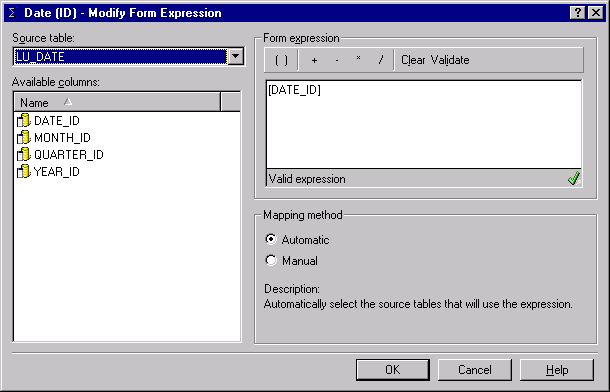
  • In the Attribute Editor, create a new form expression. Select the Source Table that contains the desired attribute ID, and drag the attribute ID into the Form Expression window. Be sure that the form expression validates (green check mark in the lower right corner of the Form Expression window). Choose 'Automatic' in the Mapping method section.
ka04W000000Of64QAC_0EM440000002GID.gif
  • Click on 'OK.'
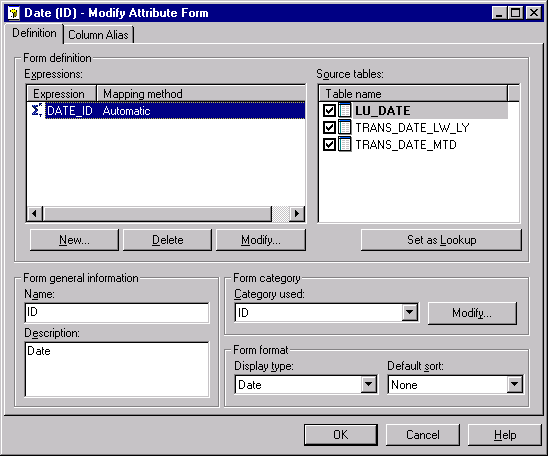
  • In the Modify Attribute Form Window, select 'New' to create a new attribute form.
ka04W000000Of64QAC_0EM440000002GIE.gif
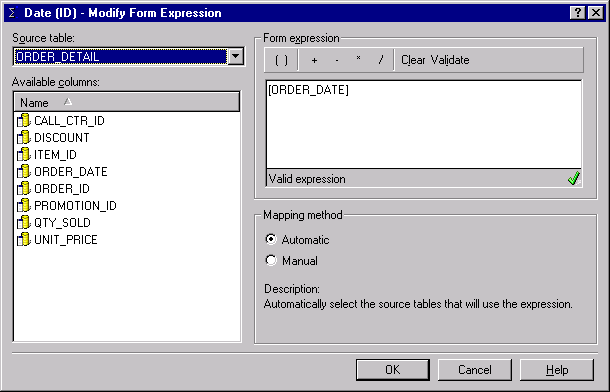
  • Select the Source Table and the column to which the column selected earlier will join. Drag the attribute ID into the Form Expression window. Be sure that the form expression validates. Choose 'Automatic' in the Mapping method section.
ka04W000000Of64QAC_0EM440000002GIB.gif
  • Select 'OK.'
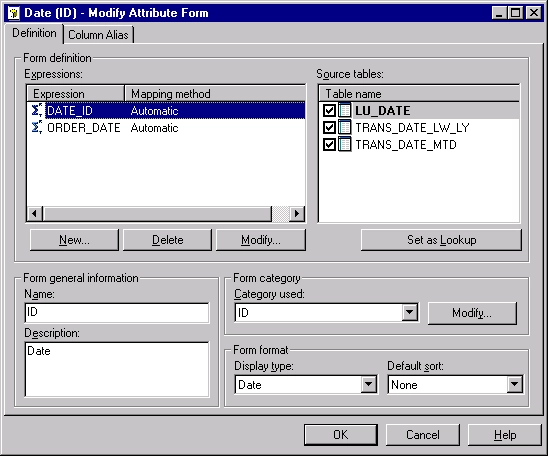
  • The Modify Attribute Form now appears similar to the screenshot below:
ka04W000000Of64QAC_0EM440000002GI9.gif
  • Select 'OK' on the Modify Attribute Form.
  • Save and close the Attribute Editor, and name the attribute accordingly.
  • If this attribute is used in a report, run the report and view the SQL to see the join occurring between columns of different names. Note the join between a11.ORDER_DATE = a12.DATE_ID in the SQL below:
    
    select a12.MONTH_ID  MONTH_ID,
     max(a13.MONTH_DESC)  MONTH_DESC,
     a11.ORDER_DATE  DATE_ID,
     sum(a11.ORDER_AMT) DOLLARSALES
    from ORDER_FACT a11
     join LU_DATE a12
       on  (a11.ORDER_DATE = a12.DATE_ID)
     join LU_MONTH a13
       on  (a12.MONTH_ID = a13.MONTH_ID)
    where a11.ORDER_DATE in ('1997-01-01', '1997-01-02', '1997-01-03')
    group by a12.MONTH_ID,
     a11.ORDER_DATE


Comment

0 comments

Details

Knowledge Article

Published:

June 8, 2017

Last Updated:

June 8, 2017