SYMPTOM:
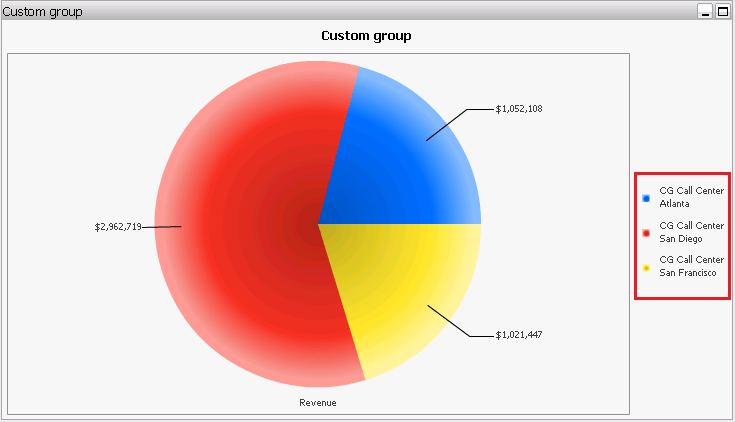
When setting the “Show only the individual items within this element” Custom Group option to hide the Custom Group element name, it is not applied in the graph legend in the Flash View mode in Strategy Web 9.4.1.
STEPS TO REPRODUCE:
In the Strategy Tutorial Project:
1 - Create a Custom Group using the Call Center attribute and add Atlanta, San Diego and San Francisco.
2 - Click on Options under the Custom Group menu.
3 - Uncheck the option Enable Hierarchical Display and click on OK:

4 - Right mouse click on the Custom Group Element and click on Show Display Options...
5 - Check the “Show only the individual items within this element” option and click on OK:
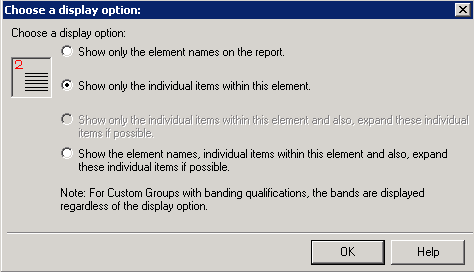
6 - Save and close the Custom Group.
7 - Create a blank report and add the Custom Group and the Revenue metric.
8 - Create a blank document of type dashboard and use the report created in the previous step as dataset.
9 - Add a Pie Graph with the Custom Group in the Series and the Revenue metric in the Categories.
10 - Open in Flash view mode to see the Custom Group element name in the legend, as shown:
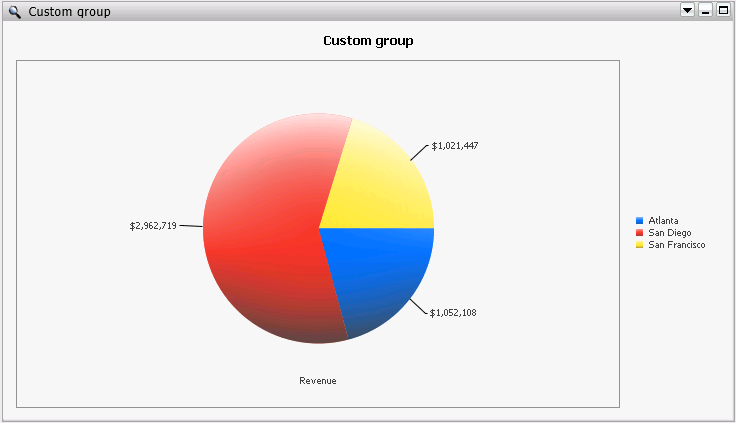
11 - Change to Interactive view mode to see the correct legend:
CAUSE:
This is a known issue in Strategy Web 9.4.1.
ACTION:
This issue has been addressed starting with 9.4.1 Hotfix 3. Please update to this or a newer version to take advantage of the fix.
KB46249
