It may be desired to create reports in which sorting is defined on an attribute form that is not actually present on the report. This can be the case if the attribute form in question is created purely for sorting purposes, but does not need to be displayed on the report as it does not offer any business value.
In Strategy Developer versions prior to 9.3.1, this can be done at the report level by following the steps in technical note 10073. As mentioned, these steps will need to be done for each report that sorting in this way is desired.
However, starting in Strategy Developer 9.3.1, users now have the ability to enable this behavior at the attribute level, so that when an attribute form is set as a Report Sort form in the Attribute Editor, the attribute will sort by that form in all reports by-default, even if that form is not present on the report at all - not even in the Report Objects window which is typically required for a column to be included in the SQL.
The new setting is a Database Instance level VLDB property called Default Sort Behavior for Attribute Elements in Reports. It can be found by right-clicking a database instance > VLDB Properties... > Query Optimizations > click Default Sort Behavior for Attribute Elements in Reports as seen in the screenshot below:

The default value of this setting is the top option Sort attribute elements based on the attribute ID form for each attribute. This setting will use the default sorting behavior from pre-9.3.1 Strategy versions. The second option Sort attribute elements based on the defined 'Report Sort' setting of all attribute forms for each attribute will implement the new sorting behavior. Note that since this is a Database Instance level VLDB property, the Intelligence Server will need to be restarted for this setting to take effect. In addition it will impact all reports in all projects that use that Database Instance.
For example, consider the scenario below:
1) In Strategy Tutorial, a new 'Customer' attribute is created with two attribute forms - the ID form based on the CUSTOMER_ID column and a description form called lastname based on the CUST_LAST_NAME column.
2) As seen in the screenshot below, the lastname attribute form is set as a descending Report Sort form:

3) With the default setting for the VLDB property Default Sort Behavior for Attribute Elements in Reports, the lastname attribute form will need to be set as a Report Display Form on the Display tab of the attribute editor as seen in the screenshot below, so that the lastname form is included in the Report Objects window of any report the Customer attribute is included on. Then the steps in technical note 10073 will need to be followed to manually remove that form from the grid and set Advanced Sorting conditions.

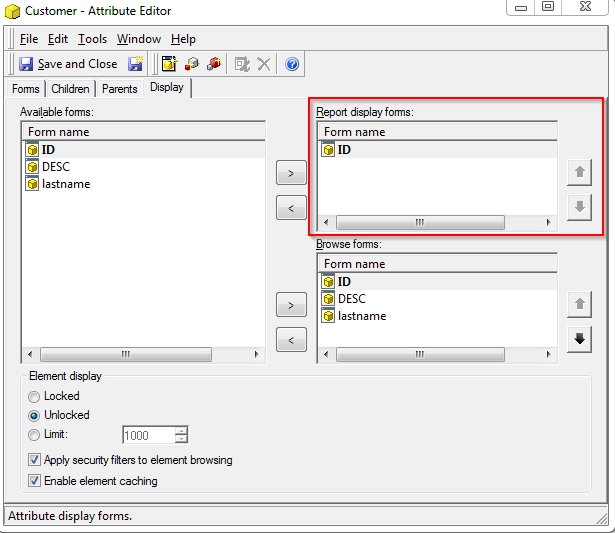
4) After enabling the new setting in the VLDB property Default Sort Behavior for Attribute Elements in Reports and restarting the Intelligence Server, the lastname attribute form can now be removed from the Report Display Forms on the Display tab of the attribute editor as seen in the screenshot below and the new Customer attribute will still be sorted by the lastname form.
5) Note that even though the lastname attribute form will no longer appear in the Report Objects window of any reports, it will still be present in the SQL view of the report, since the CUST_LAST_NAME column will be required for the Strategy Analytical Engine to perform it's sorting. See the SQL except below for details:

