SYMPTOM:
It is not possible to sort by an attribute and simultaneously have all subtotals associated with the attribute elements displayed at the bottom of the page with default settings in Strategy 9.x.
If the grid sorts by the attribute then the total will display after every element such as in the example below:
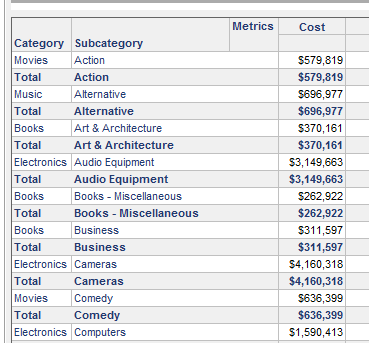
Looking at this example, notice when the sort is by Subcategory the subtotal is displayed after every element of subtotal.
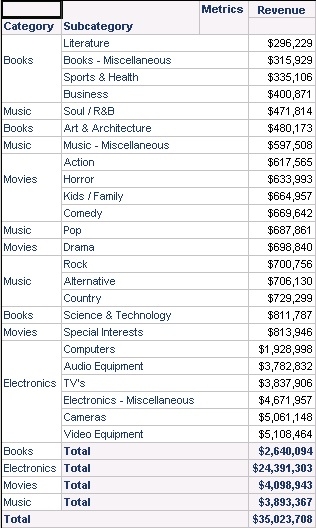
However, if the sort is changed to be on a metric and the setting 'sort metrics hierarchically' is not selected then the subtotals can successfully display at the bottom of the grid:
CAUSE:
This is caused by the use of attribute relationships which automatically occurs when sorting by an attribute while when sorting by a metric, advanced total position options are available.
WORKAROUND:
A workaround is to create a derived metric defined as max(attribute@form){attribute}
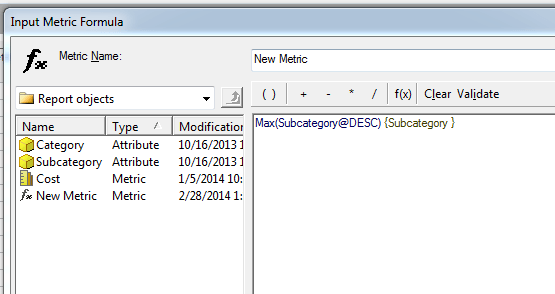
Then sort by this new metric. It will now appear as if the report is sorted by the attribute in question, and the subtotals will be displayed at the bottom of the page as desired.
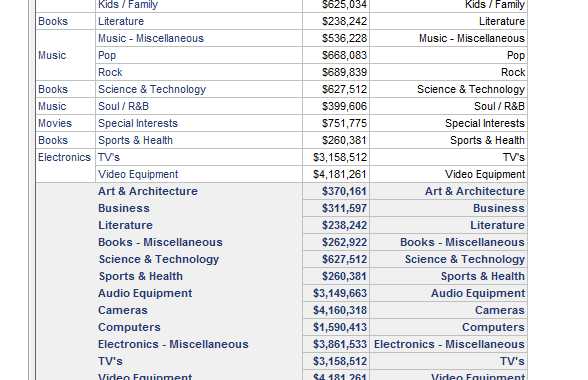
This metric can be hidden by setting its column width to 0 to hide it and making the alias a 'space'.
