Level dimensionality in a metric interacts differently with different features such as view filters, report filters, other metrics and certain VLDB properties. Different scenarios will be explored throughout this article to better understand the logic of how Strategy is working.
Level Metric of Profit ignoring Year
The following level metric will be used in many different situations to better convey these different interactions for this type of level metric.

The following screenshot is the base case of a report with the following objects:year and a profit metric where year is set to ignore filtering without any filters. This shows the base underlying data that is going to go into all future calculations.

Report Filter does not limit the rows of data
The report filter shows all the data returned regardless of the report filter because the metric is set to ignore.

When year is taken out of the report template, the rows will aggregate into one row taking into account all rows of data.

Report Filter with an additional metric will restrict rows of data returned with report filter
This picture shows how a report filter shows the data with year in the report template. Metrics will be rolled up to the level of the report template. When the year attribute is added back to the report from the first scenario, you can see that the metric will calculate at the report dataset level. Only two rows are returned from the database. The reason only two rows are returned is that the two metrics are joined together with an inner join. The level metric doesn't apply the filter in its calculation pass but the inner join to the regular metric which does apply the filter removes the row for the year 2012.
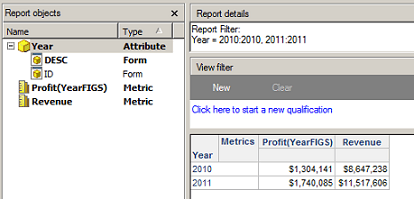
Without year in the report template, the rows will aggregate as expected.
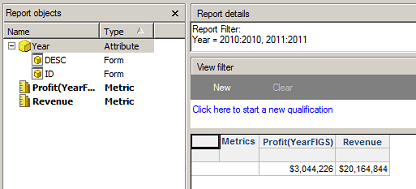
View Filter applied will only return a subset of the rows that were returned by the report filter.
This behavior occurs because the view filter is an analytical engine filter occurring between the report objects window level dataset and the template. It limits the rows returned before they go to the template (or before aggregation to the template level if aggregation is necessary). This is not a filter in the SQL engine which is why it is not subject to the level/dimensionality of the metric.

Note. A view filter can only be applied in this scenario if year is in the report objects menu.
How are view filters different from report filters when level dimensionality is applied to a metric in a report?
A view filter will show different data from a report filter in some instances when a level dimensionality is introduced into the report. The view filter and report filter work in two different ways when using level metrics that ignore certain attributes. The report filter will apply this “ignore” level in the SQL when pulling rows from the database for the calculation of the specific metric. When you run a view filter it does not ignore the attribute on the level metric because the view filter is essentially just pulling out a slice of data out of the entire report data to show on the template and isn't really a true filter (something that occurs before aggregation). Further the view filter only applies to the reports dataset as a whole and not to individual metrics within it unlike how the engine handles report filters. Subtotals and aggregation are going to be based off of this slice of template data (which does not currently have any means to look at or even acknowledge filter level settings). This means if rows are removed they are simply not present for the subtotal to see and use to produce its value. The report filter total is higher than the view filter total because all the rows are present to be rolled up to a higher level in the report filter and not the view filter.
VLDB properties can force a report filter to be applied to the final pass of SQL
As seen in the scenario above, three rows are returned when the report filter is set to 2010 and 2011. The following VLDB properties can be used in conjunction to force the final pass of the report to apply the report filter; Additional Final Pass Option and Apply Filter options should be set to the below settings. These VLDB property settings can be found in Query Optimization. Note that advanced VLDB properties need to be shown in order to see both of these VLDB properties.


These settings will produce the same behavior as the option when a non-level metric is included on the report and inner joined to. It may be desired in some scenarios as otherwise rows could be included on the report that the end user would think shouldn't be present per the report filter.
