EducationSoftwareStrategy.com
StrategyCommunity

Knowledge Base

Product

Community

Knowledge Base

TopicsBrowse ArticlesDeveloper Zone

Product

Download SoftwareProduct DocumentationSecurity Hub

Education

Tutorial VideosSolution GalleryEducation courses

Community

GuidelinesGrandmastersEvents
x_social-icon_white.svglinkedin_social-icon_white.svg
Strategy logoCommunity

© Strategy Inc. All Rights Reserved.

LegalTerms of UsePrivacy Policy
  1. Home
  2. Topics

KB46302: How to use images as graph markers in MicroStrategy Developer 9.x running in Windows


Stefan Zepeda

Salesforce Solutions Architect • Strategy


How to use images as graph markers in MicroStrategy Developer 9.x running in Windows

There may exist a requirement where graph markers are desired to be modified to display as an image in Strategy Developer 9.x.
 
This requirement is able to be achieved using the graph marker shape, graph marker size, and the graph marker fill features in Strategy Developer 9.x. running in Windows only.
 
This requirement is achieved and demonstrated using Strategy Tutorial:

  • Desired image needs to exist inside one of the pre-existing folders or a newly created folder in the Program Files (x86)\MicroStrategy\Common Files\Clipart pathway.  A user with administrator permissions in Windows needs to place the image in the desired folder.
ka02R000000kX5pQAE_0EM440000002CRW.png
  • Create a grid in Strategy Tutorial using the Region attribute and Cost metric.  This grid report is then converted to Graph View, and a Line Graph is selected.
ka02R000000kX5pQAE_0EM440000002CR6.png
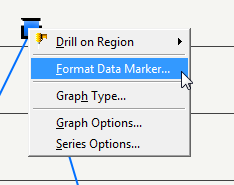
  • Right click on one of the data markers in the line graph, and select the Format Data Marker option.
ka02R000000kX5pQAE_0EM440000002CRX.png
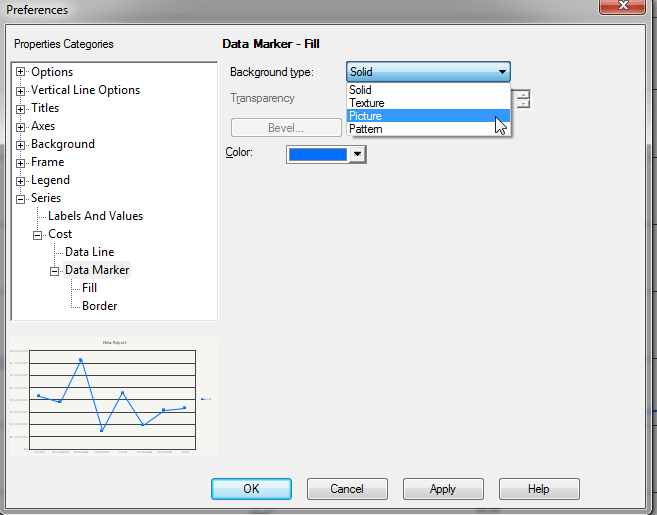
  • Within the Data Marker - Fill options, select the Background type drop down and select Picture.  Another window should appear that shows a selection of images that can be used to fill the background of the data marker.  Any custom images added to the folders within the Program Files (x86)\Common Files\MicroStrategy\Clipart folder should also appear.  The Sports tab is selected, and the default "basketball_3D" image is selected to fill the background of the data marker.
ka02R000000kX5pQAE_0EM440000002CR8.png
ka02R000000kX5pQAE_0EM440000002CRT.png
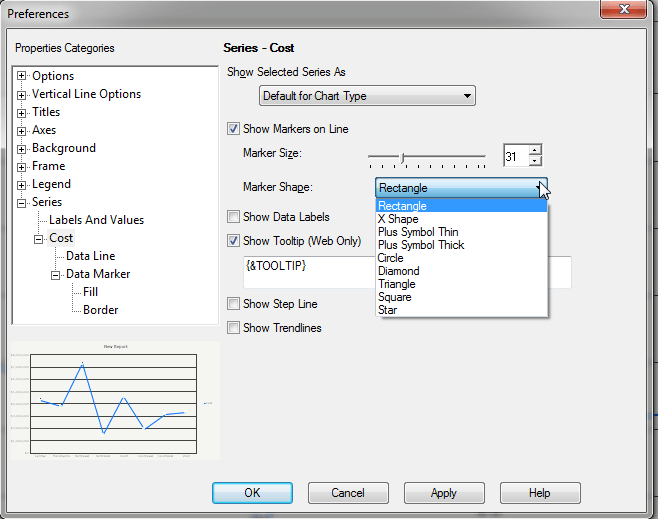
  • The data marker size and shape can be adjusted in the Series section of Graph Options.  In this example, the Cost metric is selected, and the Marker Size and Marker Shape settings can be changed.
ka02R000000kX5pQAE_0EM440000002CR4.png
  • Setting the Marker Shape to Circle, and the Marker Size to 100 results in the following graph:
ka02R000000kX5pQAE_0EM440000002CRA.png

 
An important note regarding this feature is that the data marker is not being replaced with an image, but rather the data marker shape selected -- like Circle in this example -- has its background filled with a selected image.  If the marker shape, the marker size, and the image selected aren't exactly compatible with one another, then it may be noticed that the image appears to be tiling in the background.  Adjustments to the marker shape, marker size, and/or the image used can help in resolving this behavior.
 
Additionally, the data markers with images filling the background should show up in Web so long as the image being used exists on the machine being accessed for Web.  This means that the image should exist in the Program Files (x86)\MicroStrategy\Common Files\Clipart pathway on the machine that will be connected to for Web, which would most likely be the Intelligence Server machine.  The Data Marker - Fill feature only appears to be able to be performed from Developer because the options for data marker formatting do not have the option for filling the data marker with an image, as shown below:
 

ka02R000000kX5pQAE_0EM440000002CRV.png

 
Lastly, this feature is not supported for Mobile at this time because the images are stored in the pathway Program Files (x86)\MicroStrategy\Common Files\Clipart, rather than the Intelligence Server\Images folder.  As a result, the images used to fill the background of data markers do not appear to show up when viewed from Mobile.  An enhancement request has been logged for this feature to be implemented.  Contact Strategy Technical Support for an update on this issue.


Comment

0 comments

Details

Knowledge Article

Published:

April 10, 2017

Last Updated:

April 10, 2017