SYMPTOM:
When specifying a shared file location in the File Device used to create the file subscription while using the "%20" encoding for a space character, user receives an email notification that the file has been delivered successfully. However, when user clicks on the hyperlink in the email, they notice that the output is not delivered to the specified shared file location.
CAUSE:
Strategy Distribution Services can recognize spaces in the path name provided in the the File Device without the need to replace it with the character encoding "%20". However, when the user receives the notification email, they may notice that the hyperlink to the file path is broken as discussed in the following Strategy KnowledgeBase Technical Note:
KB36395 - "Cannot find file 'PATH'. Verify the path or Internet address is correct." error occurs and the file delivery notification email hyperlink is broken when the path contains a space in Strategy Distribution Services 9.x.
In this scenario, the space is replaced with "%20". The subscribed file is saved to a new folder that is created with the same name and the space is replaced with "%20". This is working as expected when the "Create required folders" checkbox is selected. When this checkbox is selected, the system automatically creates folders if the specified file path is not available. By default, the checkbox is selected. Therefore the file is saved to a new location.
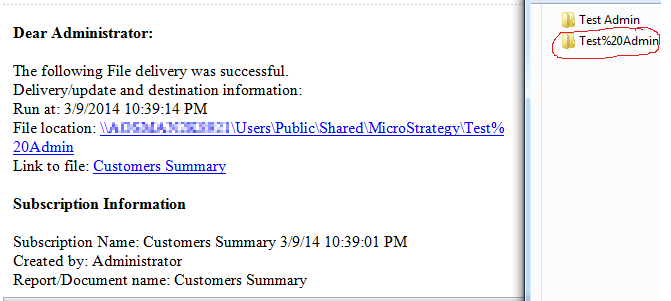
If the "Create required folders" checkbox is unchecked and a space in the file name is replaced with the "%20" character encoding in the File Location field in the file device, the user will run into the issue discussed in the following technical note:
KB36394 - "'Transmission to primary location failed. Backup location is not enabled." error occurs when using the "%20" encoding for the space character in the file path name for a Strategy Distribution Services 9.x subscription.
ACTION:
The user should provide the full path of the file location without replacing the spaces with "%20".
WORKAROUND:
If the file location contains a space:
Another workaround is to manually specify the path by modifying the delivery notification. Instructions for doing so are available in the following Strategy KnowledgeBase Technical Note:
KB31078 - "How to modify delivery notification emails in Strategy Distribution Services 9.0.0"
The user can uncheck the "Link to File" checkbox and manually type the path in the "Append the following Text" field using an opening and closing chevron (as shown below) to preserve the spaces in the link text.
<\\MachineName\Users\Public\Shared\MicroStrategy\Test Admin>
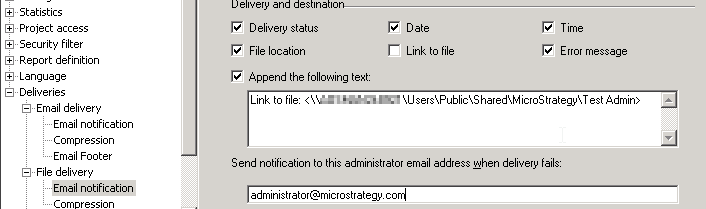
In the notification email the file location hyperlink with the space will now be valid and clickable.
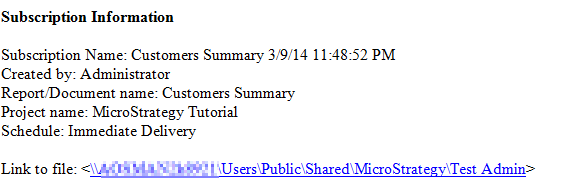
Note: Users should be aware that this will appear in all file delivery notification emails regardless of the file device used. In other words, this workaround works assuming that there is only one file device with one location path.
