EducationSoftwareStrategy.com
StrategyCommunity

Knowledge Base

Product

Community

Knowledge Base

TopicsBrowse ArticlesDeveloper Zone

Product

Download SoftwareProduct DocumentationSecurity Hub

Education

Tutorial VideosSolution GalleryEducation courses

Community

GuidelinesGrandmastersEvents
x_social-icon_white.svglinkedin_social-icon_white.svg
Strategy logoCommunity

© Strategy Inc. All Rights Reserved.

LegalTerms of UsePrivacy Policy
  1. Home
  2. Topics

KB46399: The Format applied to a metric does not get applied to the Y-axis of a graph in Visual Insight in MicroStrategy Web 9.4.1


Community Admin

• Strategy


A user changes the number format of a metric in a grid and switches to a graph visualization in Visual Insight. After doing so, they notice that the number formatting of the Y-axis no longer shows the expected format, in MicroStrategy Web 9.4.1.

SYMPTOM:
 
A user changes the number format of a metric in a grid and switches to a graph visualization in Visual Insight. After doing so, they notice that the number formatting of the Y-axis no longer shows the expected format, in Strategy Web 9.4.1.
 
For instance, the following metric is formatted as currency:
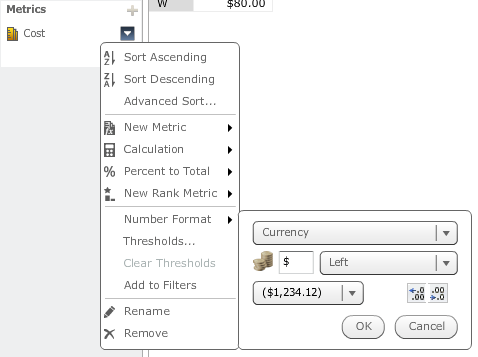
ka04W000000OeAUQA0_0EM4400000026DB.png

 
However the graph's Y-axis displays as general format like shown below:
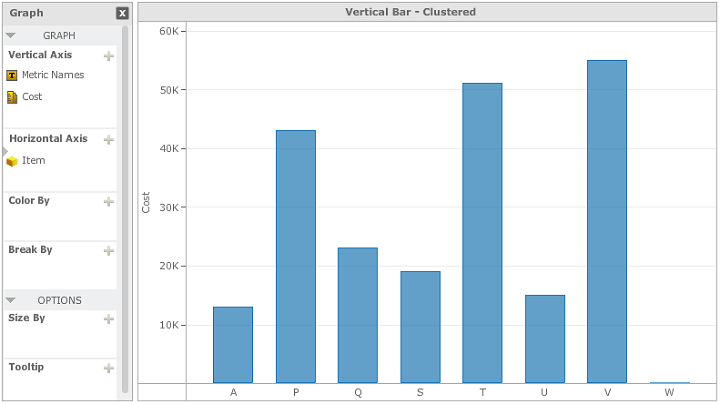
ka04W000000OeAUQA0_0EM4400000026DN.png

 
STEPS TO REPRODUCE:

  • Create a report with one attribute and one metric.
  • Create a Visual Insight Dashboard with the report previously created used as a dataset.
  • Add a grid visualization.
  • Change the Number Format of the metric as desired.
  • The respective changes are seen in the grid, as shown below;

ka04W000000OeAUQA0_0EM4400000026DL.png
  • Change the visualization to a graph such as a bar graph. The number formatting is no longer shown as expected.

CAUSE:
 
This is working as designed in Strategy Web 9.4.1. By default the labels are configured as condensed. When the labels are condensed they lose the formatting including any prefixes or postfixes.
 
ACTION
 
Disable the condensed format of the labels, like shown below: 
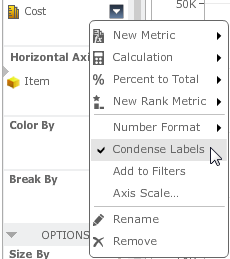
ka04W000000OeAUQA0_0EM4400000026DD.png

 
After unchecking this option the graph should display the number formatting as expected, as shown below.

ka04W000000OeAUQA0_0EM4400000026DJ.png


Comment

0 comments

Details

Knowledge Article

Published:

June 13, 2017

Last Updated:

June 13, 2017