SUMMARY
This issue has been classified as expected behavior by Strategy. The impact is limited to Strategy Desktop 9.x product only where free form SQL reports need to have their attribute form data types manually adjusted to fit the issued scenario.
SYMPTOM
Free form SQL reports whose attribute form type is set to numberdo not accept non-integer values such as decimal numbers as input when using Transaction Services documents in Strategy Web 9.x.
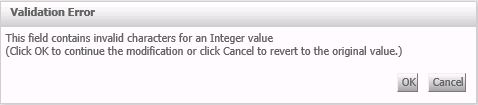
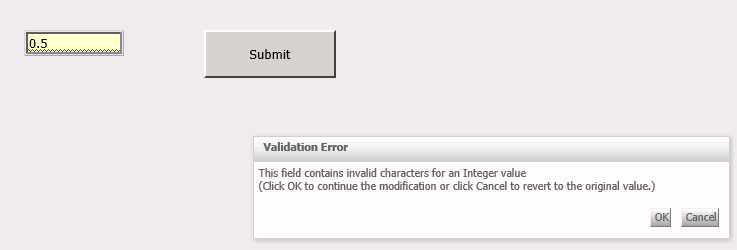
Upon trying to input a decimal number in such attribute form, following error message will be displayed:
Sample Code/Error
This field contains invalid characters for an Integer value
(Click OK to continue the modification on click Cancel to revert to the original value.)
STEPS TO REPRODUCE
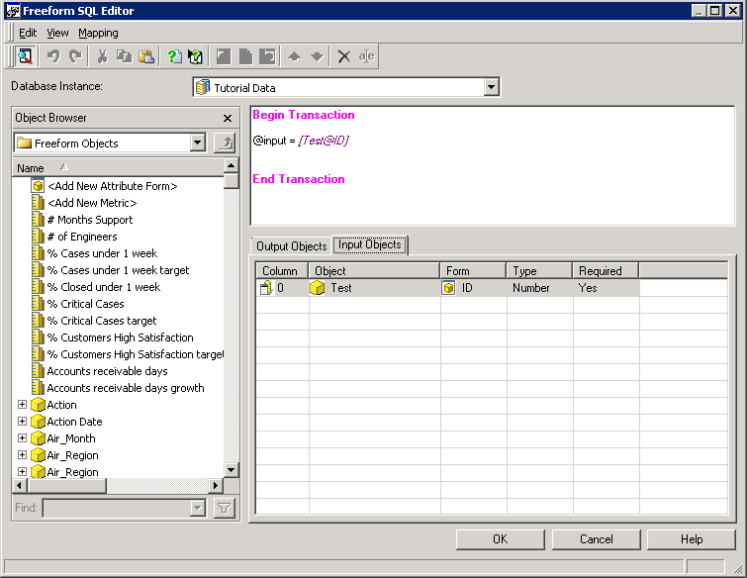
1. In Desktop, create a free form SQL Transaction Services report with following syntax:
Sample Code/Error
@input =
Notice that the form type is set to NUMBER.
2. Save this Transaction report.
3. In Web, create a new document; on the main panel, add a text box;
4. Right-click on the text box and select Configure Transaction;
5. Select the report created in step 1 and define the Transaction as below:
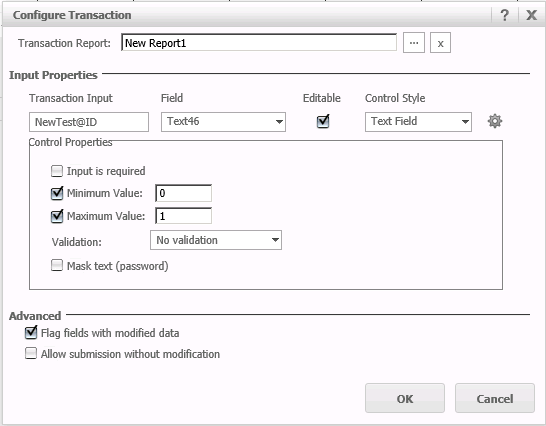
Notice that Minimum and Maximum Values are set respectively as 0 and 1.
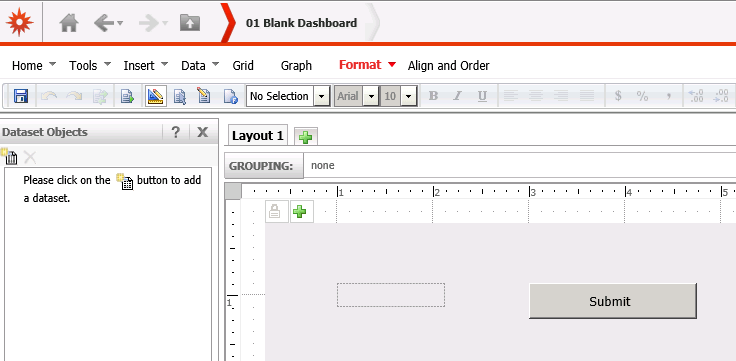
6. Add an Action Selector Button (Submit button) so your document will look like this:
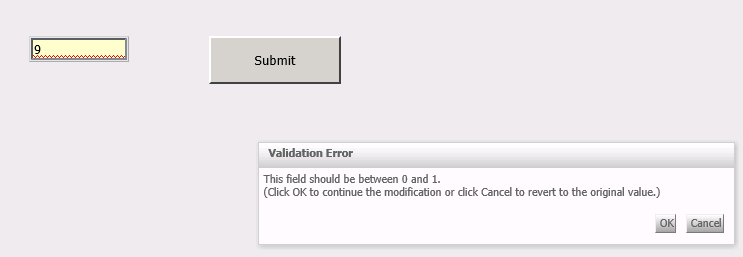
7. Run the new Transaction Services document in Express View mode; in the text box, type in an Integer number different from 0 or 1; hit the Submit button and you will see the error message below as expected:
Sample Code/Error
This field should be between 0 and 1.
(Click OK to continue the modification or click Cancel to revert to the original value.)
9. Now, type in a number with decimal places, for example, 0.5; hit Submit and the error message will be thrown:
CAUSE
This is expected behavior. When a new attribute form is created in a Transaction Services report, although its form format type is set to Number, the Data Type is automatically set to Integer.
ACTION
1. In Desktop, edit the issued Transaction Services report.
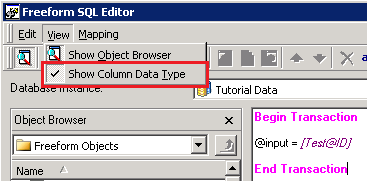
2. Under menu View enable the Show Column Data Type option as below:
3. Notice that a three more columns (Data Type, Precision/Length, Scale) will be displayed in the Input Objects tab:
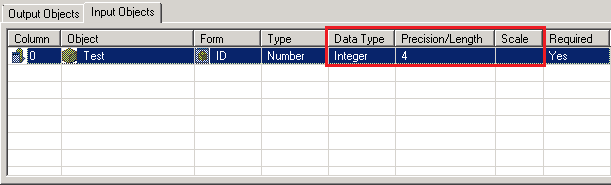
4. In the Data Type column choose from a set of available data types like Decimal, Double and others.
ADDITIONAL TROUBLESHOOTING
For further troubleshooting following log files / information would be necessary:
WORKAROUND
Actually there's another way to change the data type for the input object.
In the Desktop, please open the Transaction Report, go to Freeform SQL Editor, in the Menu->View, please enable option: 'Show column data types', there will be 3 more columns appears in the Input Object dialog.
Change the data type in the column "Data type"
LEARN MORE
For further references on free form SQL reports and options to display the full data type information for the column, check the following:
KB46404
