In some instances, a Strategy user may want a System Manager workflow to execute on a set schedule or after an event has been triggered. This can be accomplished by creating a simple batch file, and scheduling that batch file to execute with a third-party tool like Microsoft Task Scheduler.
Note: To avoid user permission conflicts, the following steps must be performed with highest privileges.
In the following example, a user would like to execute a workflow that restarts the Intelligence Server every day.
1. The user must first have a valid workflow. This particular workflow is a template that is delivered out-of-the-box with System Manager.
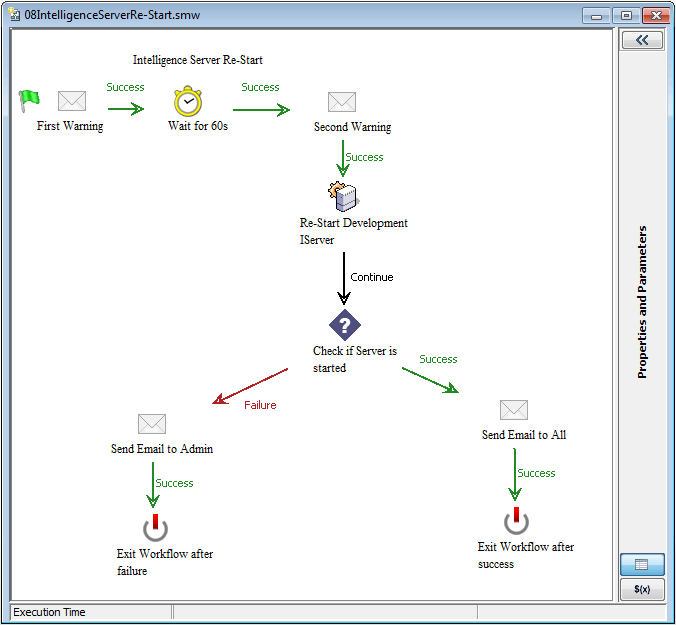
2. Save the workflow in .smw format.
3. In a text editor (such as Notepad), enter the command line statement that the task scheduler should execute.
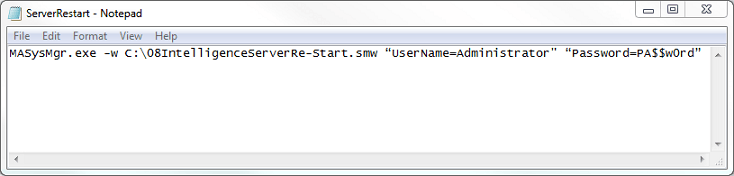
Note: For more information on executing a workflow in command line, refer to the following Strategy Knowledge Base Technical Note.
KB44266 - "How to deploy a workflow in System Manager via Command Line in Strategy 9.4.x-10.x?"
4. Save the file in .bat format.
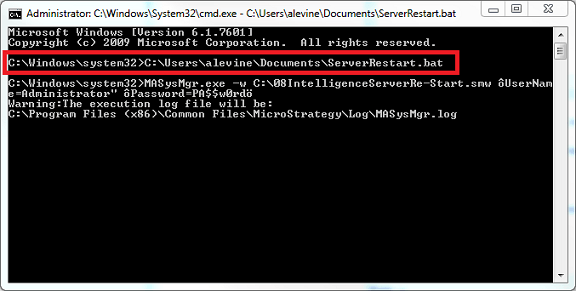
5. To test the new batch file, the user can execute the batch file by entering its file location in the command line as shown below.
6. Schedule the batch file to execute at a given time using a third-party task scheduling tool. Windows Task Scheduler is a simple tool that is delivered with Windows. However, a number of task scheduling tools could be used for this step.

WARNING:
The third-party product(s) discussed in this technical note is manufactured by vendors independent of Strategy. Strategy makes no warranty, express, implied or otherwise, regarding this product, including its performance or reliability.
