EducationSoftwareStrategy.com
StrategyCommunity

Knowledge Base

Product

Community

Knowledge Base

TopicsBrowse ArticlesDeveloper Zone

Product

Download SoftwareProduct DocumentationSecurity Hub

Education

Tutorial VideosSolution GalleryEducation courses

Community

GuidelinesGrandmastersEvents
x_social-icon_white.svglinkedin_social-icon_white.svg
Strategy logoCommunity

© Strategy Inc. All Rights Reserved.

LegalTerms of UsePrivacy Policy
  1. Home
  2. Topics

KB46608: In MicroStrategy Web a "Request timed out" message is thrown after performing a search in an element prompt while the same search returns correct results in Developer.


Stefan Zepeda

Salesforce Solutions Architect • Strategy


In MicroStrategy Web a "Request timed out" message is thrown after performing a search in an element prompt while the same search returns correct results in Developer.

 
SYMPTOM:
 
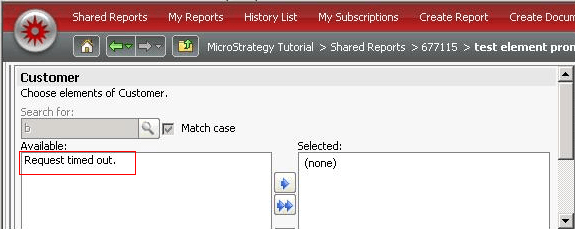
In Strategy Web after performing a search in an element prompt  a 'Request timed out' message is thrown as shown below:


ka0PW0000002xgjYAA_0EM4400000026DH.png


In Strategy Developer the same element prompt search returns the correct results after approximately 50 seconds.
 
 
The timeout settings of the environment  are as follow:
 
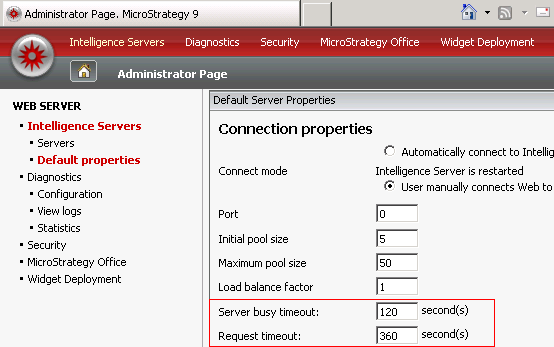
- In the Administrator Page of Strategy Web the "Web Server busy timeout" value is set to 120 seconds and the "Request 
   timeout" is set to 360 seconds as shown below:


ka0PW0000002xgjYAA_0EM4400000026DS.png


- The ASP.net timeout setting is set to 8 minutes.
 
 
CAUSE:
 
The issue is caused by the "FrameProcessor.xml" property timeout which is set with the default value of 50000 ms.
This value (50 seconds) is too close to the time taken by the report to return the search result (as monitored in Developer).
 
 
ACTION:
 
Locate the file called "FrameProcessor.xml" under WEB-INF\xml\blocks (C:\Program Files (x86)\Strategy\Web ASPx\WEB-INF\xml\blocks) and increase the value of the property timeout in the line shown below:
 
<property name="timeout">increaseToHigherValueinMilliseconds</property>
 
Restart the Web Server for the change to take effect.


Comment

0 comments

Details

Knowledge Article

Published:

May 24, 2017

Last Updated:

August 12, 2024