EducationSoftwareStrategy.com
StrategyCommunity

Knowledge Base

Product

Community

Knowledge Base

TopicsBrowse ArticlesDeveloper Zone

Product

Download SoftwareProduct DocumentationSecurity Hub

Education

Tutorial VideosSolution GalleryEducation courses

Community

GuidelinesGrandmastersEvents
x_social-icon_white.svglinkedin_social-icon_white.svg
Strategy logoCommunity

© Strategy Inc. All Rights Reserved.

LegalTerms of UsePrivacy Policy
  1. Home
  2. Topics

KB4665: How to create a report filter that results in a custom sub-query in MicroStrategy 9.4.x and 10.x?


Community Admin

• Strategy


Users desire the ability to take a list of attribute element IDs from an end user (possibly multiple) without having to create a filter by individually selecting each element. The list can then be imported into a new warehouse table with a filter created to include the preferred list of Attribute elements.

EXAMPLE:
Users desire the ability to take a list of attribute element IDs from an end user (possibly multiple) without having to create a filter by individually selecting each element. The list can then be imported into a new warehouse table with a filter created to include the preferred list of Attribute elements.

  • Create a filter using the Advanced Qualification:
     
ka04W000000OhYZQA0_0EM440000002GI7.gif
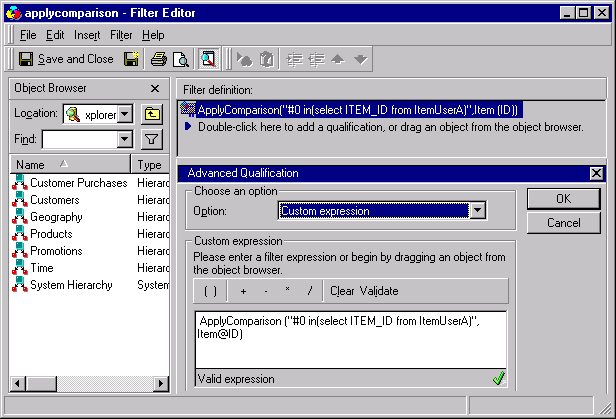
  • Through the use of the ApplyComparison function, create a custom expression filter to select the desired rows from the desired table. The ApplyComparison function allows users to bypass the Strategy SQL parser and create an expression where comparison operators (e.g., >, =, Like, In, etc.) can be used. For more information on how to use the ApplyComparison function, please reference KB5700-007-0107.
     
ka04W000000OhYZQA0_0EM440000002GHs.gif
  • Select 'OK', save and exit the filter.
  • For this example, select ITEM_IDs from a table in the ItemUserA warehouse. The table appears as follows:
     
ka04W000000OhYZQA0_0EM440000002GI5.gif
  • Create a report that uses the following filter:
     
ka04W000000OhYZQA0_0EM440000002GI4.gif
  • SQL for the report above appears as follows:
     
ka04W000000OhYZQA0_0EM440000002GHr.gif
  •  
    NOTE: The sub-query has now been added to the where clause.
     
  • The resulting report appears as follows:
     
ka04W000000OhYZQA0_0EM440000002GI6.gif

Comment

0 comments

Details

Knowledge Article

Published:

May 16, 2017

Last Updated:

May 16, 2017