EducationSoftwareStrategy.com
StrategyCommunity

Knowledge Base

Product

Community

Knowledge Base

TopicsBrowse ArticlesDeveloper Zone

Product

Download SoftwareProduct DocumentationSecurity Hub

Education

Tutorial VideosSolution GalleryEducation courses

Community

GuidelinesGrandmastersEvents
x_social-icon_white.svglinkedin_social-icon_white.svg
Strategy logoCommunity

© Strategy Inc. All Rights Reserved.

LegalTerms of UsePrivacy Policy
  1. Home
  2. Topics

KB46713: How to hide a text box from view for certain users in a document for MicroStrategy Web 9.4.1 and above.


Community Admin

• Strategy


How to hide a text box from view for certain users in a document for MicroStrategy Web 9.4.1 and above.

SUMMARY:
This technical note shows the procedure on how to hide a text box from view based on the user viewing the object.  This is pertaining to the Strategy Web 9.4.1 and above product.  There is a current limitation where text boxes do not have user permission settings.  This document describes how to workaround that issue. 
 
Users may wish to have certain text objects only viewable to them, while they are hidden for others.  The following steps show how to do this in the Strategy Tutorial Project using security filters tied to attribute elements as a workaround.  The example shown is to hide a text box from a user that also does not have access to see anything attributed to the Year 2014.  A specific element attribute, like 2014, is needed for this workaround to work.  To hide a single text box from a specific user in Strategy Web you need to use a combination of security filters for the user and conditional formatting for the text box.

  • In Strategy Developer User Manager create a new, non-administrator user or make a copy of the Guest user in Strategy Tutorial.
  • Add a new security filter to the user.
  • Create an attribute element filter on Year to exclude "2014".
ka04W000000Ohh7QAC_0EM440000002Jwd.png
  • Create a report with Year in the row. Save the report.
ka04W000000Ohh7QAC_0EM4400000026Ak.png
  • Log into Strategy Web as the newly created user from Step 1.
  • Execute the saved report from Step 4. Make sure that the year 2010 is not displayed.
ka04W000000Ohh7QAC_0EM440000002Jwi.png
  • Now, logged back in as an administrator user, create a document.
  • Insert the Report from Step 4 as a dataset.
ka04W000000Ohh7QAC_0EM440000002Jwn.png
  • Create a text box object on the document.
ka04W000000Ohh7QAC_0EM4400000026B9.png
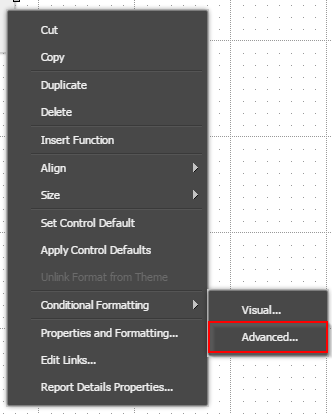
  • Right-click on the text box and go to Conditional Formatting > Advanced.
ka04W000000Ohh7QAC_0EM440000002Jwx.png
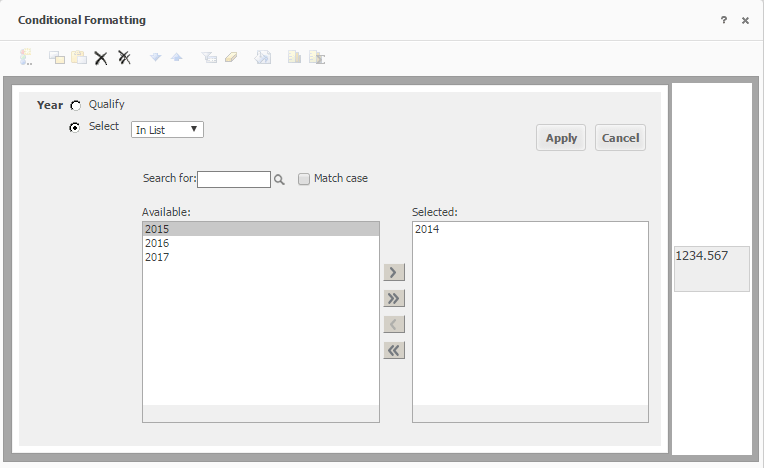
  • Filter on Year In List 2010.
ka04W000000Ohh7QAC_0EM440000002Jx2.png
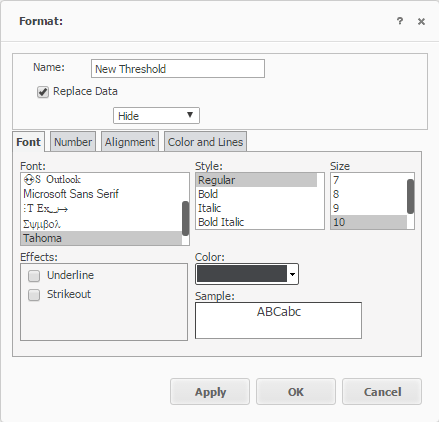
  • Select Cell formatting and set the text box to Hide for the previous threshold created.
ka04W000000Ohh7QAC_0EM440000002Jx7.png
ka04W000000Ohh7QAC_0EM440000002JxM.png
  • Save the document.
  • Log into Strategy Web as the user from Step 1 again.
  • Run the saved document.  The user should be able to see the text box.
ka04W000000Ohh7QAC_0EM440000002JxH.png
  • Now log into Strategy web as a different user.
  • Have that user run the same document.  The user should not be able to see the text box. 
ka04W000000Ohh7QAC_0EM440000002JxR.png

 
ADDITIONAL TROUBLESHOOTING:
If the steps above do not resolve the issue, please consider calling Strategy tech support with the following information of troubleshooting already done:

  • Results of testing with a user with the appropriate permissions to access Strategy Web, or with the Administrator user account if possible.
  • Results or output of following the above Action steps.

TO LEARN MORE:
Related articles:
KB11941: How to use conditional formatting thresholds on individual report objects in a MicroStrategy Report Services 8.x and 9.x document
KB35337: How to hide an object and prevent it from showing up using conditional formatting in a Report Services document in MicroStrategy Web 9.0.X
KB16529: How to apply conditional formatting in a Report Services document based on whether or not a prompt was answered in MicroStrategy Desktop 8.x and 9.x
KB13973: What are the minimum privileges that a user needs to apply security filters in MicroStrategy Desktop 8.x?
KB7294: How security filters work in MicroStrategy SQL Generation Engine 8.x


Comment

0 comments

Details

Knowledge Article

Published:

April 24, 2017

Last Updated:

April 24, 2017