By default, users that are given all permissions needed to create new users from the "User Manager" in Strategy Web 9.4.x, might be able to assign any group to any user they create. This includes groups they are not a member of, including the "System Administrators" group.
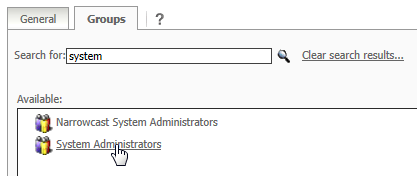
This document describes how to prevent a user from seeing the "System Administrators" group, when assigning groups to a new user. The same method can also be used to restrict the groups a group of users will see.
Step 1
Locate the "System Administrators" group in Strategy Developer. By default, this is found under the following path:
Administration -> User Manager -> Strategy Groups -> System Monitors
Step 2
Right-click on the "System Administrators" group and select "Properties".
Step 3
Under "Properties" -> "Security" in the group properties, click "Add..." to add the user/group to the permissions table:

Step 4
Change the "Object" and "Children" permissions for your user/group to "Denied All":

The "System Administrators" group will no longer be visible to this user/group, even when using the search feature when assigning groups in Web:

